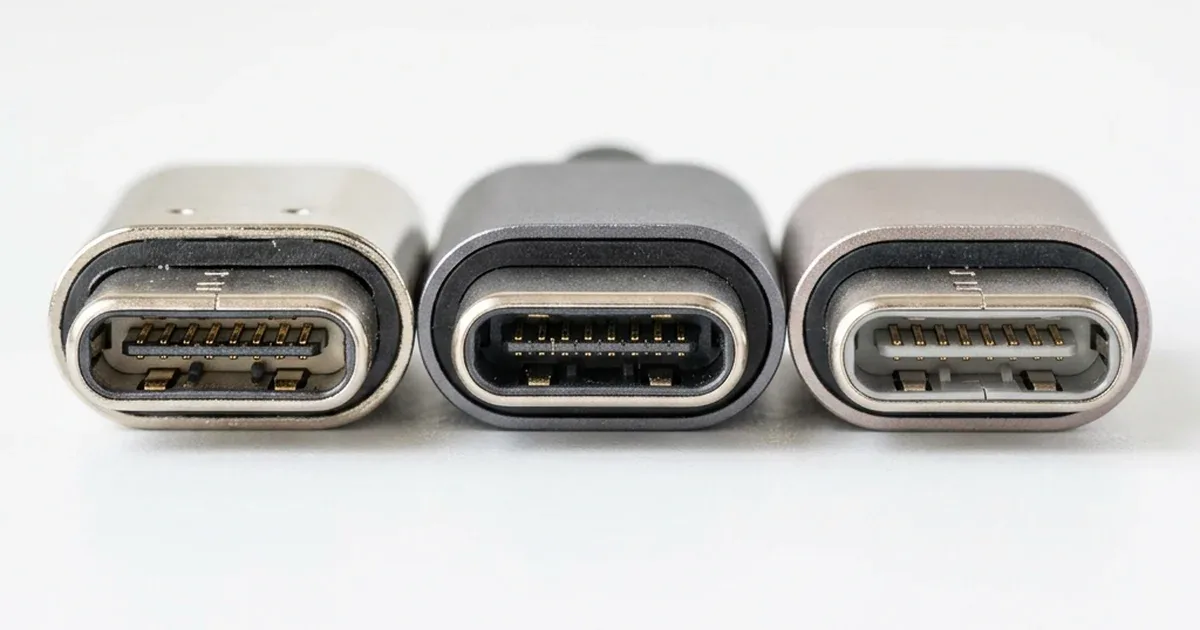
We have all been there: you have just bought a brand-new, high-end smartphone, and you decide to transfer your summer vacation photo album (about 20 gigabytes) to your computer to free up some space. You grab the premium Type-C cable that came inside your phone's box, plug it in, and start the transfer. The shock comes when you look at the progress bar: it is moving at a snail's pace, and your PC screen reads, "Estimated time remaining: 45 minutes!" You glare at the cable in frustration, thinking: "This is a modern USB-C cable from the phone's box. Why on earth is it so painfully slow?"
Welcome to the ultimate USB confusion trap. The issue here is not that your cable is damaged or defective; rather, it is a physical reality that the shape of the connector (Type-C) does not dictate the transfer speed. The Type-C interface is merely the outer physical form (Form Factor). The underlying technology inside that connector can range from next-generation high-speed lanes to a legacy standard developed all the way back in the year 2000! Here in the CairoVolt lab, today's guide will break down the differences between USB 2.0, USB 3.0, and USB 3.2 cables in simple terms, explaining why fast charging cables aren't always fast at data transfer, and showing you how to spot a slow cable from a true SuperSpeed adapter at a glance.
💡 Quick Technical Summary: A USB 2.0 cable features **4 internal copper wires** and is limited to a maximum speed of **480 Mbps** (around 40 MB/s of actual transfer speed). USB 3.0 (also known as USB 3.2 Gen 1) cables feature **9 internal wires** and reach speeds up to **5 Gbps** (around 450 MB/s), while USB 3.2 Gen 2 cables top out at **10 or 20 Gbps**. You can identify USB 3.0+ cables by the blue plastic insert inside the USB-A port or by looking for 9 connection pins instead of USB 2.0's 4 pins.
1. The USB Naming Mess: Marketing Tricks and Label Chaos
Before we dive into the engineering details, we must address the marketing confusion created by the USB-IF (USB Implementers Forum). The organization responsible for setting USB standards renames its specifications every few years. This makes it easy for accessory brands to market older cables as cutting-edge technology:
- Legacy Standard: Known as **USB 2.0**, with a speed cap of **480 Mbps** (Megabits per second).
- The Third Generation (The Big Naming Shuffle):
- Originally launched as **USB 3.0**, with speeds up to **5 Gbps** (Gigabits per second).
- Later renamed to **USB 3.1 Gen 1** (still capping at 5 Gbps!).
- Currently named **USB 3.2 Gen 1** (still the exact same 5 Gbps!).
- High-Speed Gen 3: Named **USB 3.2 Gen 2** (formerly USB 3.1 Gen 2), supporting up to **10 Gbps**.
- Ultra-Speed Gen 3: Named **USB 3.2 Gen 2x2**, supporting up to **20 Gbps** (exclusively over dual-lane USB-C interfaces).
When you see a cable box marked "Supports USB 3.2 Gen 1", don't assume it uses a brand-new charging standard. It is the exact same USB 3.0 technology that debuted in 2008. Brands use these updated labels to make basic cables look premium.
2. Physical Architecture: Inside the Wires and Pinout
What makes one cable blazing fast and another painfully slow? It comes down to physical wiring. If you strip down a basic USB 2.0 cable, you will find exactly **4 copper wires** inside:
- 🔌 Positive Power (VBUS): Carries the electrical current, usually color-coded red.
- 🔌 Ground (GND): Completes the circuit, usually color-coded black.
- 📊 Data Plus (D+): Transmits data, color-coded green.
- 📊 Data Minus (D-): Transmits data, color-coded white.
Because there are only two data wires (D+ and D-), USB 2.0 operates in **Half-Duplex** mode. This means data can only travel in one direction at a time—either sending or receiving. This physical limitation caps transfer speeds at 480 Mbps.
If you open a USB 3.0 (or 3.2) cable, you will find **9 copper wires**. Wires for the original 4 pins are retained to maintain backward compatibility with older devices, and **5 new wires** are added (two high-speed transmission lanes TX+ and TX-, two high-speed receiving lanes RX+ and RX-, and an extra ground wire to shield the signals from electromagnetic interference).
These dedicated lanes allow the cable to operate in **Full-Duplex** mode. It can send and receive high-frequency data simultaneously, boosting speeds to 5,000 Mbps (10 times faster than USB 2.0).
Learn more about how cable quality affects power transmission in our guide to USB-C charger cable speeds and charging times.
3. Technical Specs Comparison: USB 2.0 vs. USB 3.0 vs. USB 3.2
To help you compare the electrical and data specs of each generation, we compiled this reference table:
| Technical Metric | USB 2.0 | USB 3.0 / 3.2 Gen 1 | USB 3.2 Gen 2 |
|---|---|---|---|
| Max Theoretical Speed | 480 Mbps | 5 Gbps (5,000 Mbps) | 10 Gbps (10,000 Mbps) |
| Actual Data Speed (Real World) | ~35 - 40 MB/s | ~450 MB/s | ~950 MB/s |
| Physical Pin Count (USB-A) | 4 Pins | 9 Pins | 9 Pins (or 24 in Type-C) |
| Standard Connector Color | Black or White | Blue (or Red/Orange) | Blue or Teal |
| Video Output Support (HDMI/DP Alt) | Unsupported ❌ | Supported ✅ | Supported (up to 4K@60Hz) ✅ |
4. The Smartphone Bottleneck: Why Your Fast Cable Might Feel Slow
Buying a USB 3.2 cable and connecting it to a blue SuperSpeed PC port does not guarantee fast transfers. A third element can bottleneck your speed: the phone itself.
To reduce manufacturing costs, many brands design the physical charging port as a Type-C connection, but wire it internally to the phone's system bus using legacy **USB 2.0** controllers. Apple did this with the base iPhone 15 and 15 Plus models. They feature a USB-C port capped at 480 Mbps. The premium iPhone 15 Pro and 15 Pro Max models use the A17 Pro chip, which supports true USB 3.0 speeds (10 Gbps).
To achieve high transfer speeds, ensure all three points in the chain are compatible:
- 📱 The Phone: Must support USB 3.0+ data transfer speeds (common on flagship models).
- 🔌 The Cable: Must be a 9-pin cable rated for USB 3.0/3.2 (such as certified Anker or Joyroom models).
- 💻 The Computer: Must be connected to a blue USB port marked with the SS (SuperSpeed) logo, rather than a black legacy port.
Read our guide to USB charging cable materials and durability to choose long-lasting options.
5. Why Low-Quality Data Cables Are Risky
Opting for cheap, uncertified charging cables can lead to data loss and hardware damage:
- ❌ File Corruption: Poor copper quality and weak solder points can cause the connection to drop mid-transfer, corrupting your photos and documents.
- 🔥 Overheating Ports: High electrical resistance in cheap wires generates heat, which can warp or damage your phone's charging port.
- ⚡ External Drive Failure: Fluctuating power delivery from a poor cable can damage external SSDs or HDDs, risking data loss.
🔬 CairoVolt Lab Recommendation
If you need a cable to mirror your phone screen to a TV, or to run Android Auto or Apple CarPlay in your car without lag, **avoid USB 2.0 cables**. Use a high-quality **USB 3.0/3.2** cable like the Joyroom 60W USB-C Cable or Anker Powerline cables. These services require a stable, high-bandwidth data stream to operate smoothly.
6. Four Ways to Identify a Fast USB Cable
To avoid counterfeit or slow cables, check these details before buying:
- 🔍 Port Color: Check the plastic insert inside the USB-A connector. If it is blue, red, or orange, it is a USB 3.0+ cable. If it is black or white, it is USB 2.0.
- 🔍 SS Branding: Certified high-speed cables usually have the USB logo alongside the **SS** (SuperSpeed) symbol, or a speed rating like 5Gbps or 10Gbps printed on the connector.
- 🔍 Cable Thickness: USB 3.0+ cables are noticeably thicker and stiffer because they house 9 copper wires shielded with aluminum to prevent signal interference.
- 🔍 Price: Quality manufacturing for 9 shielded copper wires is expensive. A true USB 3.0+ cable will cost more than a basic USB 2.0 charging cable.
Investing in a certified data cable like the Anker Powerline Cable protects your devices from thermal damage and ensures fast, reliable file transfers.

CairoVolt Editorial Team
Content team reviewing specifications and buying guides
The CairoVolt team reviews model numbers, specifications, and compatibility, and updates information when better data is available. Estimates are labeled as calculations, and readers can report information that needs correction.
Frequently Asked Questions
How can I visually distinguish between USB 2.0 and USB 3.0 cables?▼
Does a USB 3.0 cable charge my device faster than USB 2.0?▼
Why is my file transfer slow even though I am using a USB 3.0 cable?▼
Can I cast my phone screen to a TV using a USB 2.0 cable?▼
Ready to Buy?
Browse available products and review specifications and CairoVolt warranty terms before ordering
Products Mentioned in This Article
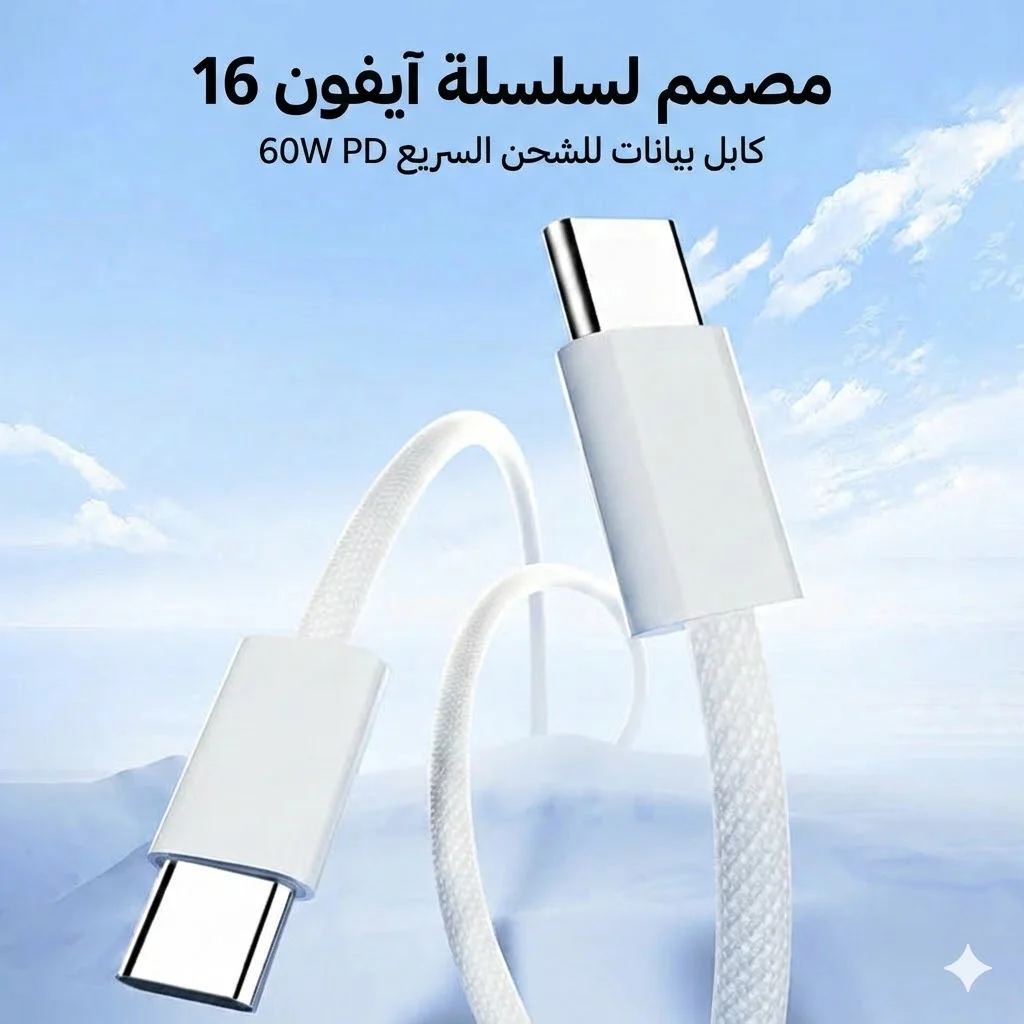
Joyroom 60W USB-C to USB-C Fast Charging Cable
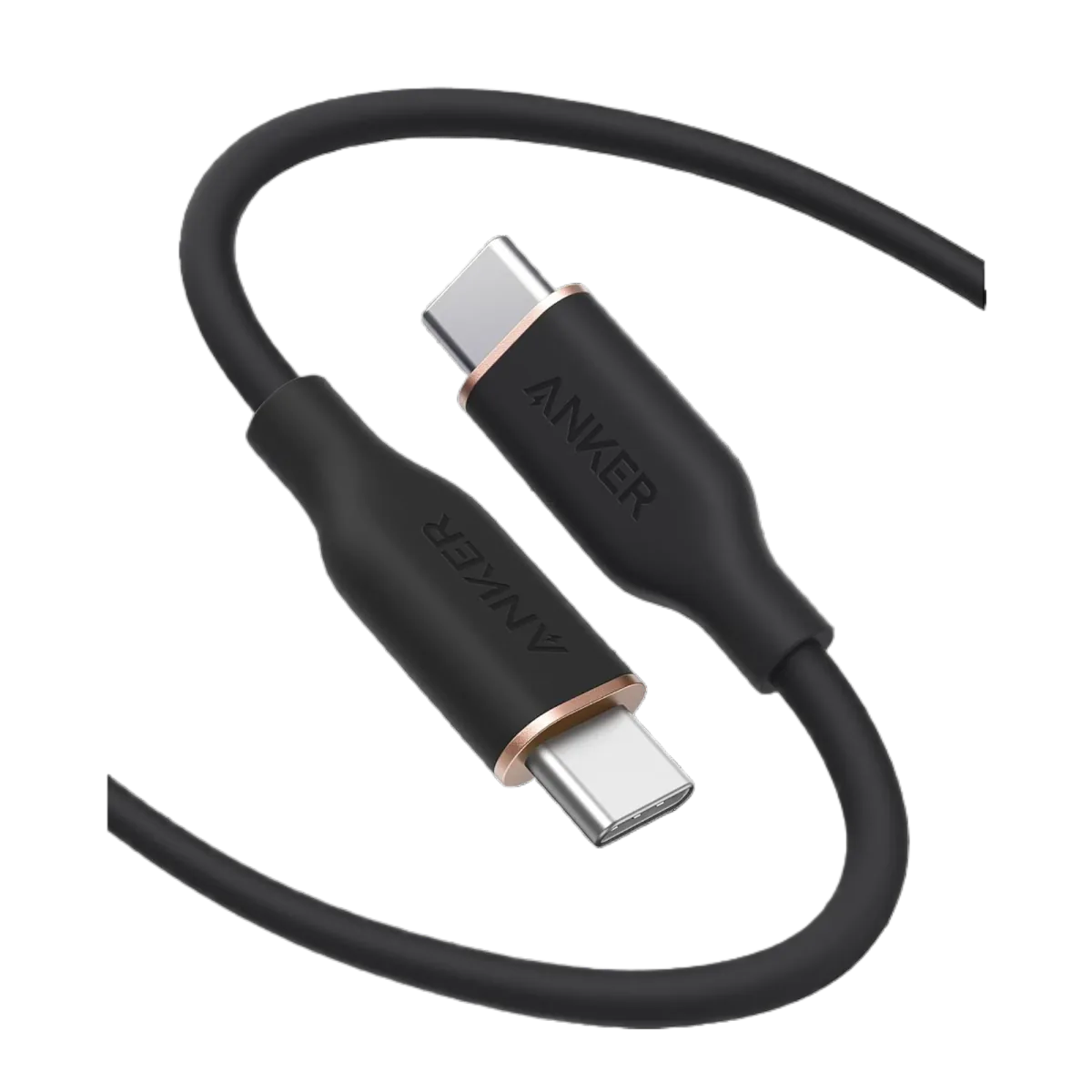
Anker PowerLine III USB-C to USB-C | 60W | iPhone 17 & Samsung S26
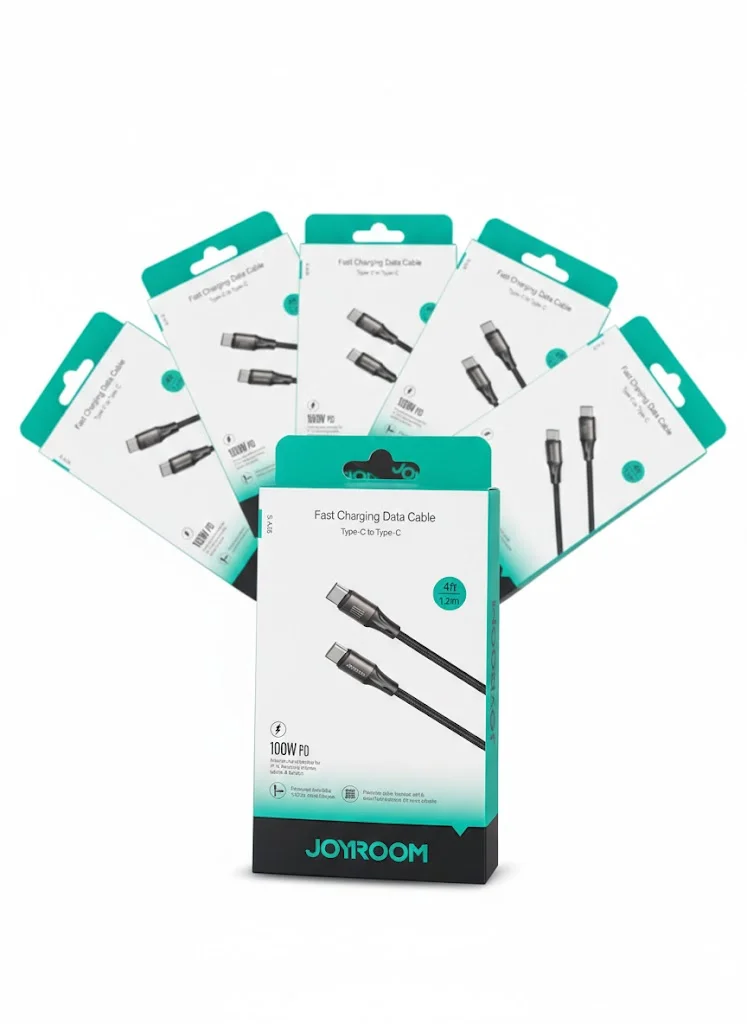
Joyroom USB-C to USB-C Cable JR-S-CC100
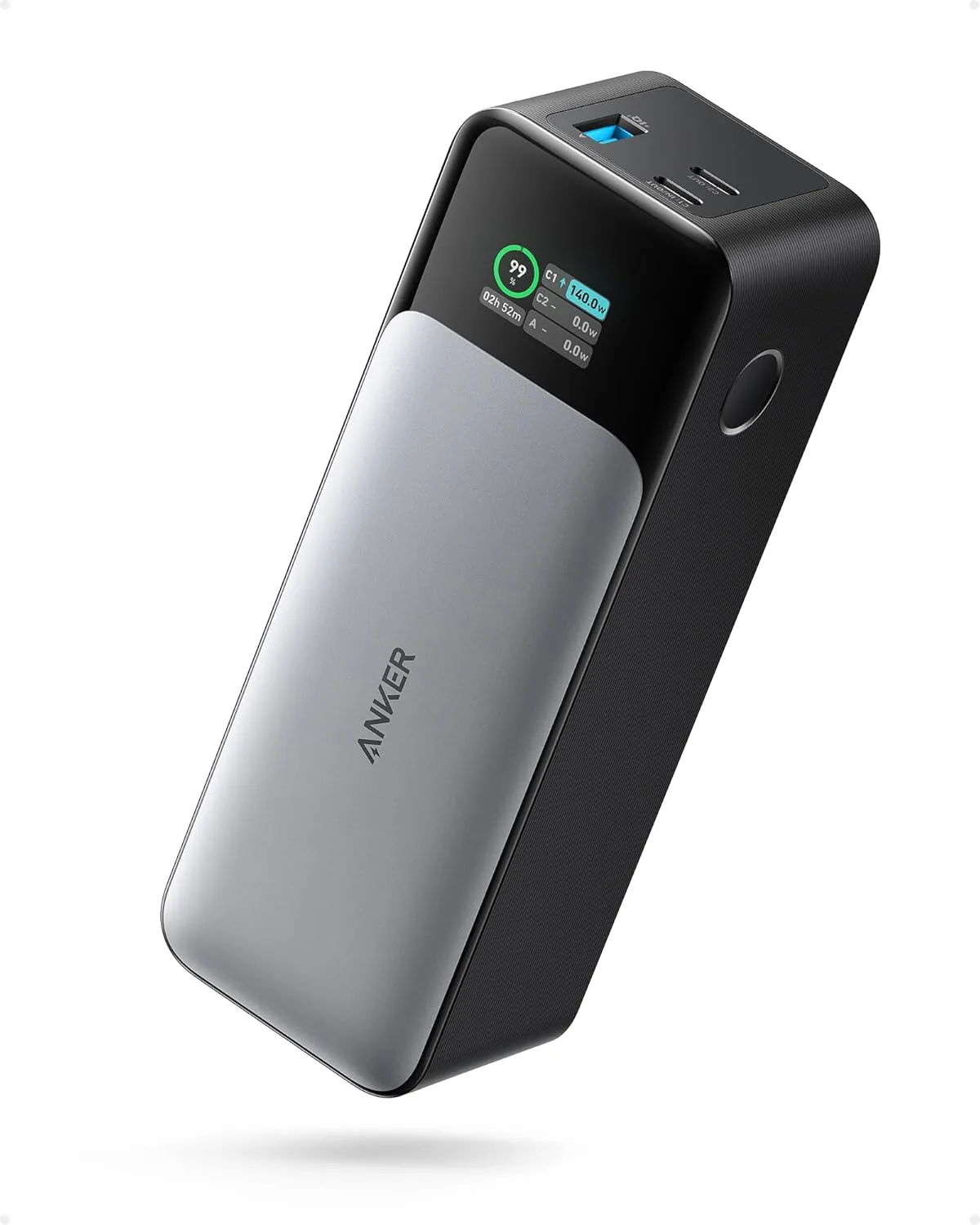
Anker 737 Power Bank (PowerCore 24K, A1289011) | Listed 140W PD 3.1 | 24,000mAh