How to Transfer Data from Android to iPhone via Cable & OTG: The Complete Guide
Struggling with wireless Move to iOS app failures? We show you how to use Type-C cables and OTG adapters to transfer photos and WhatsApp chats with speed and stability.
In short: Yes, you can transfer your data directly via cable from Android to iPhone: (1) For iPhone 15/16 series: Connect both devices directly using a Type-C to Type-C cable. (2) For iPhone 14 and older: Insert a Type-C OTG adapter into your Android phone, then connect a standard USB-A to Lightning cable from the adapter to your iPhone. (3) Choose "Move Data from Android" during initial iPhone setup to trigger a wired transfer that is up to 10x faster and highly stable.
Transitioning from Android to a brand-new iPhone (whether a modern Type-C equipped iPhone 15 or 16 model, or an older Lightning port device) is an exciting milestone. However, migrating gigabytes of photos, contacts, and WhatsApp databases can be challenging. By default, Apple's official **Move to iOS** application relies on a direct wireless connection (Wi-Fi Direct). In areas with high wireless congestion, this connection is prone to sudden drops, forcing you to restart the hours-long process from scratch.
The engineering solution is a **wired data transfer** using USB cables and **OTG (On-The-Go) adapters**. A wired connection offers up to 10x faster data rates and eliminates signal drop issues. In this guide, we analyze the hardware requirements and walk you through the transfer process step-by-step.
1. Why Wired Transfer Beats Wireless Options
Wireless data migration faces several physical and software limitations when handling large datasets (typically over 50GB):
- 📶 Signal Interference: Congested 2.4GHz and 5GHz Wi-Fi channels in residential areas cause packet loss, which interrupts the migration software.
- ⚡ Physical Speed Differences: Standard mobile Wi-Fi transfers operate at actual speeds of 15-30 Mbps. A wired USB 2.0 connection transfers data at **480 Mbps** (roughly 60 MB/s), while USB 3.0 ports (found on the iPhone 15 Pro and 16 Pro series) can reach **10 Gbps**. This reduces a 100GB migration from several hours to under 25 minutes.
- 🔋 Thermal and Battery Wear: Running Wi-Fi, Bluetooth, and heavy write operations simultaneously raises device temperatures. Wired transfers generate minimal heat and consume less battery.
2. Cryptographic Security Prompts and RSA Key Exchange
When connecting Android and iPhone devices over USB, the OS layers initiate a secure cryptographic handshake. The iPhone prompts the user with a **"Trust This Computer"** dialog.
Under the hood, iOS creates a unique pairing record containing an **RSA-2048** key pair, which is stored in '/var/db/lockdown/'. If the user accidentally taps "Don't Trust", the cryptographic connection is rejected. The user must disconnect and reconnect the cable to restart the handshake. This security bridge prevents unauthorized file access.
3. File Transfer Protocols: MTP vs. Apple AFC
Android systems utilize **MTP (Media Transfer Protocol)** to share files over USB. iPhones do not support MTP, relying instead on **AFC (Apple File Connection)** and standard **PTP (Picture Transfer Protocol)**. The Move to iOS application acts as a protocol bridge, mounting a virtual directory that translates files in real-time. This translation allows file access without opening iOS filesystems to security vulnerabilities.
4. Hardware Connections & Cable Requirements
To establish a wired bridge, use the correct cable configuration based on your iPhone model:
USB-C iPhones (iPhone 15 & 16 Series)
This is the most straightforward setup, as both devices utilize standard USB-C ports. Connect both phones directly using a high-quality **Type-C to Type-C** cable that supports fast data transfers (such as a Joyroom Type-C cable). The operating systems will negotiate the connection automatically.
Lightning iPhones (iPhone 14 & Older Models)
Because Android operating systems are programmed to act as USB hosts, and older iPhones act as client devices, you cannot use a standard Type-C to Lightning cable directly for this data migration. The Android system will fail to open the communication channel.
Instead, you must use a **USB OTG (On-The-Go) adapter** connected to the Android device:
- 🔌 Plug a **Type-C to USB-A OTG adapter** into the Android phone's charging port.
- 🔌 Connect a standard **USB-A to Lightning cable** to the OTG adapter, and plug the Lightning end into the iPhone.
- 💡 This hardware configuration forces the Android operating system to act as the host, allowing it to index files and transmit data once trust is verified.
5. Step-by-Step Data Transfer Guide & Hang Prevention
Follow these steps to complete the migration successfully and prevent the progress bar from hanging at 1%:
- ⚙️ Prepare the iPhone: The iPhone must be on the initial "Hello" screen (if already set up, perform a factory reset). Proceed through the setup steps until you reach the **Apps & Data** screen.
- ⚙️ Optimize the Android Phone: Disable Google account auto-sync and turn on **Do Not Disturb** to prevent notifications from interrupting the transfer process. We also recommend enabling **Flight Mode** with only local Wi-Fi active to block incoming calls that could disconnect the USB bridge.
- ⚙️ Trigger the Migration: Select "Move Data from Android". A 6-digit or 10-digit code will display on the iPhone.
- ⚙️ Open the Android App: Open the **Move to iOS** app on the Android device, accept the terms, and input the code shown on the iPhone.
- 🔌 Connect the Cable: When prompted by the app, connect the USB cable and OTG adapter between the devices. The app will detect the wired bridge and automatically switch from Wi-Fi to cable transfer.
- 📂 Select blocked: Choose the files you wish to transfer (Photos, Videos, Contacts, Messages, and WhatsApp databases), click "Continue", and let the process run until the progress bar on the iPhone finishes.
6. WhatsApp Database Decryption Mechanisms & Storage Overhead
WhatsApp on Android uses local encrypted databases (crypt14/crypt15), whereas iOS requires sandboxed storage. During a wired migration, the app fetches a temporary decryption key from WhatsApp servers to compile the media databases into a format compatible with iOS. This local processing requires high CPU performance, causing the Android phone to warm up slightly. A wired connection guarantees packet integrity during this resource-intensive decryption.
Additionally, when preparing for a wired transfer, the source Android phone must have at least double the size of your WhatsApp database available as free storage. This is because the local database decryption process makes a decrypted copy of your databases before packaging it, doubling the storage footprint temporarily on your Android device. If your Android phone has less than 10GB of free space while your WhatsApp database is 8GB, the decryption process will crash silently, and the transfer will halt at 10%. We recommend cleaning cache partition directories on Android to free up space before connecting the OTG adapter. This minor technical requirement solves 90% of WhatsApp migration failures.
Furthermore, processor thermal management plays a major role in the overall speed. Because the decryption algorithms run at peak CPU frequencies, both devices generate substantial heat. If either phone exceeds its safe thermal threshold (typically around 45°C), the kernel will aggressively thermal throttle the processor. This throttling can drop the USB data transfer rates significantly or even freeze the Move to iOS task. To prevent this, place both phones on flat, non-fabric surfaces, and keep them in a well-ventilated, cool room during the migration.
7. Partition Mapping & File System Translation (ext4 to APFS)
Android devices use the **ext4** or **F2FS** file systems, while Apple relies on the **APFS (Apple File System)**. The USB connection allows Apple's migration software to perform **block-level parsing** on the Android storage partitions, mapping directory trees directly into the iOS sandboxed app folders. Using high-quality copper cables ensures that this complex structural translation is completed without data corruption or photo indexing failures.
8. Recommended Cables and Accessories in Egypt
To avoid connection drops from low-quality wiring, we recommend these certified accessories:
High-Speed Data Cables
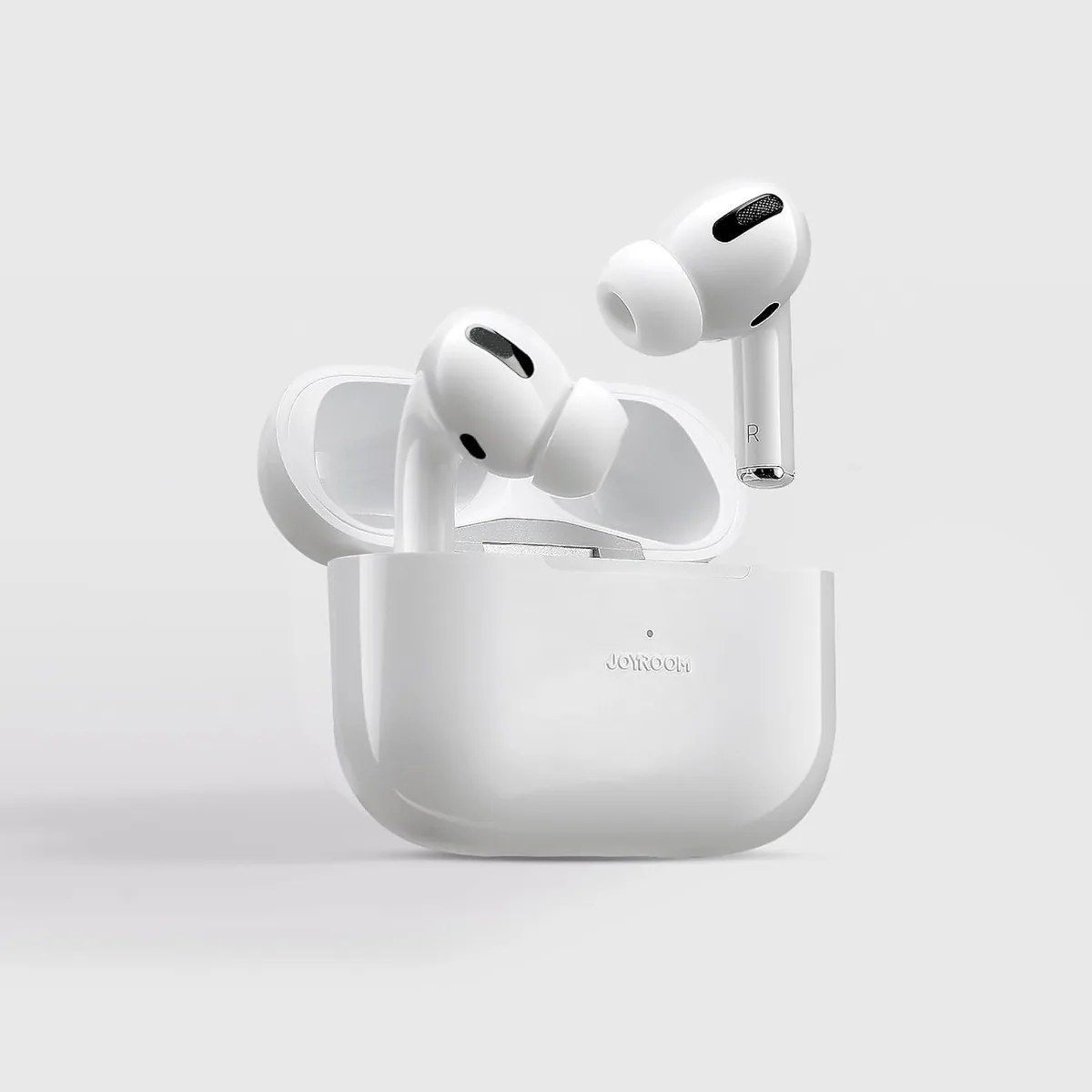
- 🔌 Joyroom Type-C Cable: The Joyroom Type-C to Type-C Cable features shielded data lanes to ensure stable transfer rates and protect ports.
Certified Wall Chargers
- ⚡ Joyroom 30W Fast Charger: The Joyroom 30W Fast Charger is ideal for recharging your iPhone quickly after the data transfer. It supports USB-PD and charges to 50% in 30 minutes.
9. Data Transfer Method Comparison
| Specification | Direct USB-C Cable | USB OTG Bridge | Wireless Wi-Fi Direct |
|---|---|---|---|
| Average Speed | 480 Mbps - 10 Gbps | 480 Mbps | 15 Mbps - 30 Mbps |
| Connection Reliability | Excellent (100% Stable) | Excellent | Low (Prone to drops) |
| Thermal Output | Low / Normal | Normal | Very High |
10. Verdict and CairoVolt Recommendation
Connecting your devices via USB cables and OTG adapters is the most reliable method for transferring photos, contacts, and WhatsApp databases from Android to iPhone. CairoVolt recommends charging both devices to 100% before starting the migration and using high-quality data cables to ensure a fast, safe transfer.
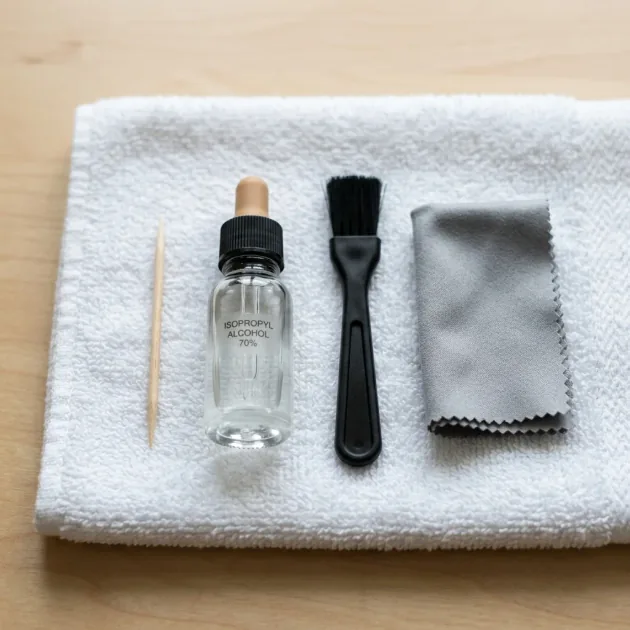
To prevent charging port issues caused by pocket lint and dust, check out our guide on how to safely clean your charging port to save on repair costs.

CairoVolt Editorial Team
Content team reviewing specifications and buying guides
The CairoVolt team reviews model numbers, specifications, and compatibility, and updates information when better data is available. Estimates are labeled as calculations, and readers can report information that needs correction.
Frequently Asked Questions
Can I charge both phones while performing a wired data transfer?▼
Will my WhatsApp chats transfer completely via a wired connection?▼
Why does my Android display "Charging connected device" when plugged into the iPhone?▼
Does the wired transfer process require a working internet connection?▼
Ready to Buy?
Browse available products and review specifications and CairoVolt warranty terms before ordering
Related products
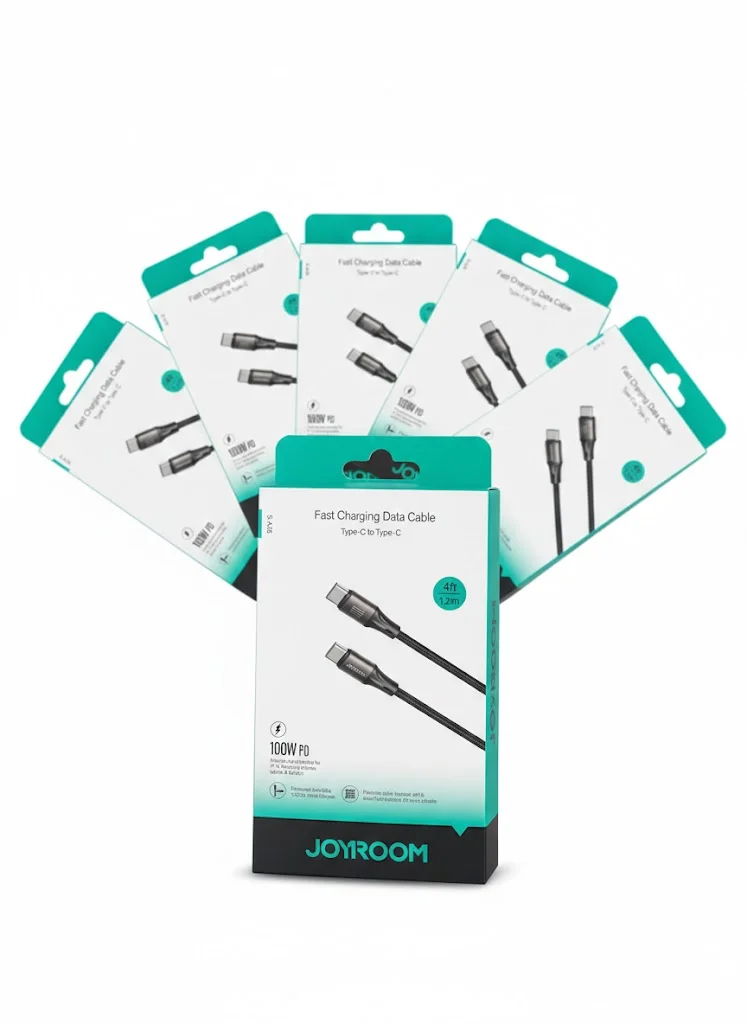
Joyroom USB-C to USB-C Cable JR-S-CC100
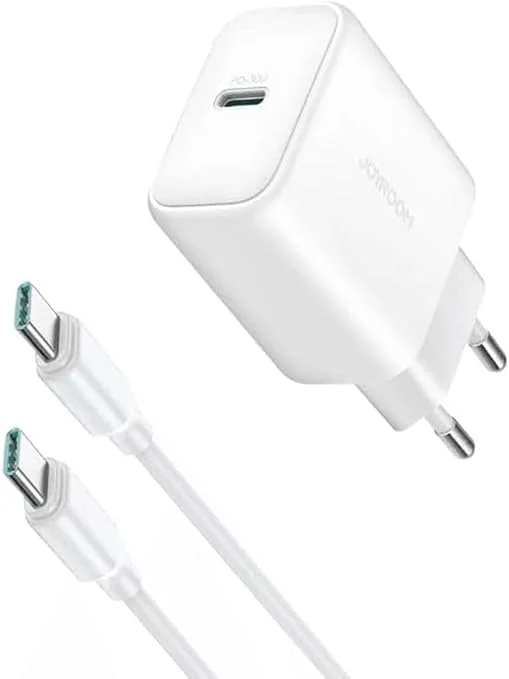
Joyroom 30W PD+QC Wall Charger | Dual USB-C and USB-A Ports
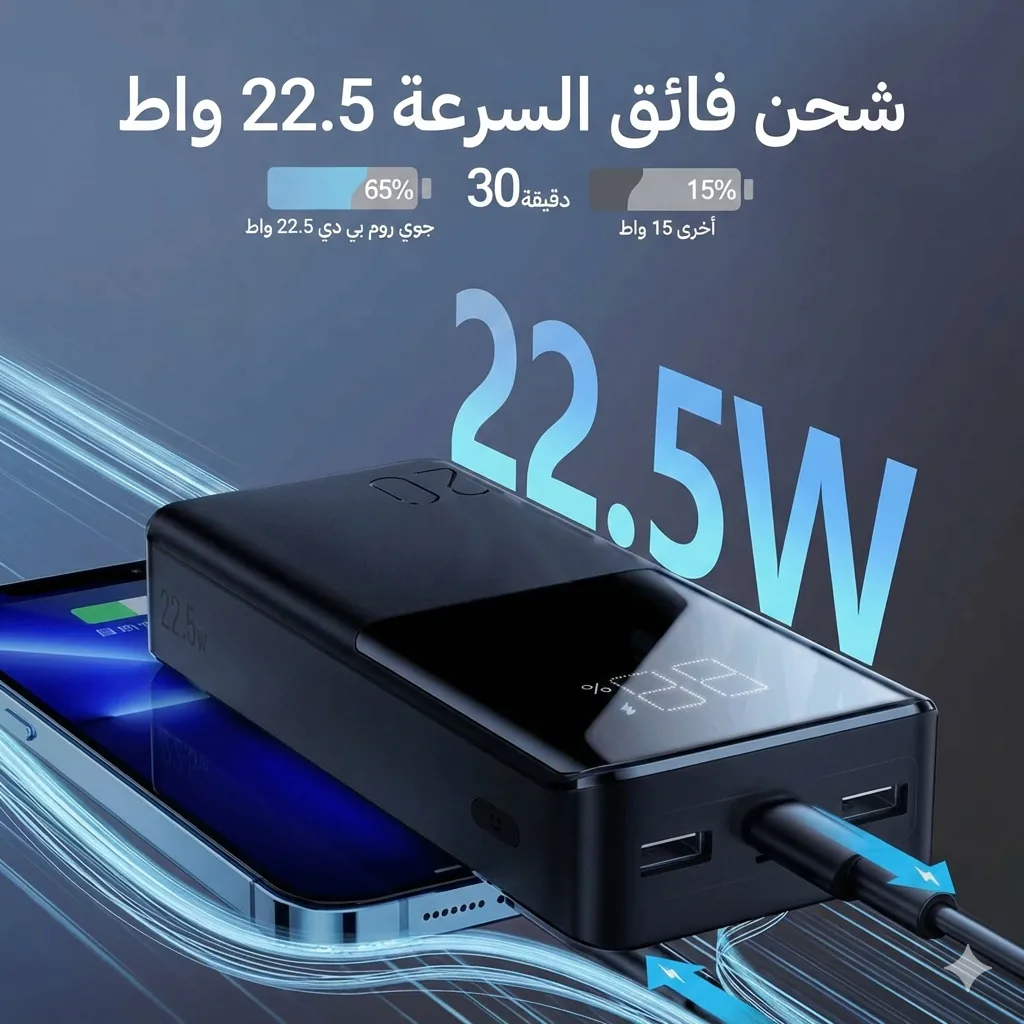
Joyroom 20000mAh Power Bank | 22.5W PD+QC | Triple Output
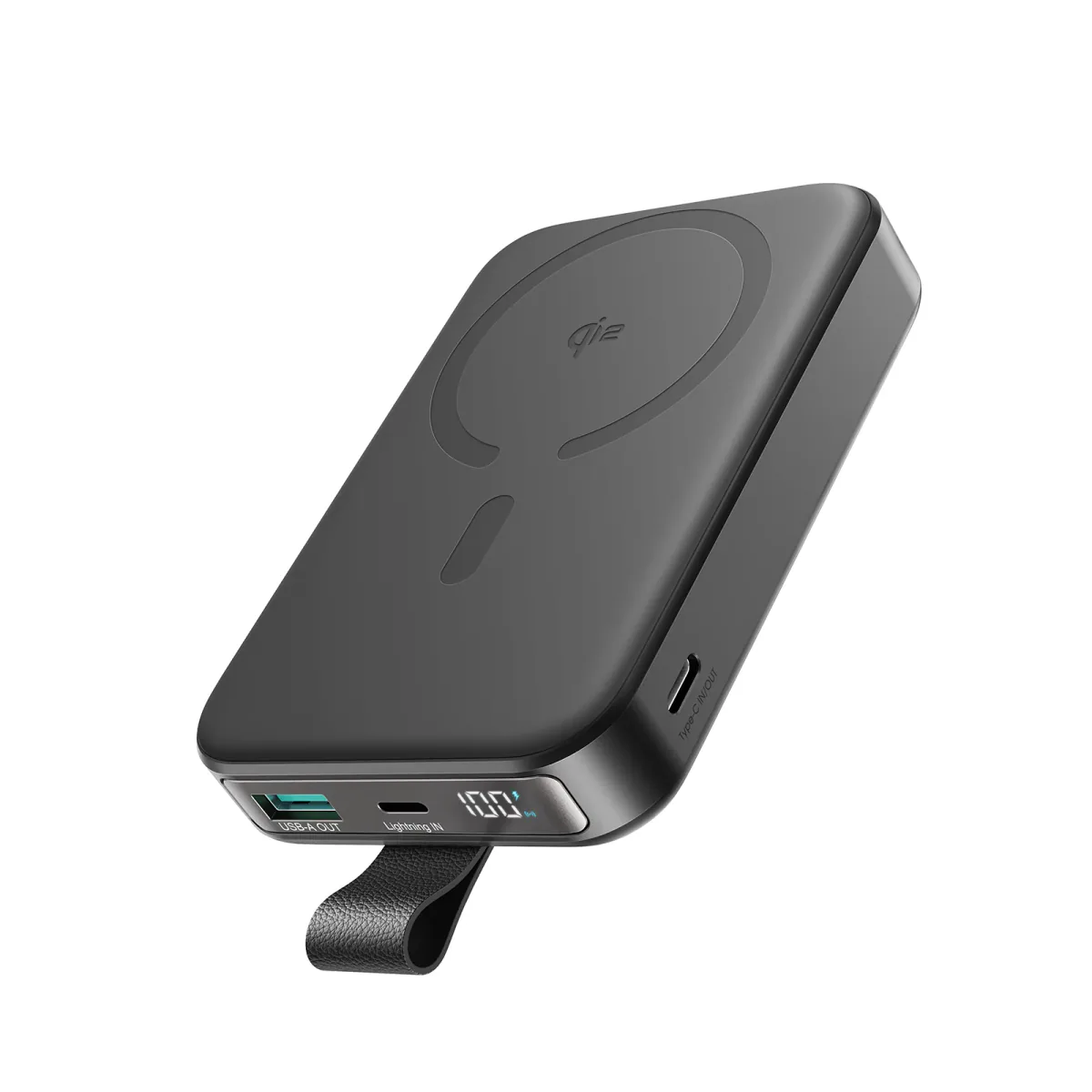
Joyroom 10000mAh Slim Power Bank | Dual USB | LED Display