How to Connect Apple Watch to iPhone: Complete Pairing & Charging Guide
Struggling to pair your Apple Watch? We explain the encrypted wireless protocols, inductive charging system, and fixes for software update loops.
TL;DR: To connect an Apple Watch to an iPhone: (1) Turn on the watch and bring it near your unlocked iPhone. (2) Tap "Continue" on the iPhone pop-up. (3) Align the watch face with the iPhone camera to scan the blue particle animation. (4) Sign in with your Apple ID and sync. For fast charging (Series 7 and later), pair the original USB-C magnetic fast charging cable with a 20W+ USB-PD adapter.
Unboxing a new Apple Watch (from the Series 9 and 10 to the robust Apple Watch Ultra 2) is a premium tech experience. However, before you can track workouts, review vitals, or receive notifications, you must establish a secure connection (Pairing Handshake) with your iPhone.
While the configuration wizard is designed to run smoothly, many users experience technical hurdles. These include the iPhone camera failing to scan the watch particle cloud, or getting stuck in software update loops. In this engineering guide, we analyze the encrypted wireless protocols, explain the physics of inductive charging, and walk you through troubleshooting pairing errors.
1. Under the Hood: Discovery & Pairing Protocols (BLE & P2P Wi-Fi)
Apple Watch uses a dual-layer communication model to balance power consumption and data transfer speeds:
- 📶 Bluetooth Low Energy (BLE): Manages initial discovery, pairing negotiation, and basic low-bandwidth tasks like sending short text alerts to conserve battery life. (Audio streaming for calls and music does not run over BLE — it uses the separate Bluetooth Classic (BR/EDR) transport with the A2DP and HFP profiles.)
- 📶 Peer-to-Peer (P2P) Wi-Fi: Triggered automatically when transferring larger files (such as watchOS system updates or local photo albums). The iPhone establishes a direct Wi-Fi tunnel to the watch for fast data transfers.
The **blue particle animation** displayed on the watch face during pairing acts as a Spatial Cryptographic Code. This code transmits the watch's public key to the iPhone camera, allowing both devices to establish an encrypted link inside the Secure Enclave that protects your health telemetry from local wireless eavesdropping.
2. Step-by-Step Apple Watch Pairing Process
Follow these steps to complete the pairing process without interface freezes:
- ⚙️ Prerequisites: Enable Bluetooth and Wi-Fi on your iPhone, and update to the latest iOS version. Turn on the Apple Watch by holding the side button, and place it within 5 cm of the phone.
- ⚙️ Setup Prompt: A card reading "Set Up Apple Watch" will slide up on the iPhone. Tap "Continue".
- ⚙️ Camera Scanning: Center the watch face inside the yellow viewfinder frame on your iPhone. If the camera doesn't register the code, tap "Pair Apple Watch Manually" on the iPhone, then tap the "i" icon on the watch face to reveal a 6-digit passcode and input it on the phone.
- ⚙️ iCloud Association: Enter your Apple ID password, choose to restore from a backup or configure as a new watch, and wait for the sync cycle to complete.
3. Troubleshooting Setup Errors, Software Update Loops, and Wireless Recovery Mode
A common setup issue is the watch getting stuck on the "Software Update Required" step, failing to download the update or displaying "Unable to Verify". Follow these steps to resolve this issue:
- 🔧 Power Requirements: watchOS updates will fail if the watch battery is below 50%. Keep the Apple Watch on its magnetic charger puck during the update process.
- 🔧 Wi-Fi Frequency Matching: If the update stalls, open iPhone Wi-Fi settings, select "Forget This Network", and connect to a 2.4GHz network rather than a 5GHz band. The wireless chipsets in older Apple Watch models establish more stable connections on 2.4GHz frequencies.
- 🔧 Wireless Recovery Mode: On any Apple Watch running watchOS 8.5 or later (Series 3 and up, not just recent models), if the watch displays a red exclamation mark or a support icon, placing it near an iPhone running iOS 15.4 or later will trigger a wireless recovery prompt. The iPhone will download the system firmware and transfer it over the local Wi-Fi link directly to the watch, removing the need for a physical iBus connection tool at Apple service centers.
- 🔒 iCloud Activation Lock: If you purchase a used Apple Watch that is locked to the previous owner's Apple ID, you cannot pair it. The previous owner must log into icloud.com/find to remove the watch from their account. There is no software bypass or hardware override for this security feature.
4. The Physics of Apple Watch Magnetic Inductive Charging & Flux Leakage
The Apple Watch has no exposed physical charging contacts. This design protects the internal circuits from water entry during swimming and maintains IP6X dust resistance. Instead, Apple uses **Magnetic Inductive Charging** operating at approximately 325 kHz.
The charging puck contains a copper transmitter coil that generates an alternating magnetic field when powered. Placing the watch back onto the puck aligns its internal receiver coil with this magnetic field. This alignment induces an alternating current, which the watch's internal PMIC rectifies into DC power to charge the lithium battery.
Because the induction coils are tiny, physical alignment is crucial. Any minor offset between the watch back and the puck results in magnetic flux leakage, converting electromagnetic energy directly into thermal heat. To prevent battery degradation, watchOS's power management daemon (powerd) monitors internal temperature sensors. If the battery exceeds 40°C, the daemon caps charging power at 1.5W or pauses charging entirely until the unit cools. This is why wiping sweat and debris from the back of the watch is essential to prevent thermal throttling.
Understanding Fast Charging Requirements:
The Apple Watch Series 7 and later support fast charging, but the 0–80% time depends on the model: Series 7, 8, and 9 reach 80% in about 45 minutes, Series 10 does it in about 30 minutes, and the Ultra and Ultra 2 take about 60 minutes to hit 80%. To enable fast charging, you must meet two hardware requirements:
- 🔌 Original Fast Charger Puck: You must use the official Apple USB-C Fast Charger Cable, which features an aluminum housing around the magnetic puck. Older, all-plastic white pucks are limited to slow charging.
- 🔌 USB-PD Wall Adapter: The USB-C end of the puck must connect to a charger that supports the USB Power Delivery (USB-PD) protocol and outputs 18W or higher (such as a certified Joyroom adapter). Connecting the puck to a 5W USB-A port via an adapter will disable fast charging, extending charge times to over 2 hours.
5. watchOS Optimized Battery Charging and Dynamic Charge Limits
To extend the overall lifespan of the lithium-ion battery, watchOS features **Optimized Battery Charging**. Keeping a lithium-ion battery at 100% capacity for hours exposes the cells to high-voltage stress (4.2V+), which accelerates aging. The watch uses machine learning to study your daily usage patterns. If you charge your watch overnight, it pauses charging at 80% and only finishes the remaining 20% right before you wake up.
On newer Apple Watch models, this feature is upgraded to **Optimized Charge Limit**. Instead of waiting to charge to 100%, the watch uses local usage predictions to set a charging cap at 80% on days when a full charge is unnecessary. This active chemistry protection dramatically reduces capacity degradation over years of operation.
6. Recommended Charging Accessories in Egypt
To charge your Apple Watch safely without causing thermal strain, we recommend these certified options:
Multi-Port USB-PD Chargers
- ⚡ Joyroom 30W Wall Charger: The Joyroom 30W Fast Charger provides a stable, ripple-free current, allowing your fast charger puck to run at peak efficiency without overheating.
Portable Power Banks
- 🔋 Joyroom 10000mAh Power Bank: We recommend the Joyroom 10000mAh Power Bank for travel. It provides clean, regulated power for your watch charging puck and iPhone.
7. Apple Watch Charging Speed Comparison
| Charger & Cable Combination | Power Output | Fast Charge Support | Charge Time (0% to 80%) | Thermal Safety Profile |
|---|---|---|---|---|
| USB-C Fast Cable + 20W PD Adapter | 15W - 20W | Supported | ~30–60 mins (by model) | Excellent (Active current modulation) |
| Standard USB-A Cable + 5W Adapter | 5W | Not Supported | ~90 - 120 mins | Good (Slow current profile) |
| Cheap Generic Qi Wireless Pads | 0W (No Charge) | Not Supported | Fails to initiate | Poor (High heat, alignment fails) |
8. Verdict and CairoVolt Recommendation
Connecting your Apple Watch to your iPhone is key to managing your digital life, but keeping it running requires the right charging accessories. CairoVolt recommends using the original USB-C magnetic fast charging cable with a reliable 20W PD wall adapter from a trusted brand like Joyroom. This combination ensures your watch charges at maximum speed while protecting its lithium battery from heat damage.
To avoid port and connector issues caused by pocket lint and dust, check out our guide on how to safely clean your charging port to save on repair costs.

CairoVolt Editorial Team
Content team reviewing specifications and buying guides
The CairoVolt team reviews model numbers, specifications, and compatibility, and updates information when better data is available. Estimates are labeled as calculations, and readers can report information that needs correction.
Frequently Asked Questions
Why can't I connect my Apple Watch to an Android phone?▼
Why does my Apple Watch take over two hours to charge fully?▼
Can I charge my Apple Watch using standard Qi wireless charging pads?▼
What should I do if my Apple Watch gets hot during charging cycles?▼
Ready to Buy?
Browse available products and review specifications and CairoVolt warranty terms before ordering
Related products
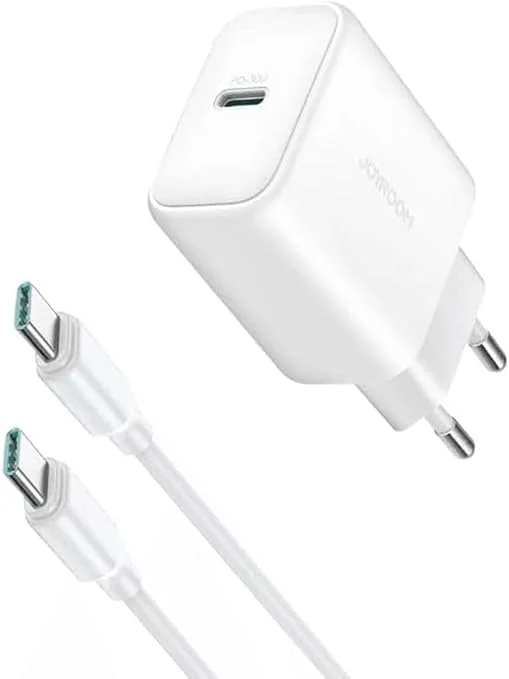
Joyroom 30W PD+QC Wall Charger | Dual USB-C and USB-A Ports
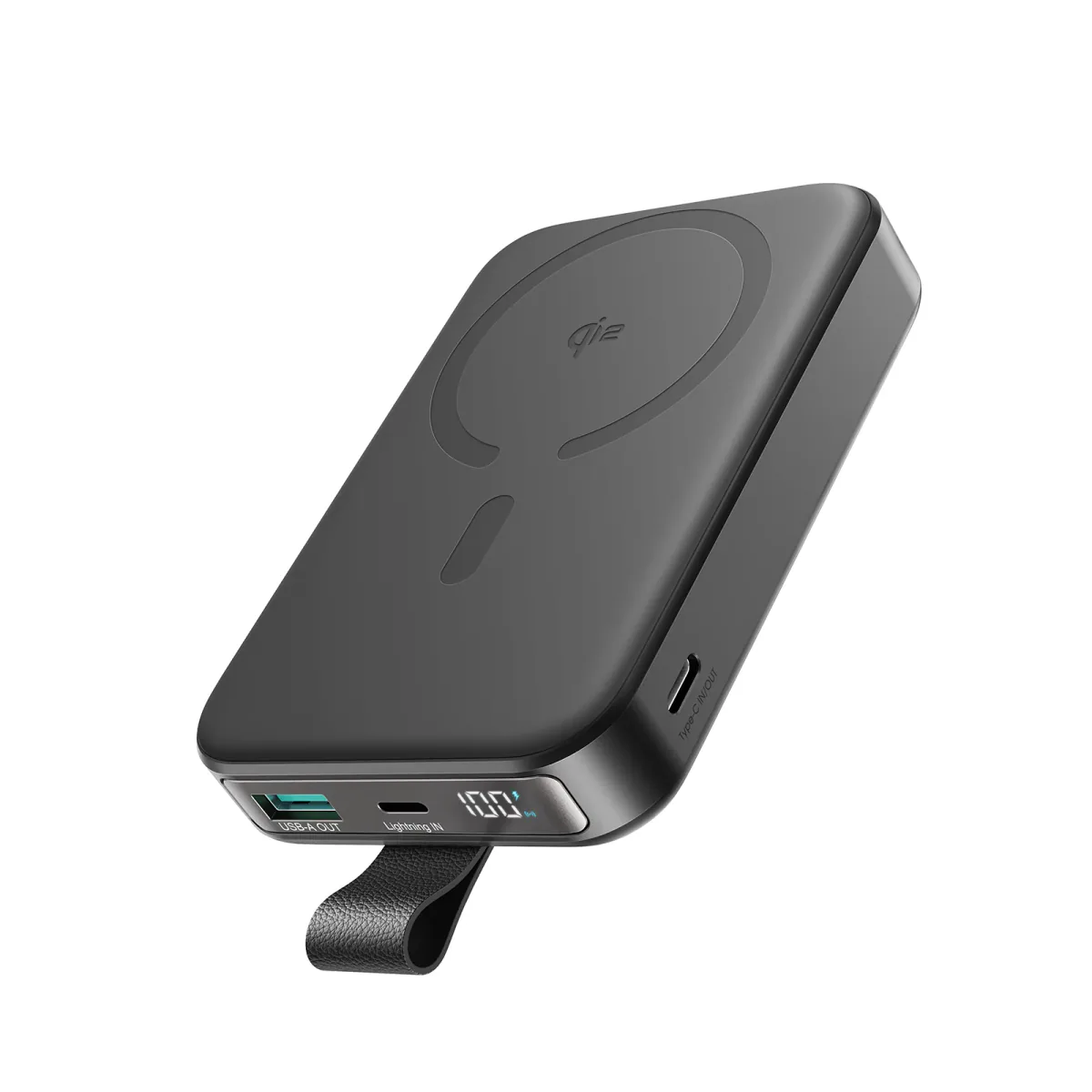
Joyroom 10000mAh Slim Power Bank | Dual USB | LED Display
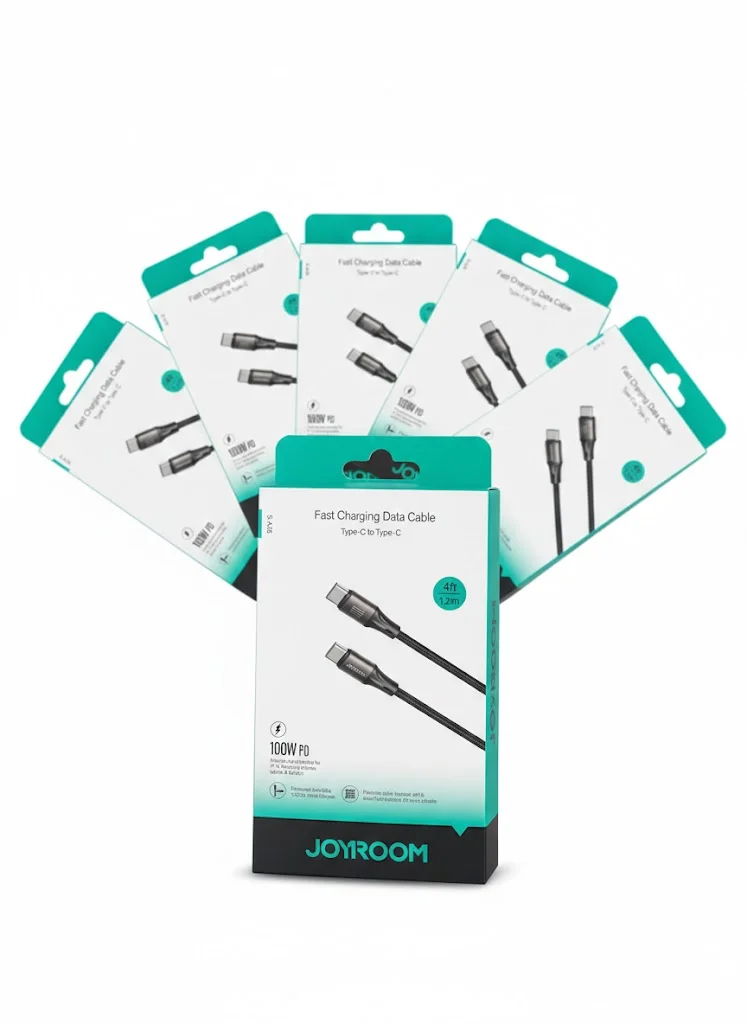
Joyroom USB-C to USB-C Cable JR-S-CC100
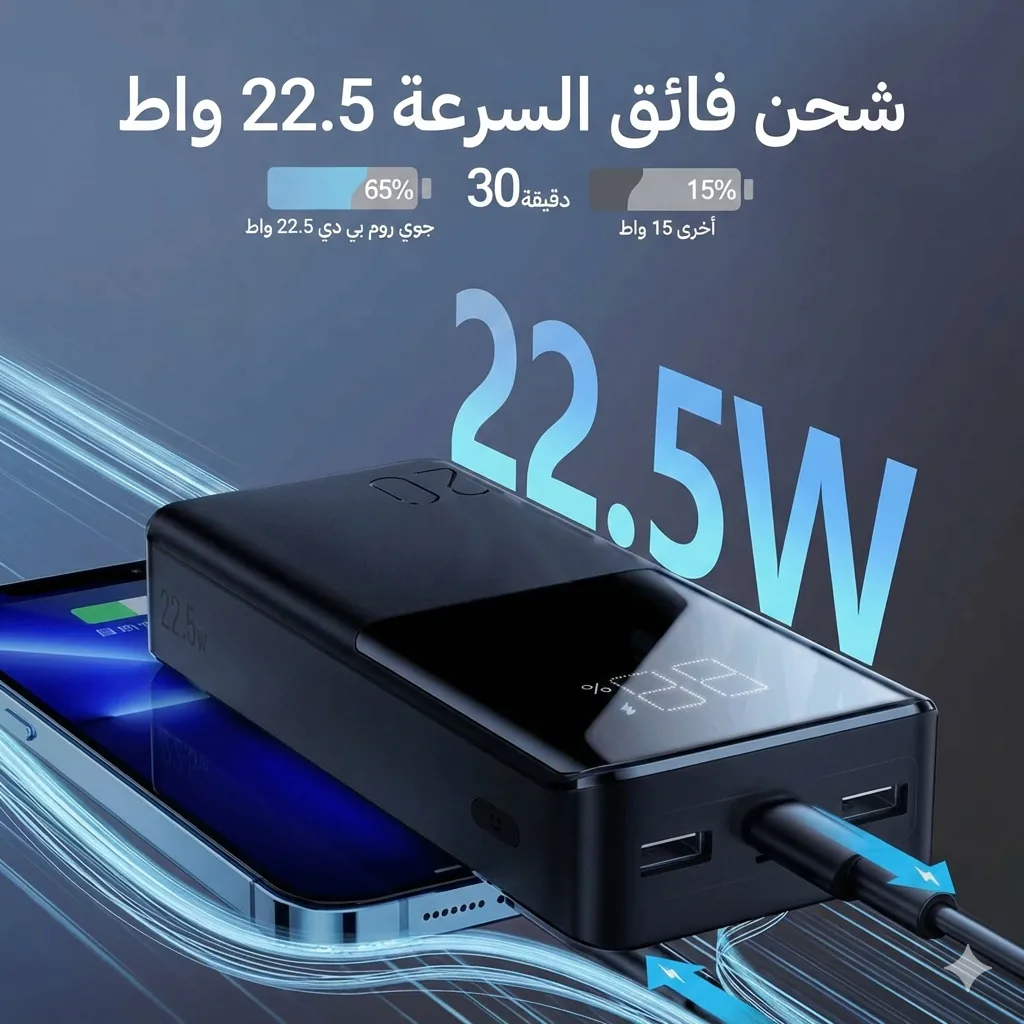
Joyroom 20000mAh Power Bank | 22.5W PD+QC | Triple Output