Phone Not Charging? How to Diagnose and Fix Charging Port & Cable Issues
Plugged in your phone but nothing happened? We share the practical steps to diagnose the power delivery chain and fix common charging issues safely.
TL;DR: If your phone is plugged in but not charging, troubleshoot in this order: (1) Clean the port: Gently remove pocket lint using a wooden toothpick. (2) Try another cable: Charging cables are the most common point of failure due to internal wire strain. (3) Check the wall adapter: Test the brick on another outlet. (4) Perform a force restart: Re-initialize the phone's Power Management IC (PMIC).
There is nothing more frustrating than plugging in your smartphone after a long day, only to notice that the battery percentage remains unchanged or that the charging indicator flashes erratically. You immediately wonder: Is the battery dead? Is the charging port broken? Or did the wall adapter burn out?
In reality, over 80% of charging failures are caused by simple mechanical issues, such as pocket lint compressed inside the port or internal wire strain in the cable. These are problems you can easily fix at home without spending money at a repair shop. In this technical guide, we break down the power delivery chain and show you how to isolate and fix the issue step-by-step.
1. Understanding the Power Delivery Chain & Switched-Mode Power Supply (SMPS) Ripple
To successfully charge your smartphone's battery, electricity must flow through a continuous loop comprising five distinct check points:
- 🔌 AC Wall Outlet: The primary power source providing 110V/220V AC.
- 🔌 AC/DC Adapter (Wall Charger): Modern wall adapters are Switched-Mode Power Supplies (SMPS) that step down voltage and rectify AC into stable DC power (like 5V or 9V). They operate at high switching frequencies between 50kHz and 1MHz. Cheap chargers that lack proper filter capacitors and Electromagnetic Interference (EMI) filters generate a noisy DC output with high voltage ripples. This SMPS ripple confuses capacitive touch screens and triggers safety locks in the phone's Power Management IC (PMIC), leading to charging drops.
- 🔌 USB Cable: The copper conduit that must maintain low electrical resistance.
- 🔌 Charging Port (Socket): The physical interface on your phone that accepts the cable connector.
- 🔋 Power Management IC (PMIC) & Battery: The internal chips that regulate and deliver current to the lithium-ion cells.
An interruption at any point in this chain will cause the system to halt charging cycles to prevent electrical damage.
2. Battery Chemistry, Deep Sleep Mode, and Copper Shunts
When a smartphone battery is completely drained and left uncharged for weeks or months, its internal lithium-ion cells can drop below their critical threshold voltage (usually less than 3.0V). To prevent dangerous chemical instability, the battery's internal safety protection board puts the unit into **Deep Sleep Mode**.
Connecting a charger at this stage will produce no reaction. The screen will remain black, and the phone will appear dead. In this scenario, the phone's Power Management IC (PMIC) initiates a **Pre-charging Protocol**, delivering a tiny trickle current of 50mA to 100mA. It may take 30 to 60 minutes of trickle charging before the battery voltage rises back to safe levels, allowing the phone to boot and show the normal charging animation.
However, if the voltage drops to absolute zero repeatedly, microscopic copper paths known as copper shunts can form across the internal battery separator. This creates an internal micro-short circuit, causing extremely high self-discharge rates. In such cases, even if trickle charging wakes the device up, the battery will drain rapidly, meaning a complete physical replacement is the only engineering solution.
3. Faulty Cables: Detecting Internal Wire Strain
Cables are highly susceptible to mechanical wear because they are bent, twisted, and pulled daily (Flex Fatigue). A standard USB cable contains at least four insulated wires: two for power and two for data transmission, all wrapped in a rubber or braided sheath.
Bending the cable near the connector collar can sever the microscopic copper strands inside while leaving the outer sheath intact. You can diagnose this using a **Wiggle Test**. If the charging icon blinks or only stays solid when the cable is held at a specific angle, the internal copper wires are fractured. Replace the cable immediately to avoid short circuits.
4. Charging Port Wear & Galvanic Corrosion (Joule's Law)
Modern USB-C ports contain 24 microscopic contact pins aligned on a central tongue. These pins include dedicated Configuration Channel pins (**CC1** and **CC2**) which manage protocol negotiations. When pocket lint traps humidity inside the socket, electric current flowing through the pins triggers **Galvanic Corrosion**.
This process dissolves the thin gold coating over the copper contacts, leading to copper oxidation (greenish copper rust). Since copper oxide is an insulator, it blocks electrical flow. According to Joule's Law ($P = I^2 imes R$), transferring high currents (such as 3A or 5A) over a high contact resistance ($R$) generates intense localized heat. This thermal buildup can melt internal solder joints or permanently damage the sub-board.
5. Power Management IC (PMIC) and Configuration Channel (CC) State Machines
The **PMIC (Power Management IC)** regulates the electrical current entering the phone. It features a small microcontroller that runs a configuration channel state machine. This state machine monitors the Rp and Rd resistors to determine whether the phone should act as a power consumer (Device) or power provider (Host).
Occasionally, due to memory leaks or firmware crashes, this state machine enters an infinite loop, failing to toggle CC lines. The phone then refuses to negotiate power delivery. Performing a **Force Restart** cuts voltage to the PMIC, discharging internal capacitors and resetting the CC state machine to restore normal charging recognition.
6. How to Safely Clean Your Charging Port (Important Warnings)
To clean your charging socket without damaging the delicate copper contacts, follow these precautions:
- ⚠️ Avoid Metal Tools: Never use sewing needles, safety pins, or SIM ejector tools. Metal will scrape off the protective gold plating on the contacts and can short-circuit the live pins.
- 🪵 Use a Wooden or Plastic Toothpick: Shave down the tip of a wooden toothpick to make it thin and flat. Insert it gently into the port and sweep along the bottom to pull out the compressed lint.
- 🧪 Clean with Isopropyl Alcohol: For stubborn grime or light oxidation, moisten a micro-swab with a single drop of 99% isopropyl alcohol. Clean the port gently with the device turned off, and allow it to dry for 5 minutes before plugging it in. Never use oil-based sprays like WD-40 inside the charging socket. These lubricants leave a sticky oil film that acts as a magnet for pocket lint and dust. Within a week, the port will gather multiple times more debris, completely blocking the connectors.
7. Recommended Charger and Cable Replacements in Egypt
If your cable or adapter has failed, we suggest replacing them with these certified accessories from Joyroom:
Multi-Protocol Wall Adapter
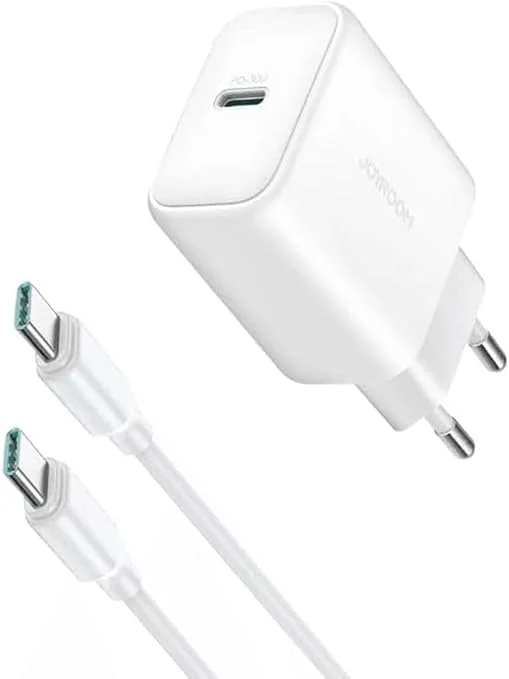
- ⚡ Joyroom 30W Fast Charger: The Joyroom 30W Fast Charger features advanced safety chips to prevent overcurrent and regulate voltage output dynamically.
Durable USB-C Cables
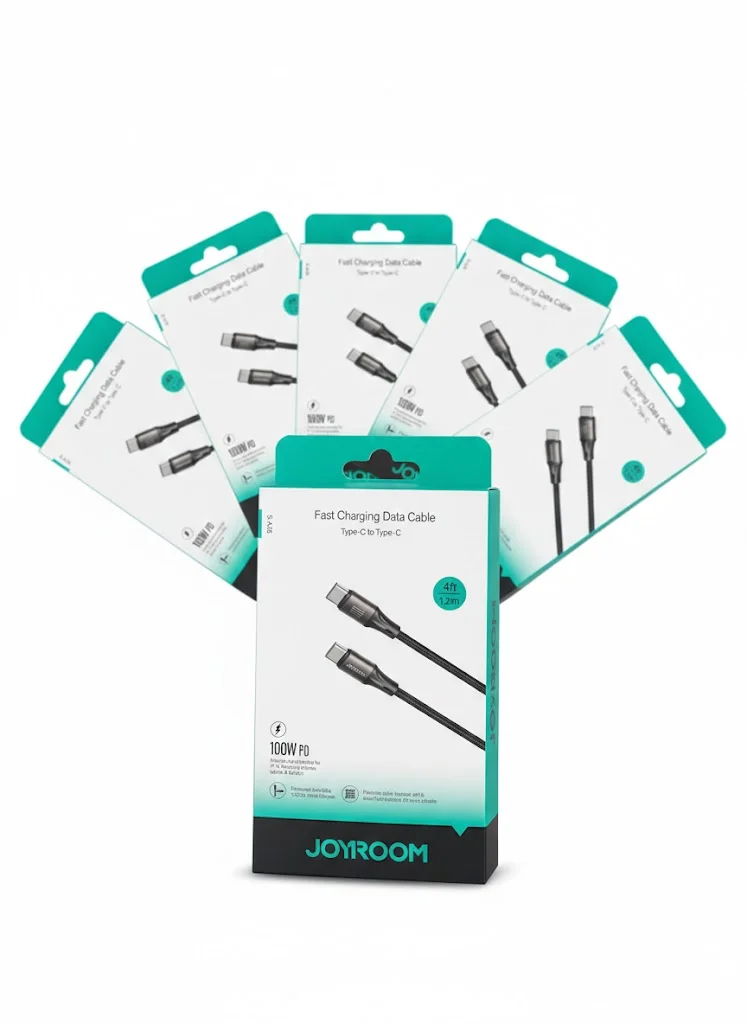
- 🔌 Joyroom Type-C Cable: Consider the Joyroom Type-C to Type-C Cable, which features heavy-gauge copper cores and a reinforced collar to resist bending wear.
High-Capacity Power Banks
- 🔋 Joyroom 20000mAh Power Bank: The Joyroom 20000mAh Power Bank provides stable emergency power with built-in surge protections.
8. Charging Troubleshooting Matrix
| Symptom | Likely Cause | Diagnostics Method | Resolution |
|---|---|---|---|
| Charging stops when the cable is moved | Fractured internal cable wire | Test with a known good cable | Replace the cable |
| Connector won't fit completely inside port | Compressed pocket lint inside port | Inspect port with flashlight | Gently clean with toothpick |
| Phone completely unresponsive to all chargers | Frozen PMIC or damaged port assembly | Perform Force Restart | Force restart or replace port hardware |
9. Verdict and CairoVolt Recommendation
Troubleshooting a phone that won't charge is straightforward once you isolate the components. CairoVolt recommends starting with the easiest fixes: cleaning out the charging port with a non-metal toothpick and testing the device with a different high-quality cable. Avoid using the phone while it charges to protect the port from mechanical stress and prevent battery degradation from heat.
Additionally, never leave your phone connected to the wall charger overnight during the hot summer months in Egypt. Extreme ambient heat combined with continuous voltage supply is the primary enemy of lithium-ion battery chemistry, accelerating chemical breakdown and severely reducing the overall operational lifespan of your device.
To keep your charging port free of dust and debris, read our detailed guide on how to safely clean your charging port to avoid expensive hardware repairs.

CairoVolt Editorial Team
Content team reviewing specifications and buying guides
The CairoVolt team reviews model numbers, specifications, and compatibility, and updates information when better data is available. Estimates are labeled as calculations, and readers can report information that needs correction.
Frequently Asked Questions
Why is my phone charging extremely slowly all of a sudden?▼
Can pocket lint in the charging socket actually damage the phone?▼
Why does my phone display "Accessory not supported" when connected?▼
Is it safe to continue using a charging cable with exposed wires?▼
Ready to Buy?
Browse available products and review specifications and CairoVolt warranty terms before ordering
Related products
Joyroom 30W PD+QC Wall Charger | Dual USB-C and USB-A Ports
Joyroom USB-C to USB-C Cable JR-S-CC100
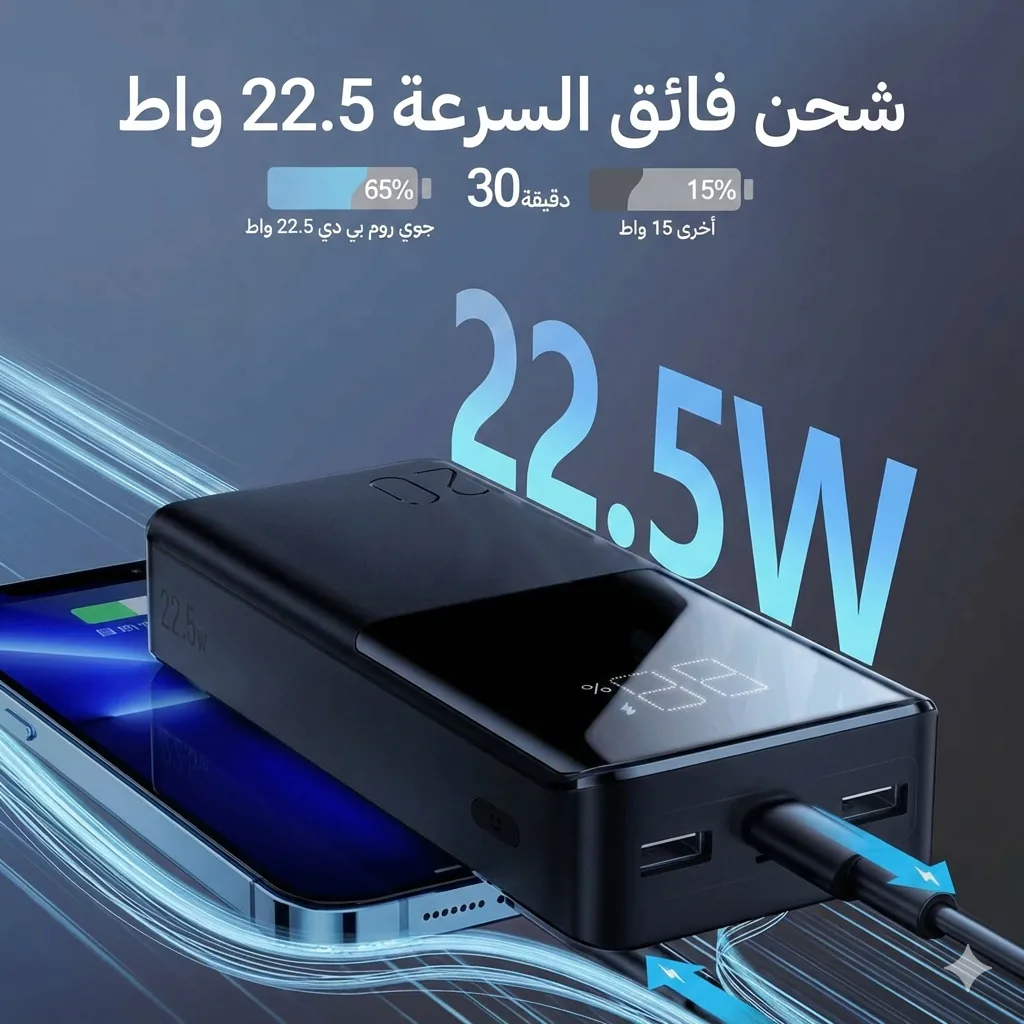
Joyroom 20000mAh Power Bank | 22.5W PD+QC | Triple Output
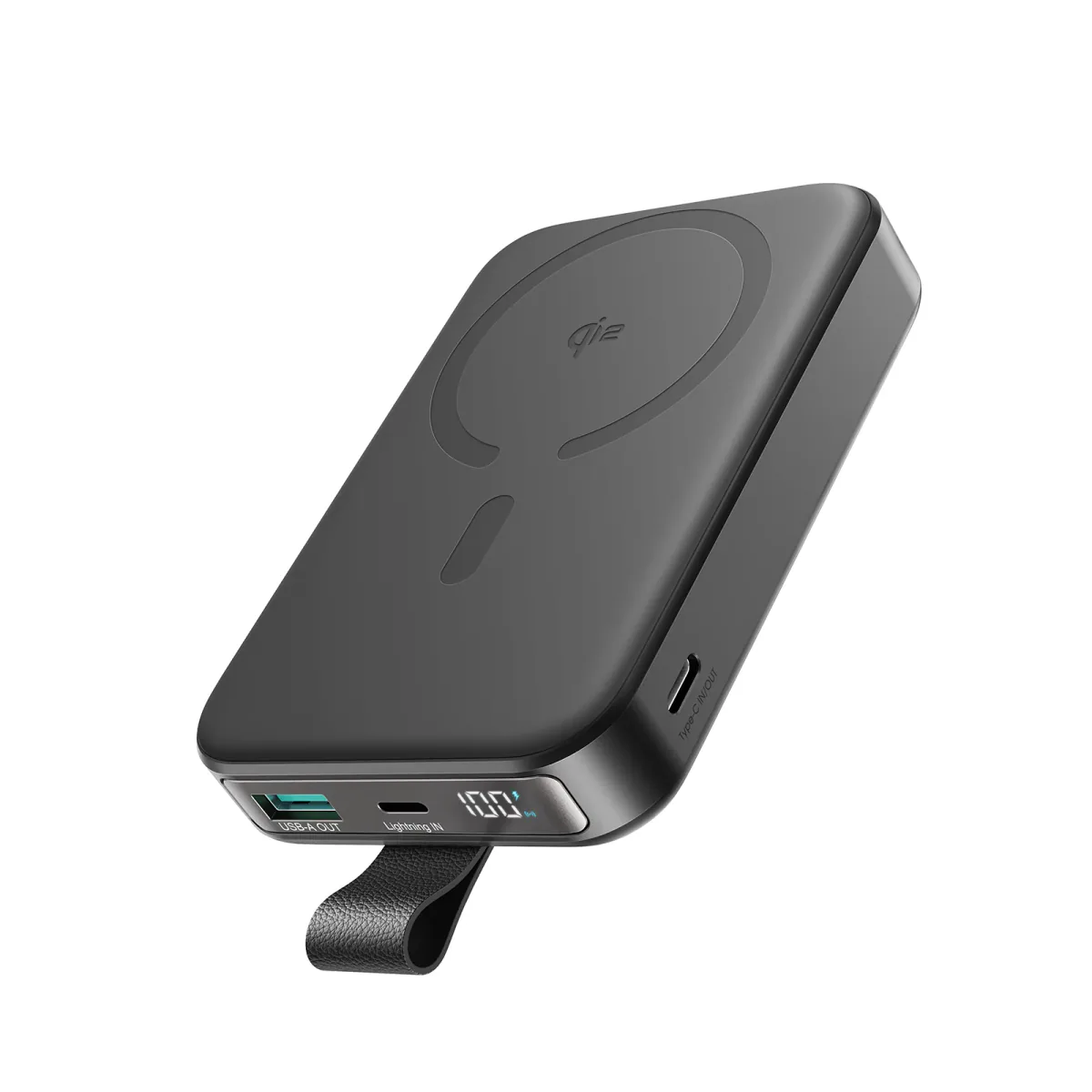
Joyroom 10000mAh Slim Power Bank | Dual USB | LED Display