
 CairoVolt Team
Not All USB-C Ports Are Equal — How to Tell 240W from Thunderbolt from Standard
Not all USB-C ports are equal — learn to identify 240W, Thunderbolt, and standard ports by symbols, specs, and real-world performance.
In short: USB-C ports look the same but differ in capability: data speed ranges from 480 Mbps on USB 2.0 to 40 Gbps on USB4 and Thunderbolt 4, while charging depends on USB PD support in the port, charger and cable — up to 100W, or 240W with EPR. Check the symbol next to the port or your device spec page.
You just bought a brand-new laptop for EGP 45,000. It has 3 USB-C ports. One on the left, one on the right, one in the back. You plug in your charger — it charges. Move it to the second port — it charges, but slower. The third port — doesn't charge at all. You're not clueless. The laptop is playing you. 😂
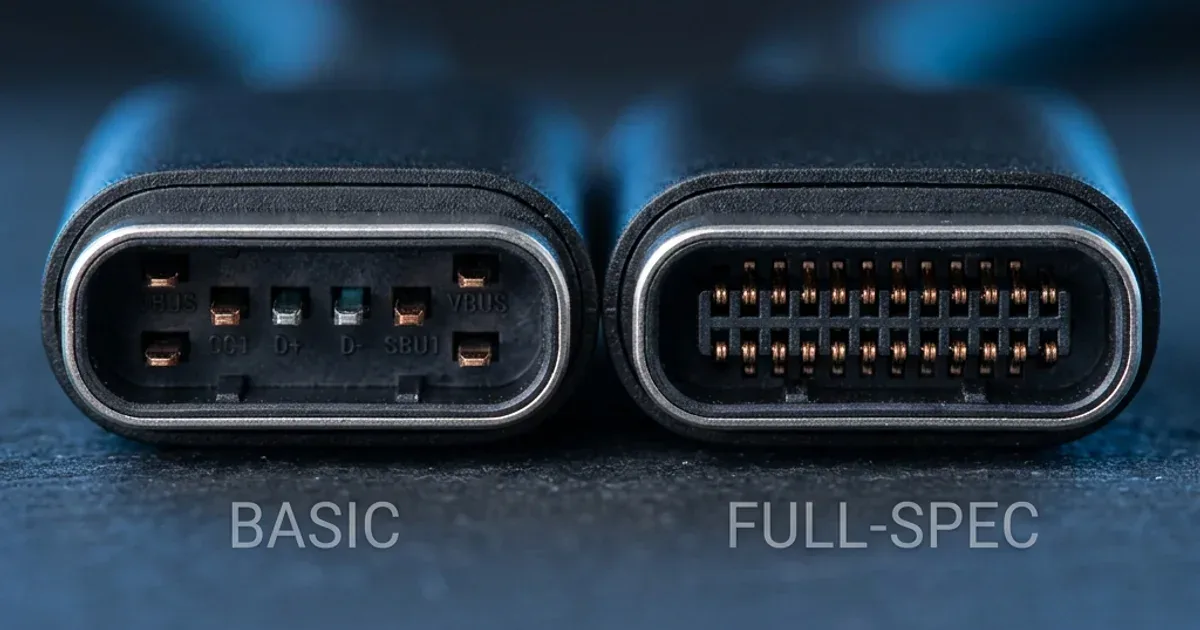
The reason? Those 3 ports — despite looking exactly the same — are completely different inside. Like 3 shops on the same street where one sells 21-karat gold, one sells 18-karat, and the third sells copper wrapped in gold foil. Same shape, completely different substance.
This article will save you money and frustration — because you'll learn exactly: (1) what types of USB-C ports exist, (2) how to identify your port type without googling for an hour, and (3) which cable matches each type so you don't waste money on a 240W cable when you only need 60W.
💡 Quick Answer: USB-C ports look the same but differ in capability: data speed ranges from 480 Mbps on USB 2.0 to 40 Gbps on USB4 and Thunderbolt 4, while charging depends on USB PD support in the port, charger and cable — up to 100W, or 240W with EPR. Check the symbol next to the port or your device spec page.
First: Why Did USB-C Become a Problem Instead of a Solution?
USB-C was created to unify everything — one port for charging, data, and video. The idea was beautiful. The execution? A disaster. Because USB-IF (the standards body) decided the physical shape would be the same but capabilities would vary wildly. So the port on your budget EGP 5,000 phone looks identical to the port on a EGP 120,000 MacBook Pro — but internally the difference is like comparing a compact car to a freight truck.
The result? People buy wrong cables, incompatible chargers, and think their device is broken when it's perfectly fine. The problem is misunderstanding — not the technology.
The Five Types of USB-C Ports — In Useful Detail
Let's sort this out the way we'd grade exam papers in engineering school — each type gets its score:
| Type | Data Speed | Max Charging | External Display | Device Symbol |
|---|---|---|---|---|
| USB 2.0 | 480 Mbps | 15W (no PD) Up to 100W (with PD) |
❌ No | Usually none |
| USB 3.2 Gen 1 | 5 Gbps | Up to 100W | ⚠️ Sometimes (DP Alt Mode) | SS (SuperSpeed) |
| USB 3.2 Gen 2 | 10 Gbps | Up to 100W | ✅ Usually (DP Alt) | SS 10 |
| USB4 / Thunderbolt 4 | 40 Gbps | 100W (PD 3.0) | ✅ Dual 4K @ 60Hz | ⚡ (lightning bolt) |
| USB PD 3.1 EPR (240W) | Depends on base port | Up to 240W! | Depends on port | 240W / EPR |
Important note: These types aren't mutually exclusive. You might have a Thunderbolt 4 port that also supports EPR 240W. This table shows the minimum capability at each tier.
How to Identify Your USB-C Port Type — 4 Reliable Methods
Method 1: Check the Symbol Printed Next to the Port 👀
Most reputable manufacturers print a small symbol next to each USB-C port:
- ⚡ Lightning bolt (⚡): Thunderbolt 3 or 4 — the most capable. 40 Gbps + charging + video. If you see the bolt, you're golden
- 🔌 SS or SS 10: USB 3.2 — respectable speed (5–10 Gbps). SS = Gen 1, SS 10 = Gen 2
- 🔋 Battery icon or ⚡🔋: This port supports device charging (Power Delivery)
- 📺 Display icon (DP): Supports video output via DisplayPort Alt Mode
- ❓ No symbol at all: Likely USB 2.0 — the slowest and weakest. Common on phones and budget devices
Method 2: Check the Official Spec Page 📋
Go to your manufacturer's website (Apple, Dell, Lenovo, Samsung) and search for your model. Under "Ports" or "Connectivity," you'll find exact details for each port. This is the most accurate source — more reliable than any printed symbol.
Method 3: On Windows — Device Manager 🖥️
Open Device Manager → Universal Serial Bus controllers → If you see "USB 3.2" or "Thunderbolt," you have the more capable ports. If you only see "USB 2.0" — it's a basic port.
Method 4: On Mac — System Information 🍎
Apple menu → About This Mac → System Report → Thunderbolt/USB. You'll find every port listed with its exact type and speed.
Real-World Impact: What Actually Happens with Wrong Cables
Let's drop the theory and talk practically — what happens when you plug the wrong cable into the wrong port:
Scenario 1: Charging Your Laptop ⚡
A gaming laptop needs 140W for full-speed charging. Plug it into a basic USB-C port (USB 2.0 with basic PD)? It'll charge at 15–30W only — meaning 6–8 hours instead of two. If the port doesn't support PD at all? It won't charge period.
Solution: Always use the port marked with a charging symbol or lightning bolt (⚡). If your laptop needs more than 100W, you need an EPR 240W cable and a compatible 140W+ charger — still very rare in the Egyptian market (see the EPR section below). For a regular laptop, an Anker Nano 45W GaN charger is plenty.
Scenario 2: Transferring Large Files 📁
You have 50GB of photos and videos to transfer to an external drive:
- ⚡ Thunderbolt 4 (40 Gbps): About 10 seconds theoretical — practically 20–30 seconds
- 🔵 USB 3.2 Gen 2 (10 Gbps): About 1 minute
- 🟡 USB 3.2 Gen 1 (5 Gbps): About 2 minutes
- 🔴 USB 2.0 (480 Mbps): About 15–20 minutes — if you have the patience 😅
The difference isn't minor — it's 60x between the fastest and slowest. These aren't theoretical numbers — this is a difference you'll feel daily if you work in photography or video editing.
Scenario 3: Connecting an External Display 📺
Want to connect a 4K monitor to your laptop via USB-C:
- ⚡ Thunderbolt 4: ✅ Two 4K displays @ 60Hz — or one 8K display
- 🔵 USB 3.2 + DP Alt Mode: ✅ One 4K display @ 60Hz
- 🟡 USB 3.2 without DP: ❌ No video — you'll need an adapter that may or may not work
- 🔴 USB 2.0: ❌ Forget about it — impossible
USB4 vs Thunderbolt 4 — Which Is Better?
This question comes up a lot, and the answer isn't straightforward. Let's break it down:
USB4 is an open standard (any manufacturer can use it) reaching up to 40 Gbps — but it's not guaranteed. A manufacturer can make a USB4 port at only 20 Gbps and still call it USB4. It's like someone saying "this car can reach 200 km/h" — sure, but who says it actually will?
Thunderbolt 4 (from Intel) is a guaranteed standard — if a device carries the Thunderbolt ⚡ badge, no negotiations: actual 40 Gbps + dual 4K displays + PD charging + PCIe data transfer. All of this must be present to earn Thunderbolt certification.
| Standard | Speed | Guarantee | Displays | Used By |
|---|---|---|---|---|
| USB4 | Up to 40 Gbps | ⚠️ Not guaranteed | One display (minimum) | AMD / Mid-range devices |
| Thunderbolt 4 | 40 Gbps guaranteed | ✅ Intel-certified guarantee | Dual 4K @ 60Hz | Intel / Apple / Pro devices |
Bottom line: Thunderbolt 4 is the "guaranteed" USB4 — every Thunderbolt 4 is USB4, but not every USB4 is Thunderbolt 4. If you're buying a laptop and want peace of mind → look for the lightning bolt ⚡.
EPR 240W — When Do You Actually Need It?
USB PD 3.1 Extended Power Range (EPR) raised the USB-C charging ceiling from 100W to 240W. This theoretically means you can charge a heavy gaming laptop (180W) from a single USB-C cable without the bulky half-kilo power brick.
But — and this is a big but — you need three things together:
- ⚡ An EPR 240W charger: Not just any 100W charger will do. You need one specifically designed for EPR — still rare
- 🔌 A certified EPR 240W cable: Even a cable rated for 100W won't work. A 240W cable contains a special e-marker chip that negotiates high voltage (48V). It is available at CairoVolt, such as the Anker Zolo A8060 (listed 240W) at EGP 790
- 💻 A device supporting EPR 240W: As of May 2026, laptops supporting 240W USB-C charging are extremely limited — mostly gaming workstations from ASUS, MSI, and some Dell models
🔬 CairoVolt's Advice
If you're using a regular laptop (MacBook Air, Dell XPS, Lenovo ThinkPad) — a 65–100W charger + 100W cable will serve you perfectly for years. EPR 240W is currently for professionals and gamers only — and chargers and laptops that support it are still limited. Save your money and invest in a quality Anker 60W cable for phones and tablets, or a 100W cable for a laptop, instead of paying more for a 240W cable you won't use at full capacity.
Common Mistakes That Cost You Money — and How to Avoid Them
Now that you understand the types, let's talk about the mistakes many people make:
Mistake #1: Buying a 240W Cable for a 45W Device
That's like buying a 6-inch diameter water pipe for your kitchen faucet. The cable will work — yes — but you paid 3x for nothing. Solution: Check your charger's wattage first (printed on the charger) and buy a cable that matches it.
Mistake #2: Plugging a Display into a USB 2.0 Port
The port works? Yes. Will the display work? No. Because USB 2.0 doesn't have a video channel (DisplayPort Alt Mode). The result: you spend an hour wondering why your monitor won't work and assume the cable is broken. Solution: Use the port marked with a display symbol (DP) or lightning bolt (⚡).
Mistake #3: Assuming Every USB-C Cable Fast-Charges
A cheap EGP 30 USB-C cable from a phone shop is likely USB 2.0 — meaning 15W max without PD or 60W if you're lucky. Plug it into a 100W charger? Then you're using only a small part of your charger's capacity. Solution: Buy a branded cable that supports PD — like Anker PowerLine or Joyroom 60W.
Mistake #4: Using Short Cables for Data and Long Ones for Charging (Do the Opposite)
A long cable (3 meters) has higher resistance, so it can slow charging a little. But for data, the difference is bigger — a 3m USB 3.2 cable can drop from 10 Gbps to 5 Gbps due to signal interference. Solution: Short cable (30cm–1m) for data transfer and fast charging; long cable (2–3m) for overnight charging only. Our 30cm short cable article covers this in detail.
Practical Buying Guide — Which Cable Do You Need in Egypt?
After all this detail, let's simplify it into one decision tree:
- 📱 Smartphone (iPhone 17 / Samsung S26 / Xiaomi): A 60W USB-C cable is 100% sufficient. Best picks: Anker PowerLine 60W (EGP 590) or Joyroom 60W (EGP 123)
- 💻 Regular laptop (MacBook Air / Dell XPS / Lenovo): A 100W PD cable. Make sure it's e-marked 5A. If you can't find 100W, a 60W cable will work but charge slower
- 🎮 Heavy gaming laptop (180W+): An EPR 240W cable — but confirm your device and charger both support EPR. If unsure, a 100W cable will suffice
- 📺 External display connection: You need a cable supporting DisplayPort Alt Mode or Thunderbolt. Not every USB-C cable works — check the specs
- 📁 Large data transfers (photography/editing): USB 3.2 Gen 2 (10 Gbps) cable minimum. If you have Thunderbolt → a Thunderbolt 4 cable is optimal, but pricier
🎯 Golden Rule: Buy the cable for your actual needs — not its marketing name. An Anker 60W cable covers most everyday needs. Save the premium cable money and invest in a backup cable instead — two mid-range cables beat one expensive one.
Sources
CairoVolt Team
Tech Editor
Frequently Asked Questions
Do all USB-C ports charge at the same speed?▼
What is the difference between USB4 and Thunderbolt 4 in simple terms?▼
Do I actually need a 240W cable?▼
How do I know if my phone has USB 2.0 or USB 3.2?▼
Ready to Buy?
Browse available products and review specifications and CairoVolt warranty terms before ordering
Related products
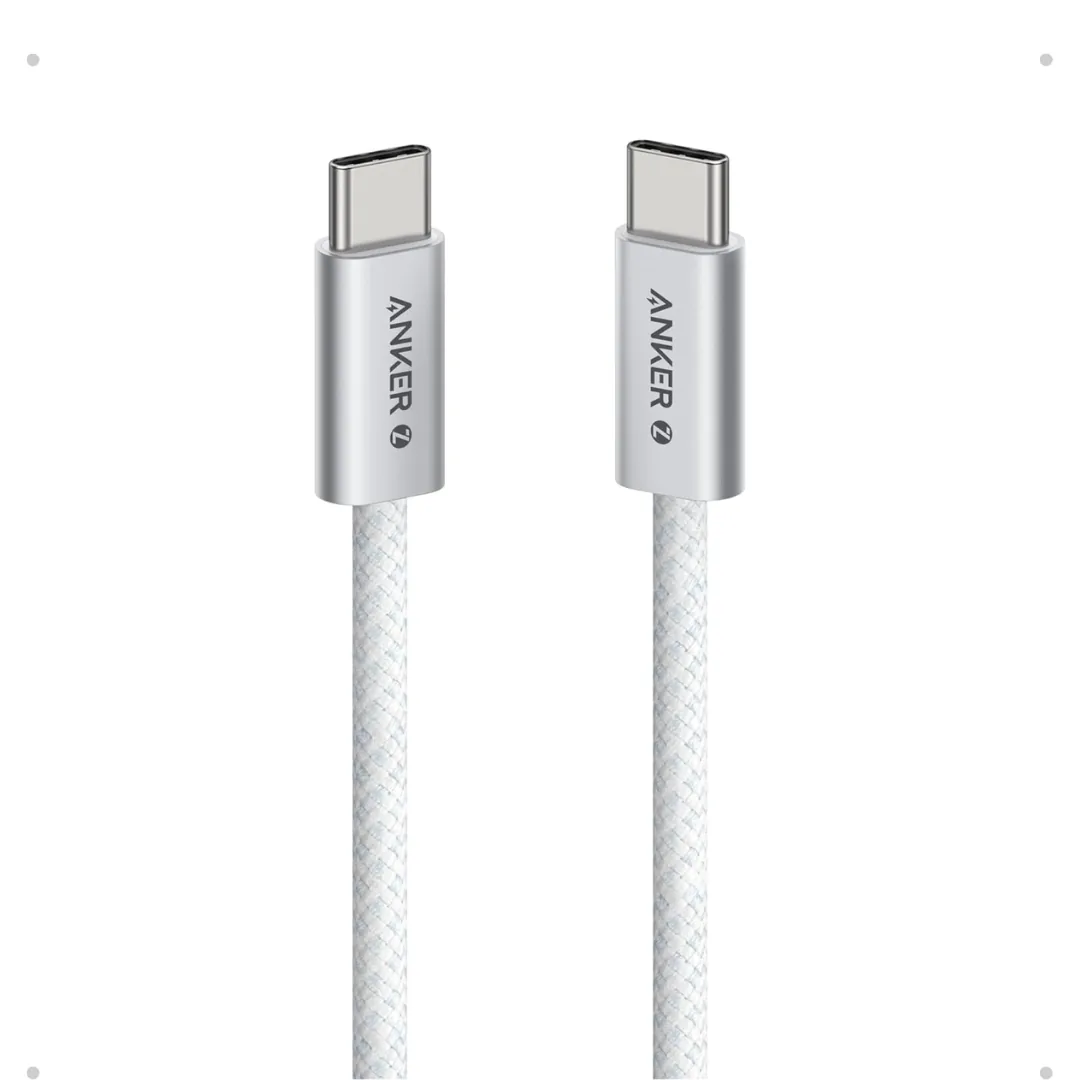
Anker Zolo USB-C to USB-C Braided Cable (A8060) — 240W PD 3.1, 1.5m | 240W-Grade 8-Core Wire
Anker PowerLine III USB-C to USB-C | 60W | iPhone 17 & Samsung S26
Joyroom 60W USB-C to USB-C Fast Charging Cable
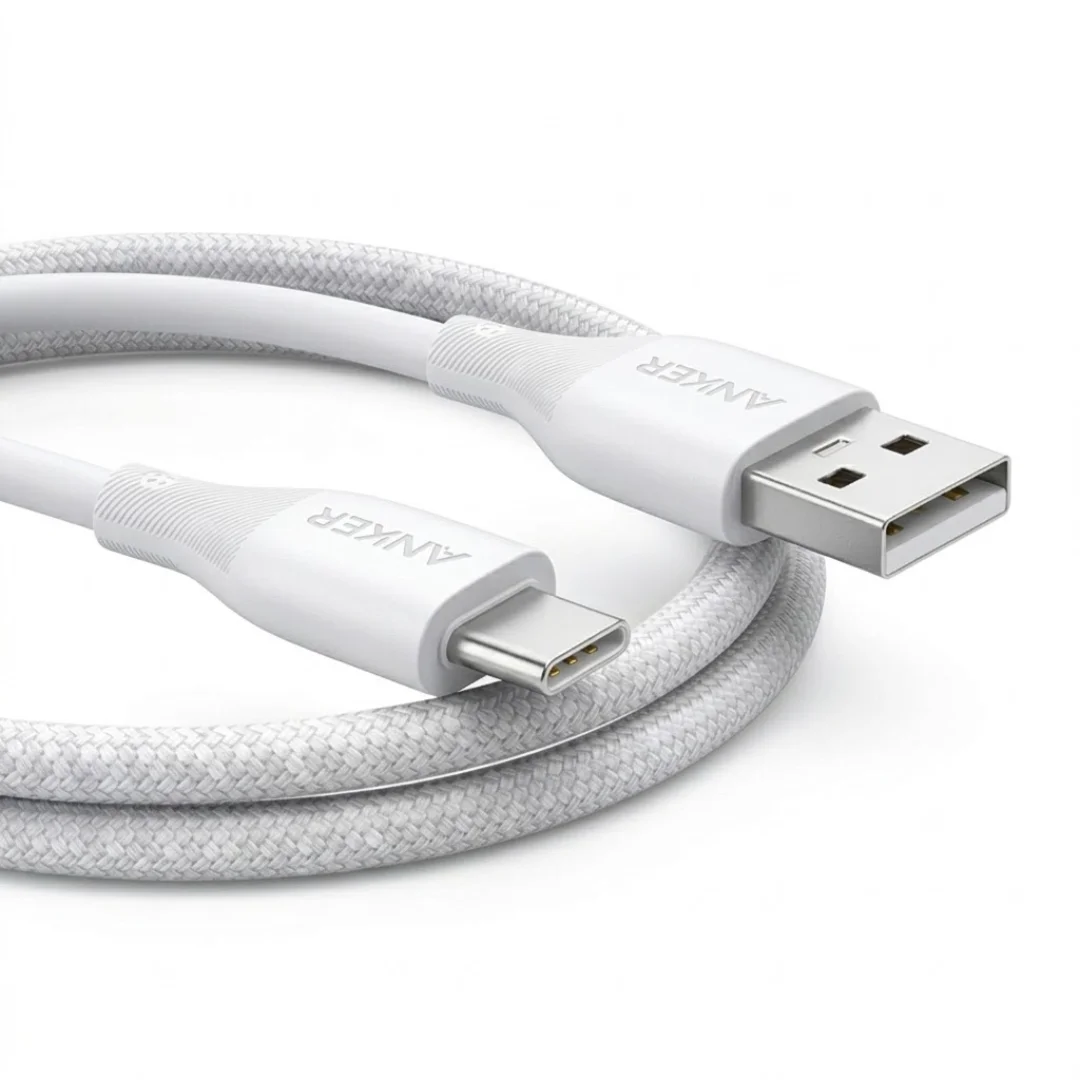
Anker USB-A to USB-C Cable (A8050) | Braided Nylon 1.8m | Fast Charging
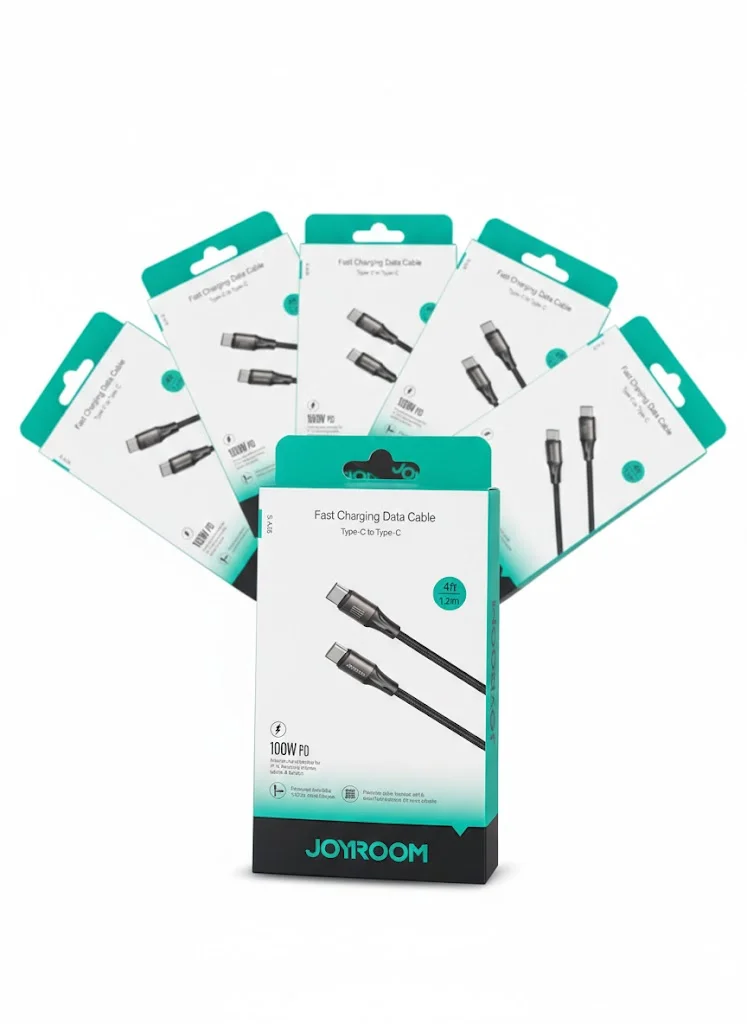
Joyroom USB-C to USB-C Cable JR-S-CC100
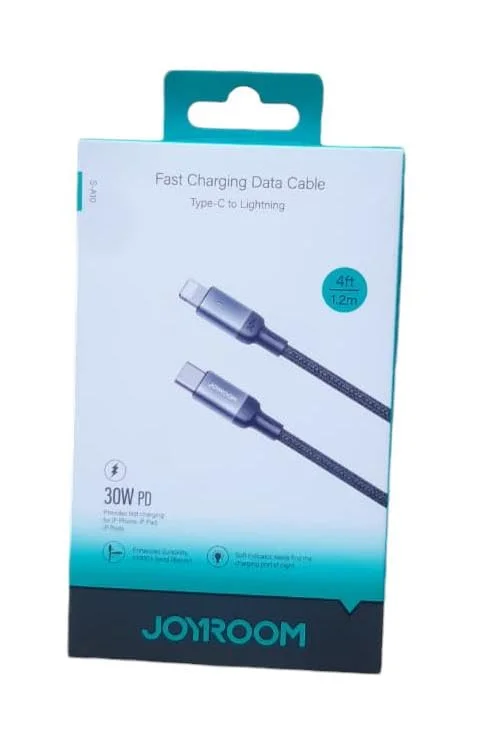
Joyroom 30W PD Fast Charging Cable 1.2m
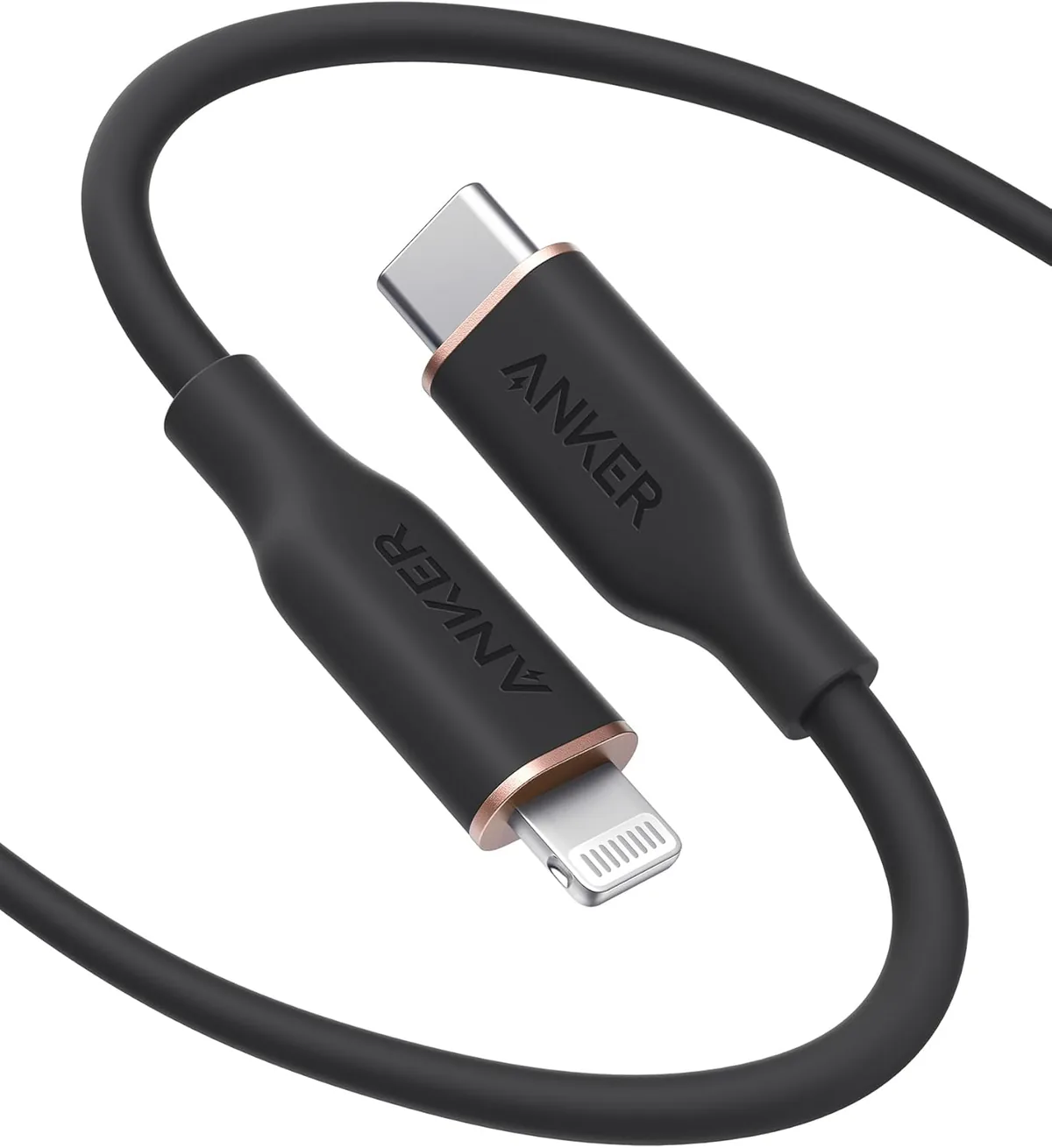
Anker PowerLine Select USB-C to Lightning (A8612H11) | Verify MFi | USB-PD
Browse the categories this article covers
Related Articles

Complete USB-C Cable Guide for Egypt: Not All Cables Are Created Equal
Read more →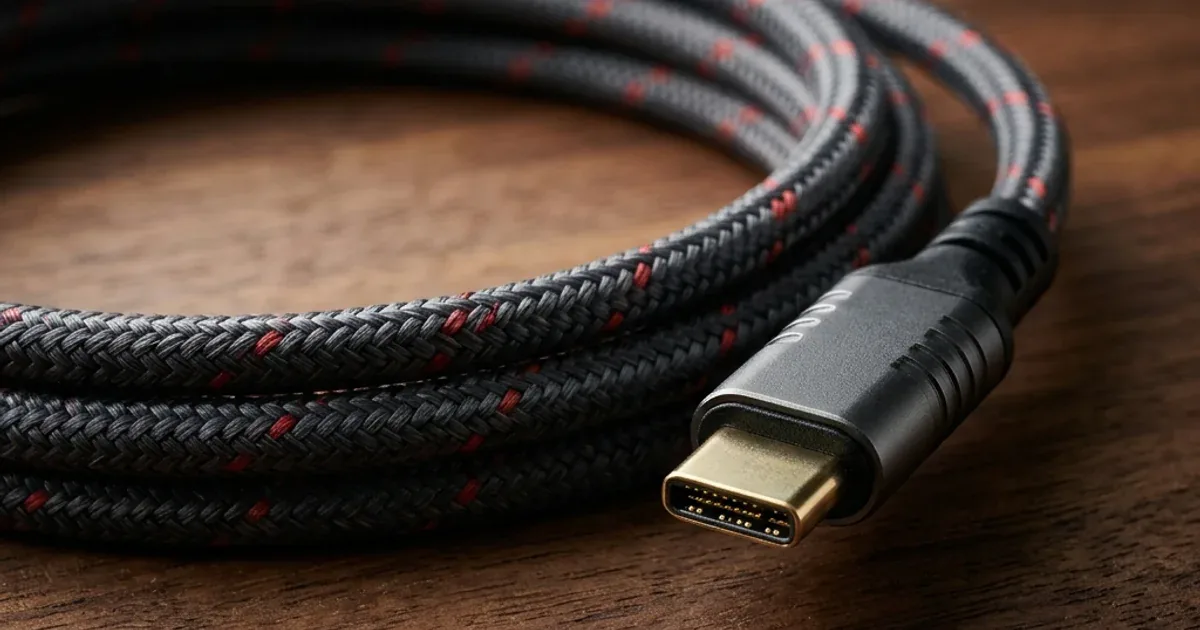
USB-C 240W Cable for Gaming Laptops — When You Actually Need It and When It's a Waste of Money
Read more →