
USB-C Port Clogged? How to Clean It Safely Without Breaking the Connectors
Cable won't stay in your phone or charging keeps disconnecting? The port is likely clogged with lint. This guide explains safe cleaning step by step.
Quick Take: If the cable won't stay or charging disconnects — the port likely has compressed lint/dust. Safe cleaning: (1) Power off the phone. (2) Use a wooden or plastic toothpick (never metal). (3) Gently scrape along the inner walls from inside to outside. (4) Blow lightly with your breath or use compressed air from 10cm away. ❌ Never use a metal needle — it can break the contact pins. ❌ Never use a vacuum — suction can pull out delicate components.
The scenario is familiar: you plug the charging cable into your phone and it disconnects after two seconds. You press harder — it charges. Let go — disconnects. Flip the cable — same story. Before you blame the cable or assume the "port is broken" and spend 500 EGP on repairs — there's a very high probability the problem is much simpler: the port is clogged with compressed dust and lint.
You put your phone in your pocket every day — and pockets are full of fabric fibers, lint, and dust. Every time you pocket your phone, tiny fibers enter the USB-C port. Every time you plug in a cable — the cable pushes those fibers deeper. After months — a small compressed "brush" forms at the bottom of the port, preventing the cable from fully inserting and separating the contact pins. The fix? Simple cleaning — but done the right way. Because the wrong method can cost you the entire port.
💡 Quick Answer: Power off the phone → use a wooden or plastic toothpick → gently scrape along the inner walls → blow lightly with your breath. ❌ Metal needles are forbidden — they can break the pins. If cleaning doesn't help → it's beyond lint and needs a technician.
Why USB-C Ports Clog Faster Than Lightning
If you previously used an older iPhone with a Lightning port before Apple switched to USB-C — you might notice USB-C clogs faster. It's not your imagination — it's physics. A USB-C port is wider and deeper than Lightning (8.34mm wide × 2.56mm tall × ~7.5mm deep vs. 6.7mm × 1.5mm × ~6.7mm for Lightning). Larger opening = more dust enters. Also, in USB-C, the "tongue" with the contact pins is inside the phone — so when lint accumulates around that tongue, it prevents the cable from making full contact.
Bottom line: USB-C is an excellent design for compatibility and speed — but it requires more regular maintenance than Lightning. That's not a flaw — it's a usage reality.
Safe Cleaning Tools — and Forbidden Ones
| Tool | Verdict | Reason |
|---|---|---|
| Wooden toothpick | ✅ Safe — Best option | Soft enough not to break pins, firm enough to dislodge compressed lint |
| Plastic toothpick | ✅ Safe | No electrical conductivity risk — but weaker than wood for hardened lint |
| Soft toothbrush (dry) | ✅ Safe — for light dust | Good for outer edges — but bristles may not reach the port's bottom |
| Compressed air can | ⚠️ With caution | Use from 10cm+ at an angle — too close and the pressure can push lint deeper or damage gaskets |
| Gentle breath | ✅ Safe | Light pressure dislodges loose dust — but won't remove compressed lint |
| Metal needle / pin | ❌ Forbidden | Metal conducts electricity (short circuit risk) and is hard enough to break contact pins — the #1 cause of port damage |
| Vacuum cleaner | ❌ Forbidden | Suction force can pull out delicate components — especially spring contacts |
| Alcohol / liquids | ❌ Forbidden | Liquid can reach the board — even Isopropyl Alcohol is only safe with ESD brushes in a professional repair environment |
Safe Cleaning Steps — The Complete Method
Follow these steps in order — and take your time. Cleaning isn't a race:
- Step 1 — Power off the phone completely: Not airplane mode — power off. If the port has any electrical current while you're cleaning, touching the pins could cause a short circuit. Also disconnect any cables.
- Step 2 — Visual inspection first: Take the phone and point the port toward a light source (another phone's flashlight or natural light). Look for visible lint or debris. If you can see a clump of lint — that's good news, it means cleaning will solve the problem.
- Step 3 — Blow first (gentle breath): Hold the phone with the port facing down (so gravity helps) and blow gently 2-3 times. This removes loose dust. Don't blow aggressively — moisture from your breath can enter if you blow too hard.
- Step 4 — Wooden toothpick: Take a standard thin wooden toothpick. Insert it gently into the port — and be mindful of the "tongue" in the center (that's where the pins are — don't press on it). Move the toothpick along the upper and lower inner walls — from inside to outside — like cleaning under your fingernails. You'll see small lint clumps come out.
- Step 5 — Repeat on all sides: The port has 4 walls (top, bottom, left, right). Clean each wall. Focus on the bottom — that's where the cable pushes lint deepest.
- Step 6 — Blow again: After loosening lint with the toothpick — blow again to expel the debris. Or use compressed air from 10cm away at a 45-degree angle.
- Step 7 — Test: Power on the phone and connect the cable. If the cable goes in deeper than before (you'll feel a clearer "click") and stays put — congratulations, problem solved. If it still disconnects — repeat the steps or read the next section.
⚠️ Important Warning: If you feel unusual resistance or hear a clicking sound — stop immediately. You may be pressing on the pins themselves. The toothpick should glide smoothly along the walls — if there's resistance, you're in the wrong spot.
When Cleaning Won't Work — and You Need a Technician
Cleaning solves the problem in most cases. But there are situations where cleaning won't help — and you need to recognize them to avoid wasting time and risking port damage:
- 🔧 Pins are broken or bent: If you look inside the port with a flashlight and see that one of the pins (the tiny metal strips on the center tongue) is bent or missing — that requires micro-soldering. Don't attempt to straighten it yourself — you'll make it worse.
- 💧 Port was exposed to water or moisture: If the phone was submerged in water (even with IP68 rating) and charging started disconnecting afterward — there may be oxidation on the pins. Dry cleaning won't help — it needs chemical cleaning with specialized tools.
- ⚡ Phone charges wirelessly but not via cable: If wireless charging works perfectly but the cable doesn't work after cleaning — the problem is in the wired charging circuit or the IC on the board. That's board-level repair.
- 🔌 Tried 3 different (genuine) cables and all have the same issue: If one cable disconnects but others work — replace the cable. If 3 cables all disconnect after cleaning — the problem is the port itself or the board.
- 📱 Phone displays "Moisture Detected" or "Charging Paused": This means the moisture sensor in the port is detecting moisture (real or phantom). Dry cleaning might help — but if the message persists after cleaning and thorough drying — the sensor needs professional attention.
5 Common Mistakes That Cost You the Port — and How to Avoid Them
- ❌ Mistake 1: Using a sewing needle or pin. The most common mistake — and it breaks pins in a second. A metal needle is far harder than contact pins (which are made from thin copper alloy). One touch at the wrong angle = bent pin = the port won't recognize cables from that side.
- ❌ Mistake 2: Aggressive compressed air blasts. Compressed air cans produce 50-70 PSI — aimed directly into the port from 2cm away, that pressure can push lint deeper or damage the gasket (rubber seal that provides water resistance in IP-rated phones). Use from 10cm+ at an angle.
- ❌ Mistake 3: Cleaning while the phone is on. If the port has current flow (phone is on) and you touch the pins with anything conductive — short circuit risk. Even with a wooden toothpick — a conductive dust particle between the toothpick and pin can cause issues. Power off first.
- ❌ Mistake 4: Using alcohol or water. "I'll clean it with alcohol like cleaning a circuit board" — no. Circuit boards are cleaned with 99% Isopropyl Alcohol in controlled environments with ESD tools. At home — liquid will reach places it shouldn't. Dry cleaning with a toothpick and air handles most cases.
- ❌ Mistake 5: Forcing the cable harder instead of cleaning. "The cable won't stay — I'll push harder." This temporarily fixes the connection but pushes lint deeper + puts mechanical stress on the pins that can bend them over time. Clean the port — don't force the cable.
Prevention — How to Stop the Port from Clogging in the First Place
- 🛡️ Use a silicone port cover: Available on Amazon for under 50 EGP — pack of 10. Insert one into the port when not charging. Blocks 95% of dust and lint. Only downside: you might forget or lose it.
- 📱 Pocket the phone with the port facing up: If you carry your phone in your pocket — keep the port facing up (toward the belt). Gravity helps — dust doesn't accumulate in an upward-facing port nearly as fast.
- 🔄 Clean the port every two months: Even if charging works fine — lint accumulates slowly. A quick 30-second preventive clean with a toothpick every two months prevents buildup from reaching the clogging stage.
- 🔌 Use high-quality USB-C cables: Quality cables (like Anker cables) have connectors that insert smoothly and lock with spring clips precisely — no forcing needed. Cheap cables have oversized or undersized connectors that push lint inward or don't stay connected.
Does Cleaning Affect Water Resistance (IP Rating)?
An important question for owners of water-resistant phones (IP67/IP68). The answer: proper dry cleaning with a wooden toothpick does not affect the IP Rating — because the gasket (rubber seal) sits around the port internally, and the toothpick won't reach it if you're gently cleaning the walls.
What does affect IP Rating: (1) A metal needle scratching the gasket. (2) High-pressure compressed air displacing the gasket. (3) Any liquid bypassing the gasket. That's why we say: wooden toothpick + gentle breath = the only safe method that doesn't risk your water resistance.
The Key Question: Replace the Port or Replace the Cable?
Before deciding — run this diagnostic:
- 🔌 Try 3 different cables (genuine or certified). If only one cable disconnects and the others work — replace the cable. Its connector may be worn.
- 📱 Try the cable on another device. If the cable works fine on another phone or laptop — the problem is your phone's port.
- 🧹 Clean the port using the method we described. If the cable holds after cleaning — the problem was lint. Problem solved.
- 🔧 If after cleaning + 3 different cables it still disconnects — visit a certified technician. USB-C port replacement costs 300-600 EGP depending on the phone — much cheaper than a new phone.
✅ Available at CairoVolt
If cleaning reveals the cable was the problem — Anker USB-C cables and Joyroom cables are available with CairoVolt's written store warranty (duration shown on each product page). Connectors meet spec and won't stress your port. Delivery to all governorates.
🛒 Related Products from CairoVolt:
Based on this article, here are our picks: Anker PowerLine USB-C Cable · Anker USB-C Cable · Joyroom USB-C Cable · Joyroom 60W Cable.

CairoVolt Editorial Team
Content team reviewing specifications and buying guides
The CairoVolt team reviews model numbers, specifications, and compatibility, and updates information when better data is available. Estimates are labeled as calculations, and readers can report information that needs correction.
Frequently Asked Questions
Can I clean a USB-C port with a metal needle?▼
How often should I clean my USB-C port?▼
Does cleaning affect my phone's water resistance (IP68)?▼
When should I visit a technician instead of cleaning it myself?▼
Ready to Buy?
Browse available products and review specifications and CairoVolt warranty terms before ordering
Related products
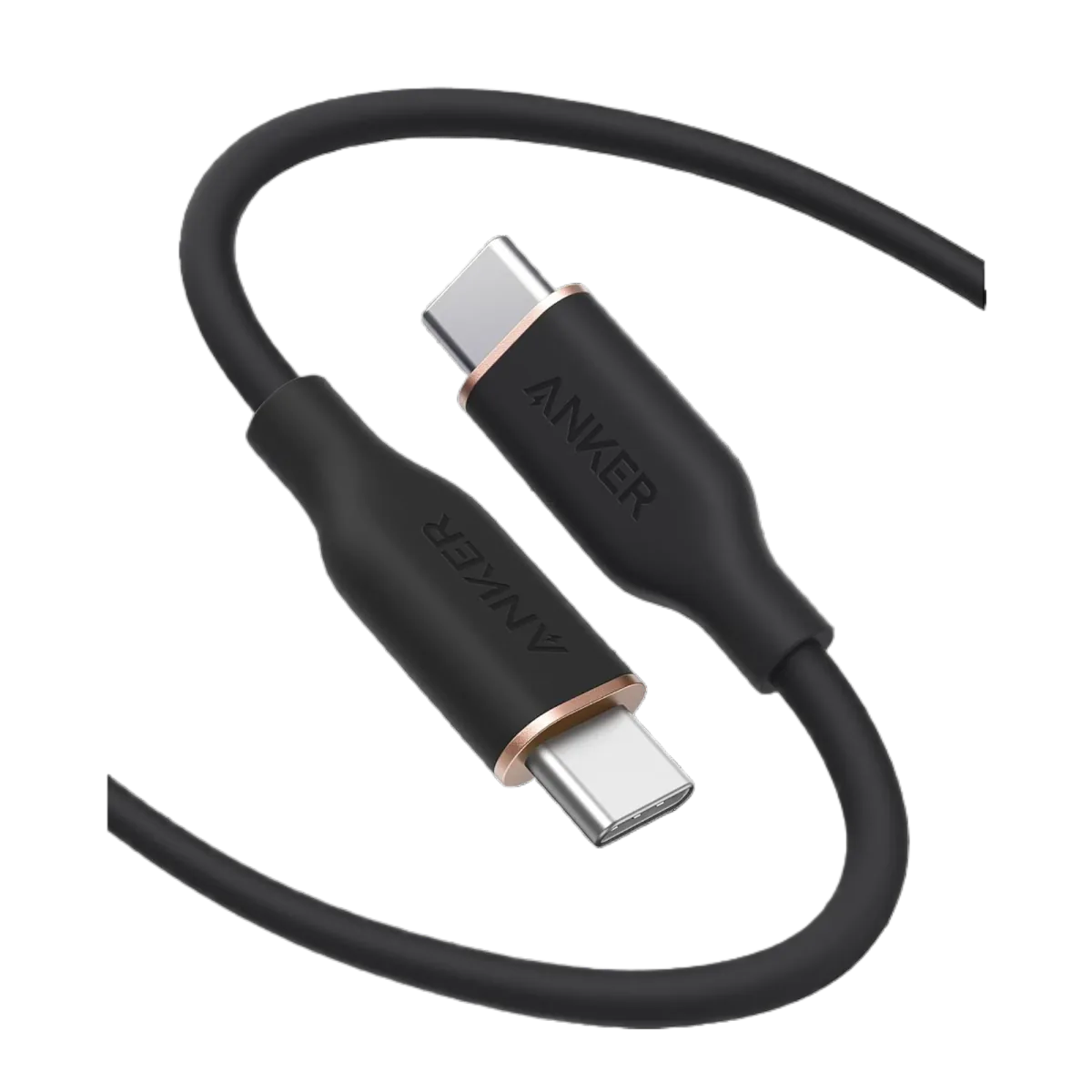
Anker PowerLine III USB-C to USB-C | 60W | iPhone 17 & Samsung S26
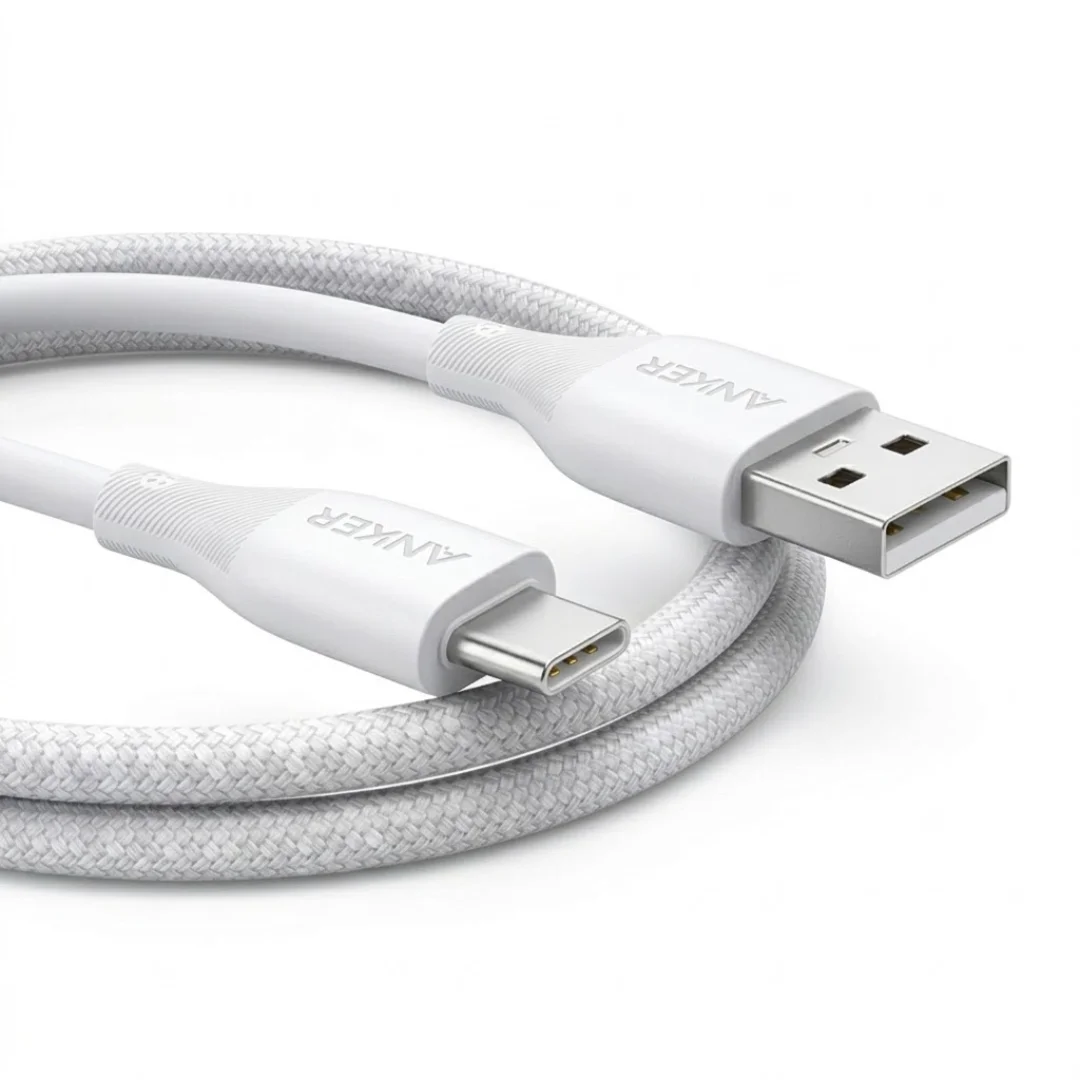
Anker USB-A to USB-C Cable (A8050) | Braided Nylon 1.8m | Fast Charging
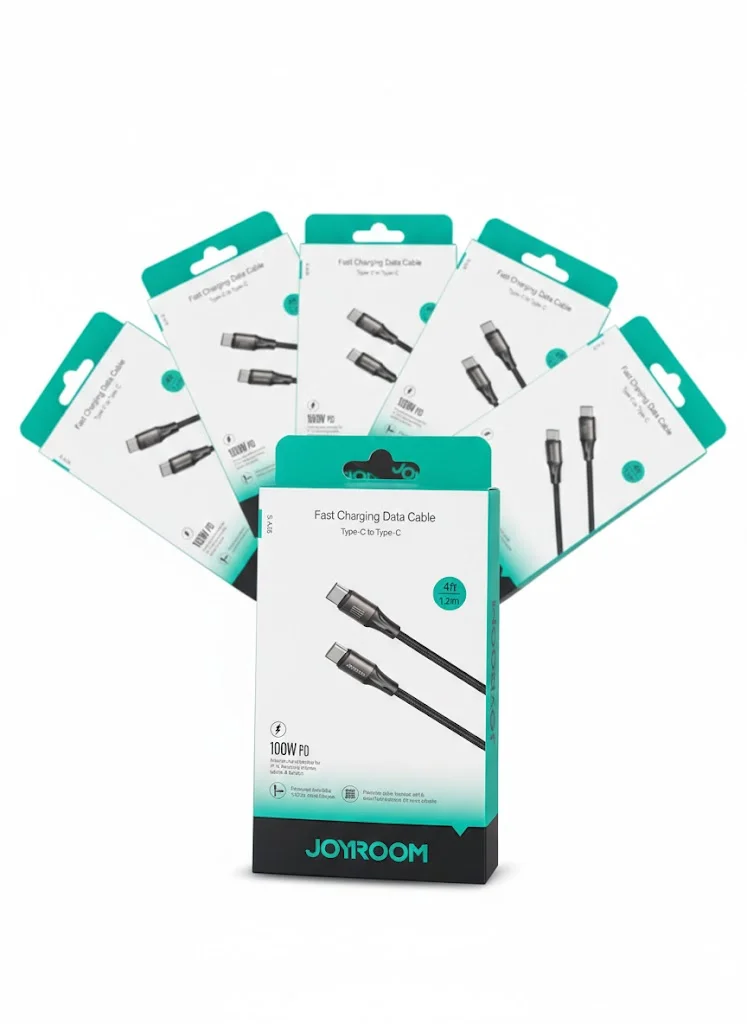
Joyroom USB-C to USB-C Cable JR-S-CC100
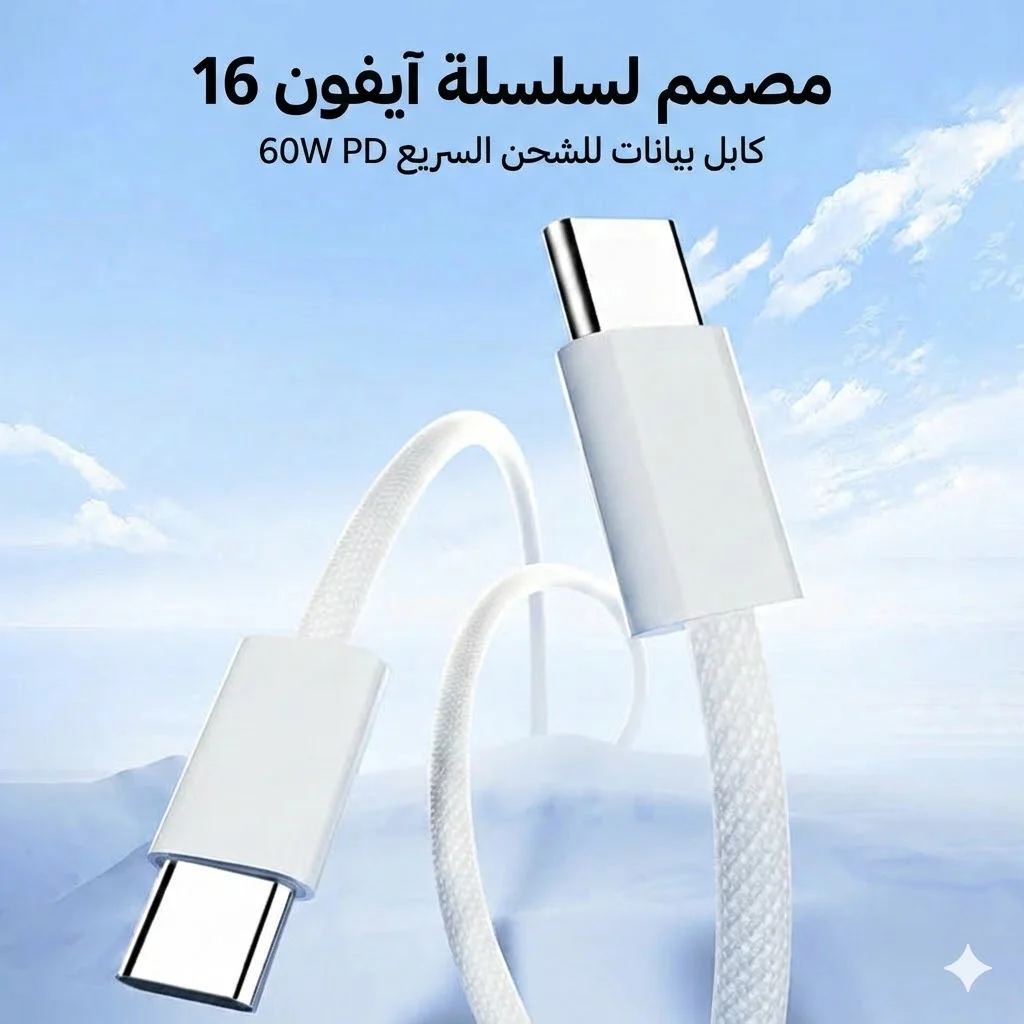
Joyroom 60W USB-C to USB-C Fast Charging Cable
Anker 511 Nano 3 GaN Charger 30W (A2147) | USB-C PD | IQ3