Connecting Phone to TV with HDMI Cable: Complete Guide Without WiFi
Tired of slow WiFi screen casting lags? Discover how to wire your iPhone or Android phone directly to your TV via HDMI for lag-free 4K viewing in Egypt.
In short: To connect your mobile phone to a TV via HDMI without WiFi, check compatibility: First, for modern Android (USB-C): Ensure the device supports DisplayPort Alt Mode (available on flagship Samsung S/Note and Huawei Mate/P series) and use a direct USB-C to HDMI cable. Second, for iPhones: Use an Apple Digital AV Adapter (Lightning) or a direct USB-C to HDMI cable for iPhone 15/16 series. Third, for mid-range Androids: Use an Active HDMI Adapter with screen mirroring software like MiraPlug.
Many travelers visiting holiday resorts in the North Coast or Sokhna encounter slow, laggy, or non-existent WiFi networks. If you want to stream a late-night movie, watch a critical football match, or play games on a larger TV screen, wireless screen casting becomes practically impossible, introducing heavy lag that ruins the experience.
At the CairoVolt lab, we prioritize stable and practical electrical solutions. Wiring your phone directly via HDMI is the best alternative to laggy WiFi connections. However, this setup is more complex than plug-and-play; it requires an understanding of data transmission protocols and device compatibility. In this guide, we explain how to establish a direct connection to your TV, highlighting the differences between phone models and troubleshooting common technical issues in Egypt.
1. Decoding the Tech: USB-C DisplayPort Alt Mode on Android Devices
A common technical pitfall is purchasing a generic USB-C to HDMI cable for budget or mid-range Android devices, only to find a blank black screen upon connection. Why does this happen?
From an engineering perspective, for a USB-C port to transmit video signals over HDMI, the phone's chipset must support a hardware feature called **DisplayPort Alt Mode (DP Alt Mode)**. This protocol requires a USB 3.1 interface or higher.
- 📱 Fully Supported Phones: Flagship devices such as the Samsung Galaxy S-series (S8 through S24 Ultra), Note-series, and high-end Huawei Mate/P-series. These devices support desktop interfaces like Samsung DeX, transforming your TV into a workspace.
- 🚫 Unsupported Phones: Most budget and mid-tier devices from Xiaomi, Realme, and Samsung A-series (e.g., A54, A34) run on the older USB 2.0 protocol, which lacks physical lanes for video signal routing.
2. Connecting Apple iPhones to a TV via HDMI in Egypt
Apple hardware requirements vary depending on the generation and port architecture of the device:
- 🍏 iPhone 15 and 16 Series (USB-C): Apple adopted the USB-C standard, supporting USB 3.0 speeds and video out on Pro models. You can use a standard USB-C to HDMI cable to project high-definition 4K content.
- 🍎 Older iPhones (Lightning Port): These models do not support native video output. To connect, you must use Apple's official **Lightning to Digital AV Adapter**, which houses a decoding chip to convert audio/video output, along with an extra Lightning port for simultaneous charging.
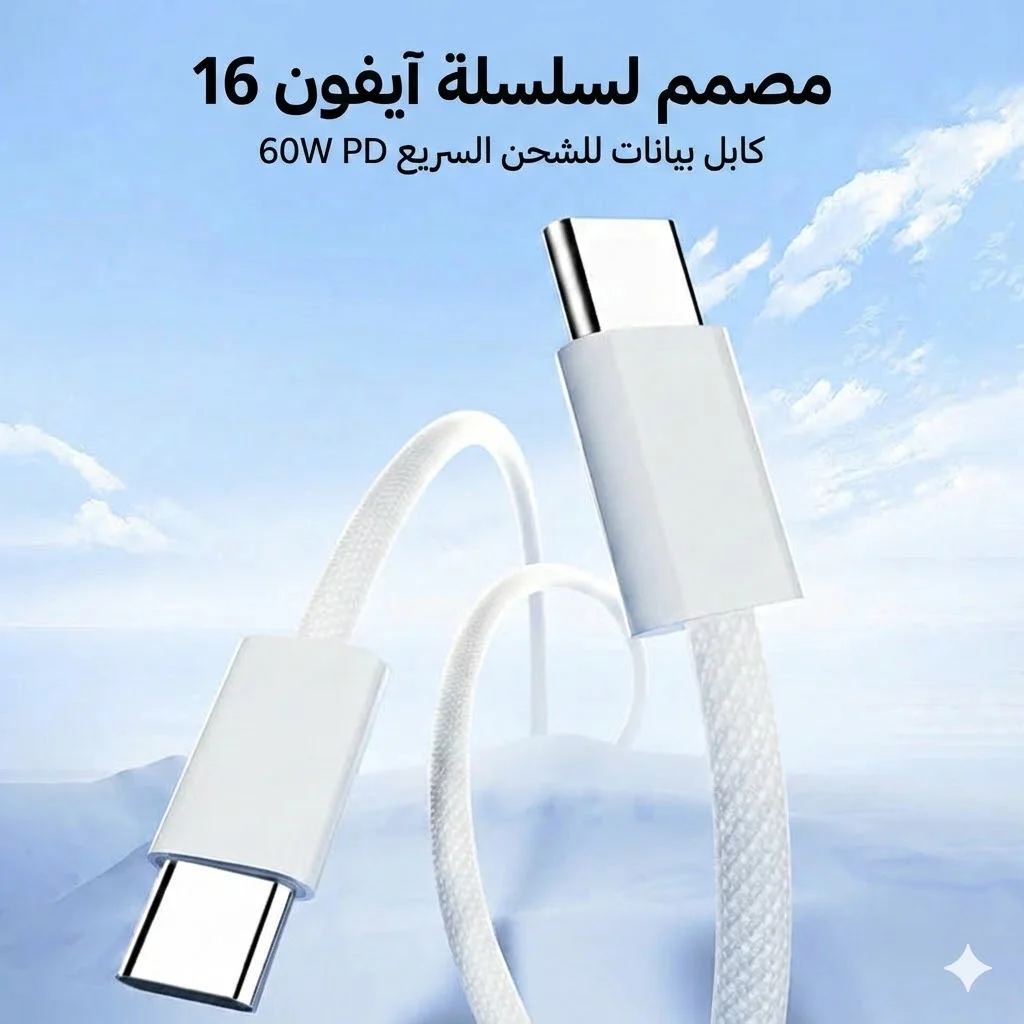
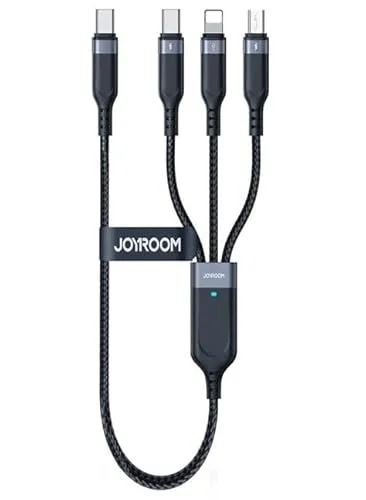
Standard charging cables, like the Joyroom 3-in-1 cable, are designed for power and data sync only and cannot route video signals without active adapter hardware.
3. The Active HDMI Adapter Solution for Mid-Range and Budget Phones
If your device lacks native DisplayPort Alt Mode support, you can still mirror your screen using an **Active USB to HDMI Adapter**.
These active adapters do not rely on the phone's chipset. Instead, they integrate a micro-graphics card (such as a DisplayLink chip). Once plugged in, you install a companion app (like MiraPlug) to capture your screen, compress the feed, and transmit it as data to the adapter, which decodes the signal and outputs it to the TV's HDMI port.
While highly compatible, active adapters can introduce minor latency (a few milliseconds) and are not ideal for competitive gaming, though they work perfectly for streaming video content.
4. Device and Adapter Compatibility Reference Table
This table outlines the required cable and adapter type for your device to ensure a correct purchase in Egypt:
| Phone Category | DP Alt Mode Support | Required Cable/Adapter | Performance Notes |
|---|---|---|---|
| Samsung S & Note Series | Yes (Full) | USB-C to HDMI Direct | Launches Samsung DeX desktop mode |
| iPhone 15 & 16 Series | Yes (Full) | USB-C to HDMI Direct | Supports 4K HDR and smooth playback |
| Lightning iPhone Models | No (Requires Decoding) | Lightning Digital AV Adapter + HDMI Cable | Requires external power source connection |
| Mid-range Android Phones | No (Unsupported) | Active USB to HDMI Adapter (MiraPlug) | Great for movie playback, minor lag in games |
Identifying your device's compatibility prevents purchasing incompatible accessories, ensuring a stable and high-quality screen mirroring experience in Egypt.
5. Troubleshooting Audio, Video, and HDCP Issues
Here are solutions for common screen-mirroring issues:
- 📺 Black Screen on Netflix, Shahid, or Disney+: This is not a hardware fault; it is caused by **HDCP (High-bandwidth Digital Content Protection)**. Counterfeit or low-grade HDMI cables trigger DRM flags, causing streaming apps to block video. Use certified cables to avoid this. Keep in mind that the HDCP protocol is constantly updated. If you are trying to stream 4K HDR content from international streaming platforms, the system requires a cable that supports HDCP 2.2 at a minimum. Older or low-grade cables that only support HDCP 1.4 will trigger playback errors and present a blank black screen. Always verify the HDCP rating of your adapter or cable before purchasing it in Egypt to ensure compatibility.
- 🔊 Sound Plays on Phone Speakers Instead of TV: Open the quick settings menu on your phone, tap "Media Output," and select the HDMI display as your primary audio device.
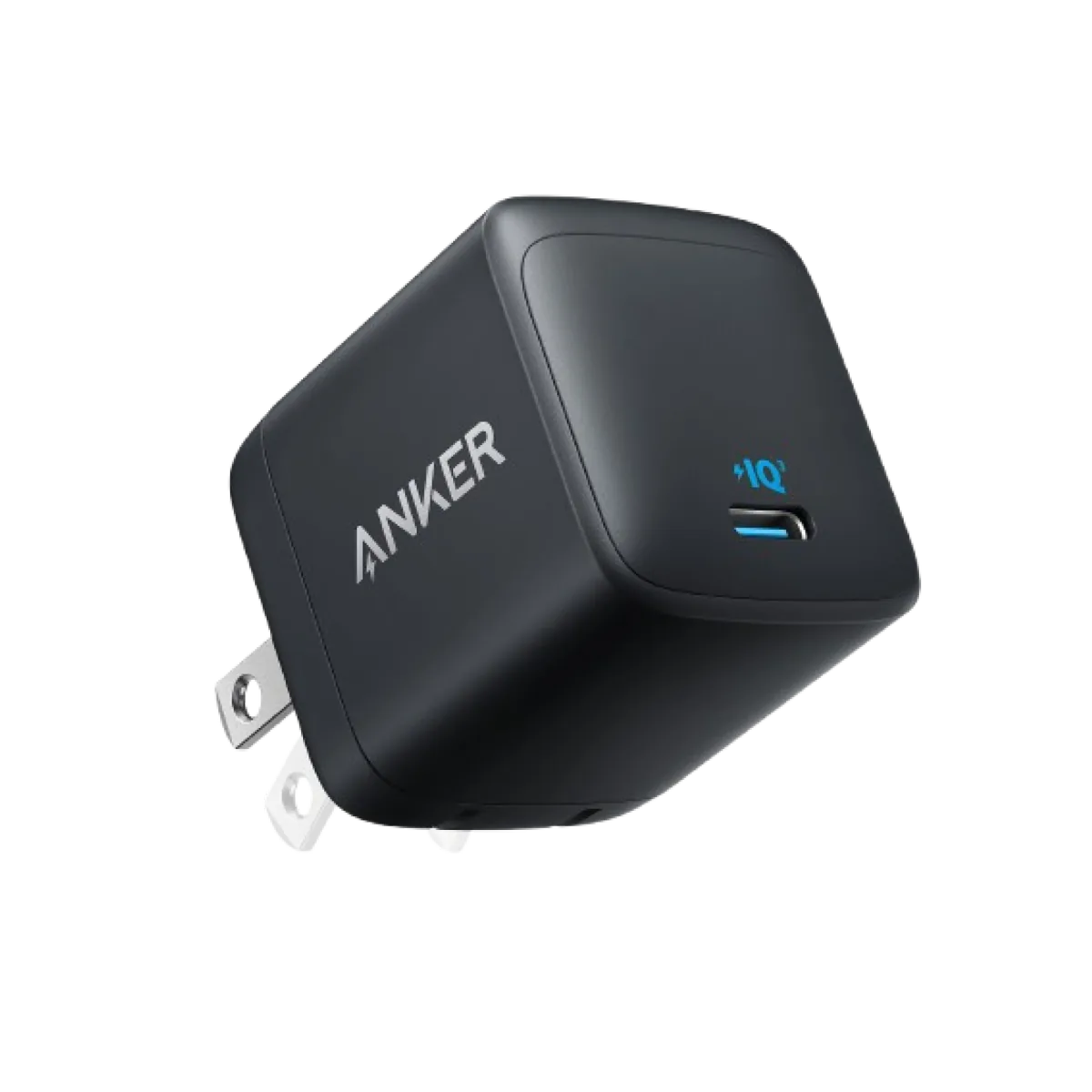
- 🔌 Phone Overheating: Streaming video while charging generates substantial heat. Place your phone on a cool surface, and use a premium charger like the Anker Nano 45W to maintain clean voltage and preserve battery health.
Avoiding counterfeit accessories protects your mobile hardware from electrical short-circuit risks in Egypt.
5.1. Cable Quality and Shielding: Securing 4K Video Transmission
Stable video transmission depends on the physical properties of the HDMI cable. Many cheap cables use copper-clad aluminum (CCA) wiring, which increases electrical resistance and causes signal drops at 4K resolutions.
For reliable screen mirroring, choose authentic cables made with Oxygen-Free Copper (OFC) cores and triple-layer shielding. This prevents electromagnetic interference from cellular signals and nearby electronics, maintaining signal integrity over longer distances and preventing thermal damage to your ports in Egypt. By choosing properly shielded cables and adjusting your phone's performance settings, you ensure a highly reliable, high-definition viewing experience for your family without relying on unstable internet connections in Egypt.
4.1. Active vs. Passive HDMI Cables and Length Limits for Screen Mirroring
When connecting your mobile phone to a TV over longer distances (such as sitting on a couch with the television on the opposite wall exceeding 5 meters), you must understand the engineering difference between passive and active HDMI cables.
Passive HDMI cables are standard copper wires that route electrical signals directly without modification. These function perfectly over short distances (under 3 or 5 meters). However, over longer lengths, cable resistance degrades the digital signal, leading to screen flickering, signal drops, or visual snow.
To overcome this signal degradation, Active HDMI cables incorporate a microchip built into one of the connector housings. This chip acts as a signal amplifier, boosting the video feed as it travels through the wire. Active cables allow you to transmit 4K video over distances up to 15 or 20 meters without signal loss. Note that active cables are directional, meaning they have dedicated input (Source) and output (Display) ends that cannot be reversed.
4.2. Power Saving Modes and Refresh Rates: Optimizing Frame Rates
Some users experience sudden stuttering (frame drops) or screen lag during mobile gaming or movie playback despite using a premium USB-C to HDMI cable. This is typically a software-related bottleneck caused by your phone's operating system settings.
When you enable "Power Saving Mode" on your smartphone, the OS automatically throttles the graphics processor (GPU) to conserve battery capacity. It also limits the screen refresh rate to 30Hz instead of 60Hz. This rendering constraint applies to the external HDMI output, resulting in choppy motion and input lag on your TV screen.
To secure maximum rendering smoothness, disable all power-saving options before plugging in the cable. Navigate to your phone's display settings and verify that the external display output is configured to 60Hz (60 frames per second). This ensures fluid visual performance for both high-definition movies and competitive gaming in Egypt. Additionally, some Android manufacturers include a dedicated desktop mode (like Samsung DeX or Motorola Ready For) that bypasses power saving restrictions for external displays. However, running these interfaces consumes substantial RAM and processor cycles. If your phone feels hot to the touch, frame rates will automatically drop due to thermal throttling, so keeping the phone in a well-ventilated space is vital.

CairoVolt Editorial Team
Content team reviewing specifications and buying guides
The CairoVolt team reviews model numbers, specifications, and compatibility, and updates information when better data is available. Estimates are labeled as calculations, and readers can report information that needs correction.
Frequently Asked Questions
How do I check if my Android phone supports USB-C to HDMI output?▼
Why is there no audio playing on my TV when mirroring via HDMI?▼
Can I charge my phone while streaming content via an HDMI cable?▼
What is the price of a phone-to-TV HDMI adapter cable in Egypt?▼
Ready to Buy?
Browse available products and review specifications and CairoVolt warranty terms before ordering
Related products
Joyroom 3-in-1 Multi-Connector Charging Cable
Anker Nano 45W GaN USB-C Charger | MacBook Air + iPhone 17
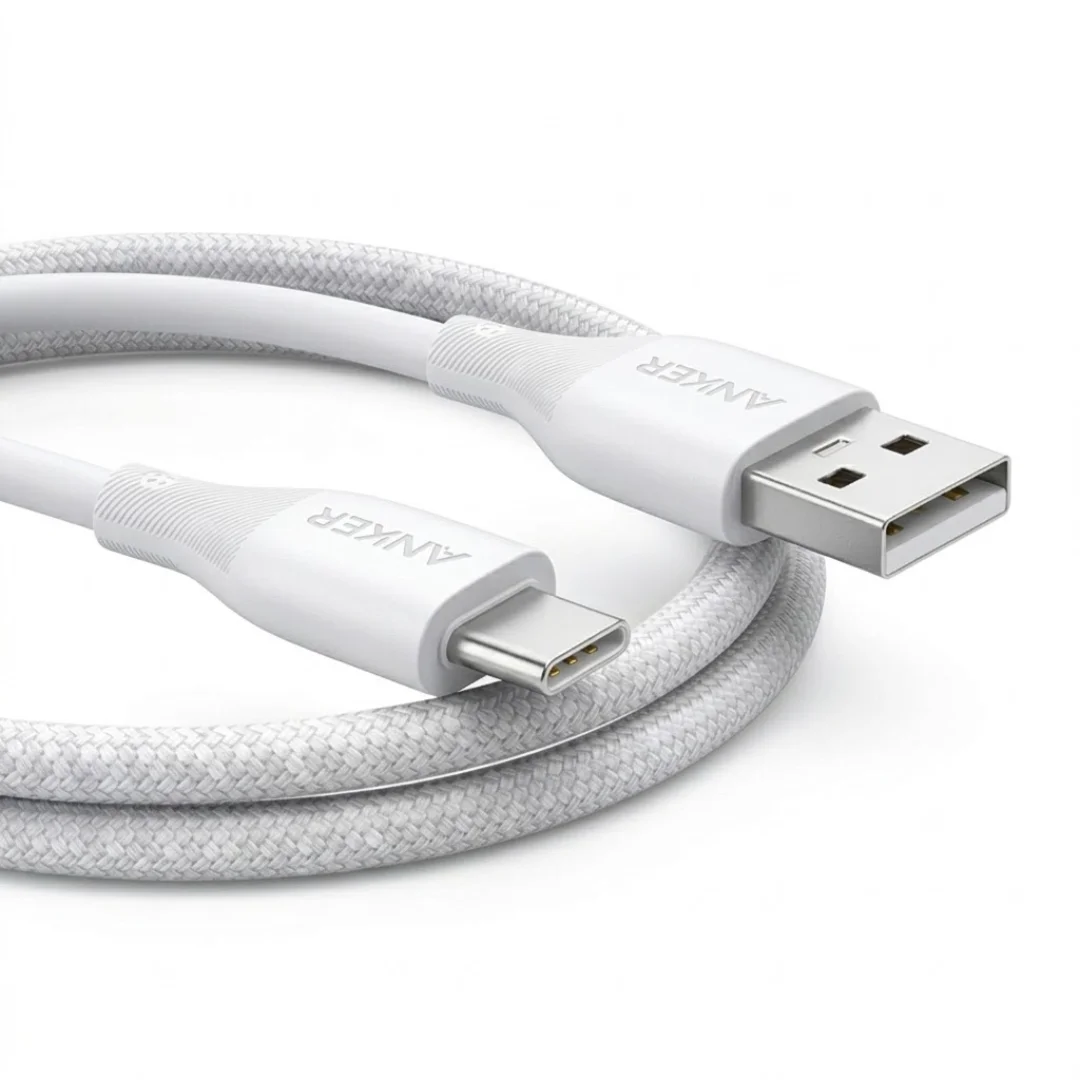
Anker USB-A to USB-C Cable (A8050) | Braided Nylon 1.8m | Fast Charging
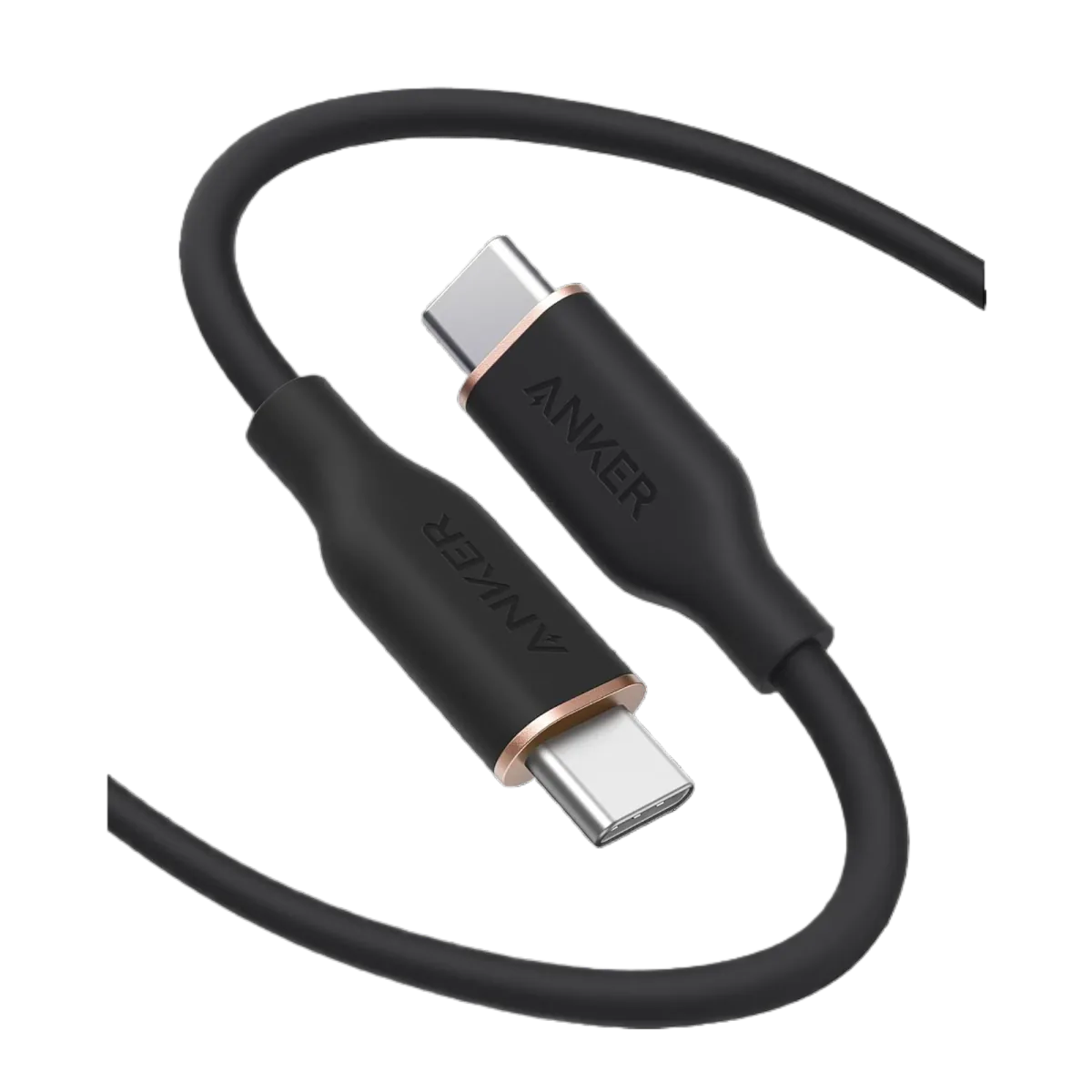
Anker PowerLine III USB-C to USB-C | 60W | iPhone 17 & Samsung S26
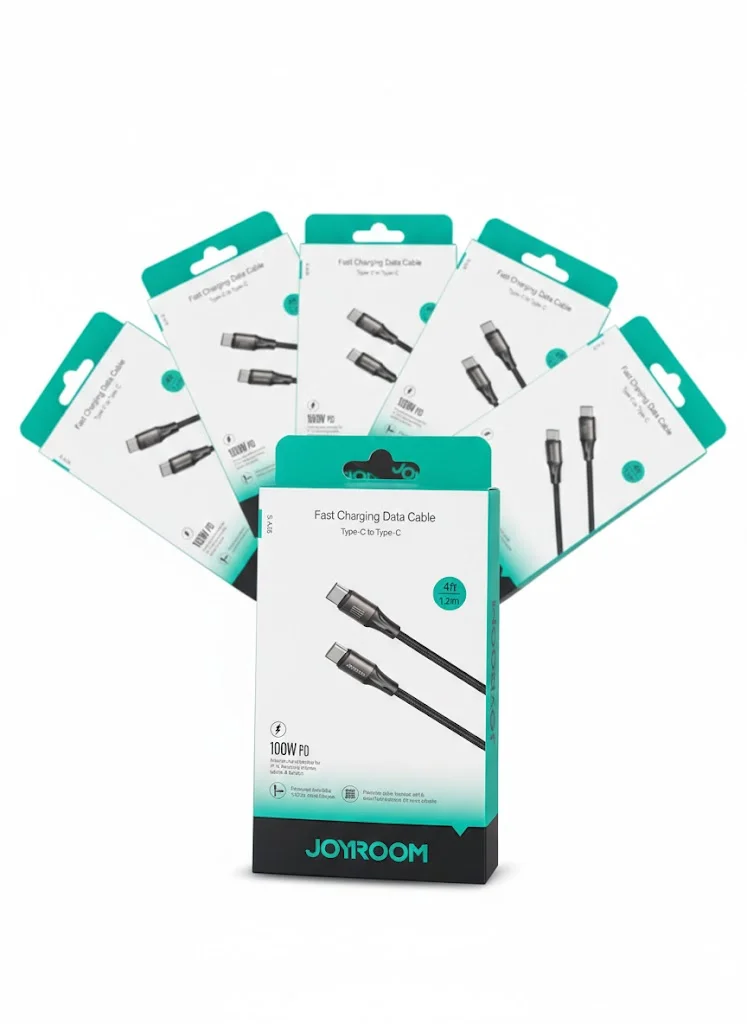
Joyroom USB-C to USB-C Cable JR-S-CC100