
Battery Draining Fast After the Latest Update — Is Your Charger the Hidden Culprit?
Engineering analysis: why battery drains after updates, when it's normal (48-72 hours), and when your charger is the hidden suspect.
Quick Take: In most cases, battery drain after an update is normal and temporary — the phone re-indexes files and photos, taking 48-72 hours. But sometimes, the update changes how the phone negotiates with the charger (USB-PD/PPS), potentially causing it to charge at 5W instead of 25W without you noticing — that's the hidden cause.
You downloaded the new update with excitement — "performance and security improvements" as Apple and Google always promise. Two days later, the phone that used to last until bedtime is now dying at 4 PM. You check Battery Health: 89%. So the battery isn't dead. What happened?
The answer has two parts — and one of them is surprising: your charger might be the hidden culprit. Not because it's broken — but because the update changed how your phone communicates with the charger. Let's understand this with an engineer's perspective.
💡 Quick Answer: In most cases, battery drain after an update is normal and temporary — the phone re-indexes files and photos, taking 48-72 hours. But sometimes, the update changes how the phone negotiates with the charger (USB-PD/PPS), potentially causing it to charge at 5W instead of 25W without you noticing — that's the hidden cause.
The First 72 Hours After an Update — Why Battery Drains and Why It's Normal
When you update your operating system, the phone doesn't just change code — it rebuilds many things from scratch. Think of it like moving to a new apartment: the first few days you're opening boxes and organizing — that takes effort and electricity. The same thing happens inside your phone:
- 🔍 Re-indexing: Spotlight on iOS and Google Search on Android re-index all photos, files, and messages. If you have 50,000 photos, this can take hours of continuous background processing
- ⚙️ App Recompilation: iOS recompiles all apps for the new system. Android performs DEX optimization. This noticeably consumes CPU and battery
- 📊 Battery Recalibration: The Battery Management System (BMS) recalculates actual capacity. During this period, battery percentage may be inaccurate — you might see 30% and it shuts off, or see 5% and it keeps running
- 🔄 Cache Clearing: All apps lose their cache and re-download data — consuming both internet and CPU
The Rule: If battery drains 20-40% faster than usual in the first 48-72 hours after an update — that's completely normal. Wait 3 days before making any judgments.
The Hidden Culprit — How Updates Affect Your Charger
Here's where it gets interesting. Most people think updates only affect the battery. The truth is updates also affect how charging works.
When you plug your phone into a charger, an electronic "negotiation" happens between them. The phone tells the charger: "I need 9V/3A (27W)" and the charger responds: "OK, I can provide that." This negotiation uses protocols like USB-PD (Power Delivery) and PPS (Programmable Power Supply).
The problem: updates can change negotiation parameters. This has actually happened in documented cases:
- 📱 iOS 17.4: Broke fast charging with some third-party USB-C chargers — phones charged at 5W instead of 20-27W. Fixed in iOS 17.4.1
- 🤖 Android 14: Changed handling of older Qualcomm Quick Charge (QC 2.0) chargers — some fell back to 5V/1A
- 🔒 iOS 18+: Increased MFi certification strictness for cables — uncertified cables started showing warnings and charging at reduced speeds
⚠️ Key Point: When a charger falls back to 5W instead of 25W, charging takes 4-5 hours instead of 90 minutes. But the bigger problem: you might not notice at all because charging "works" — just at turtle speed. The result: you feel like "the battery drains fast" because the phone only gets half charged when you think it's fully charged.
How to Tell If Your Charger Is the Problem? 4 Practical Tests
Before blaming the update or buying a new battery, run these tests:
- 🔌 Test 1 — Compare Charging Speed: Note how many minutes it takes to charge from 20% to 80%. If it took 45 minutes before the update and now takes 90 minutes — the charger is negotiating incorrectly
- 📱 Test 2 — Check "Charging" vs "Fast Charging": Samsung displays "Fast Charging" or "Super Fast Charging" on the lock screen. If after the update it only says "Charging" — the charger has fallen back to 5W
- 🔄 Test 3 — Try a Different Charger: Borrow an original charger and test. If charging returns to fast speed — your charger is the issue (or more precisely: the compatibility between your charger and the new update)
- 🔋 Test 4 — Check Battery Health: iOS: Settings → Battery → Battery Health. Android: Settings → Battery → Battery Health or use AccuBattery app. If Battery Health is below 80% — the battery itself needs replacement regardless of the update
The Complete Fix Plan — 7 Steps in Order
If your battery drains fast after an update, follow these steps in order:
| Step | Action | Why |
|---|---|---|
| 1. Wait | Give the phone 48-72 hours | Let indexing and recompilation finish |
| 2. Restart | Normal restart (not Reset) | Kills stuck background processes |
| 3. Check Apps | Settings → Battery → Usage | Find which app is consuming more than usual |
| 4. Test Charger | Try a different original charger | Rule out negotiation issues |
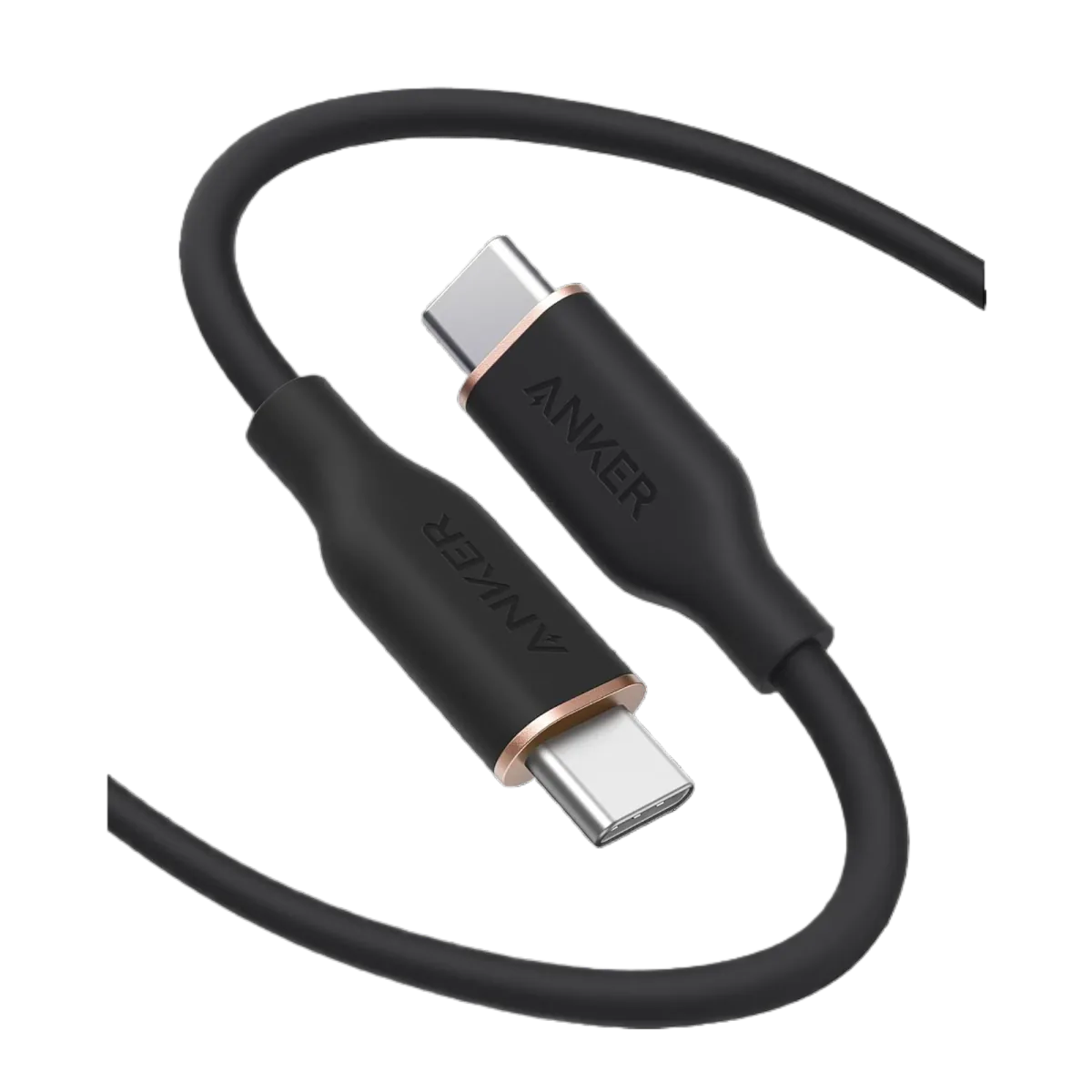
| 5. Change Cable | Use a certified USB-C cable | Uncertified cables may be affected by the update |
| 6. Reset Network | Settings → Reset Network Settings | Fixes charging issues in some cases |
| 7. Check Battery | Battery Health — if below 80% | Battery needs replacement |
Is It the Charger or the Battery? Diagnostic Table
This is the most important table in this article — save it:
| Symptom | Likely Cause | Solution |
|---|---|---|
| Battery drains faster only in first 3 days | ✅ Re-indexing (normal) | Wait 72 hours |
| Slow charging + battery draining | ⚠️ Charger negotiation problem | Change charger or cable |
| Battery drains + Battery Health below 80% | 🔋 Old battery | Replace battery at authorized center |
| One app consuming 40%+ of battery | 📱 Problematic app | Update or reinstall the app |
| Problem persists after 7 days + everything tried | 🔧 Hardware issue | Visit authorized service center |
Settings That Updates Change Behind Your Back
Something most people miss: new updates automatically enable new settings — and these settings consume battery. Check these after every update:
- 📱 Optimized Battery Charging: iOS 18+ and Android 16 stop charging at 80% and complete just before you wake up. After an update, the system relearns your routine — meaning you might find your phone at 80% instead of 100% in the morning until it learns again
- 📊 Charge Limit: iOS 19 lets you set 80%, 85%, or 90% as the maximum charge. This setting may activate automatically after an update — and you think the battery is draining faster when in reality it's simply not charging to 100%
- 🔄 Always-on Display: Some updates automatically enable the always-on display on iPhone 17/16 Pro — consuming 5-10% extra battery daily
- 📡 Background App Refresh: Updates re-enable background refresh for all apps. Go to Settings → General → Background App Refresh and disable for unnecessary apps
- 🔍 Location Services: Many updates reset location permissions to "Always" instead of "While Using." Every app tracking your location 24/7 = faster battery drain
Battery Calibration Drain — What Is It?
After an update, you might see the battery jump from 45% to 20% suddenly, or the phone shuts down at 15%. This doesn't mean the battery is broken — it's calibration.
Phones don't measure charge directly — they use Coulomb Counting (tracking current flow in and out) combined with voltage curve mapping to estimate the percentage. After an update, the algorithm changes and needs one or two full charge cycles (0% → 100%) to map the new curve accurately. During this period, displayed percentages may be inaccurate — but the battery itself is healthy.
The Fix: Charge to 100% and leave it plugged in for an extra 30 minutes, then use normally until it drops to 20% and charge again. After two cycles, the percentages should return to being accurate. And don't intentionally drain to 0% — this stresses lithium cells unnecessarily.
Final Tip — A Compatible Charger Saves You a Lot of Worry
The best way to avoid compatibility issues after updates is to use a charger that supports USB-PD 3.0 or higher with PPS. These protocols are the global standard that Apple and Google build upon — meaning even if an update changes something, the charger will negotiate correctly.
The Anker Nano 30W GaN supports USB-PD 3.0 + PPS — meaning full compatibility with every iOS and Android update. And thanks to GaN technology, its thermal efficiency is 93-95%, meaning less heat and more efficient charging.
The point isn't to buy the most expensive charger — it's to buy a charger that speaks the same language your phone speaks. And in 2026, that language is called USB-PD + PPS.
✅ Compatible Chargers at CairoVolt
Anker GaN chargers support USB-PD 3.0 + PPS — fully compatible with every iOS and Android update without issues. Genuine, with CairoVolt's written store warranty (duration shown on each product page) + delivery to all governorates + WhatsApp support.

CairoVolt Editorial Team
Content team reviewing specifications and buying guides
The CairoVolt team reviews model numbers, specifications, and compatibility, and updates information when better data is available. Estimates are labeled as calculations, and readers can report information that needs correction.
Frequently Asked Questions
How many days should I wait after an update before worrying about battery?▼
How do I know if my charger is charging at the correct speed after an update?▼
Can an update permanently damage my battery?▼
Should I downgrade to the old OS version to fix battery drain?▼
Ready to Buy?
Browse available products and review specifications and CairoVolt warranty terms before ordering
Related products
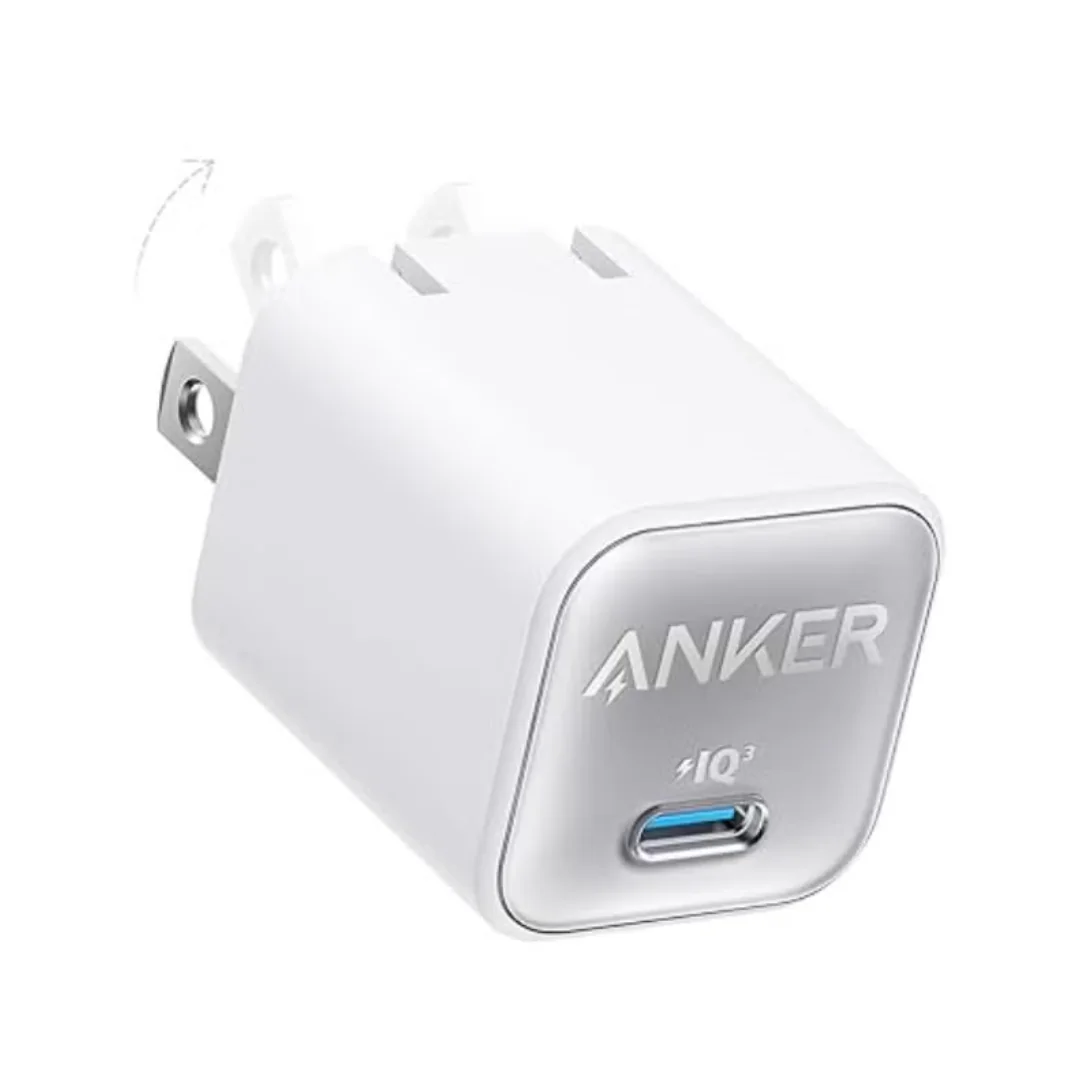
Anker 511 Nano 3 GaN Charger 30W (A2147) | USB-C PD | IQ3
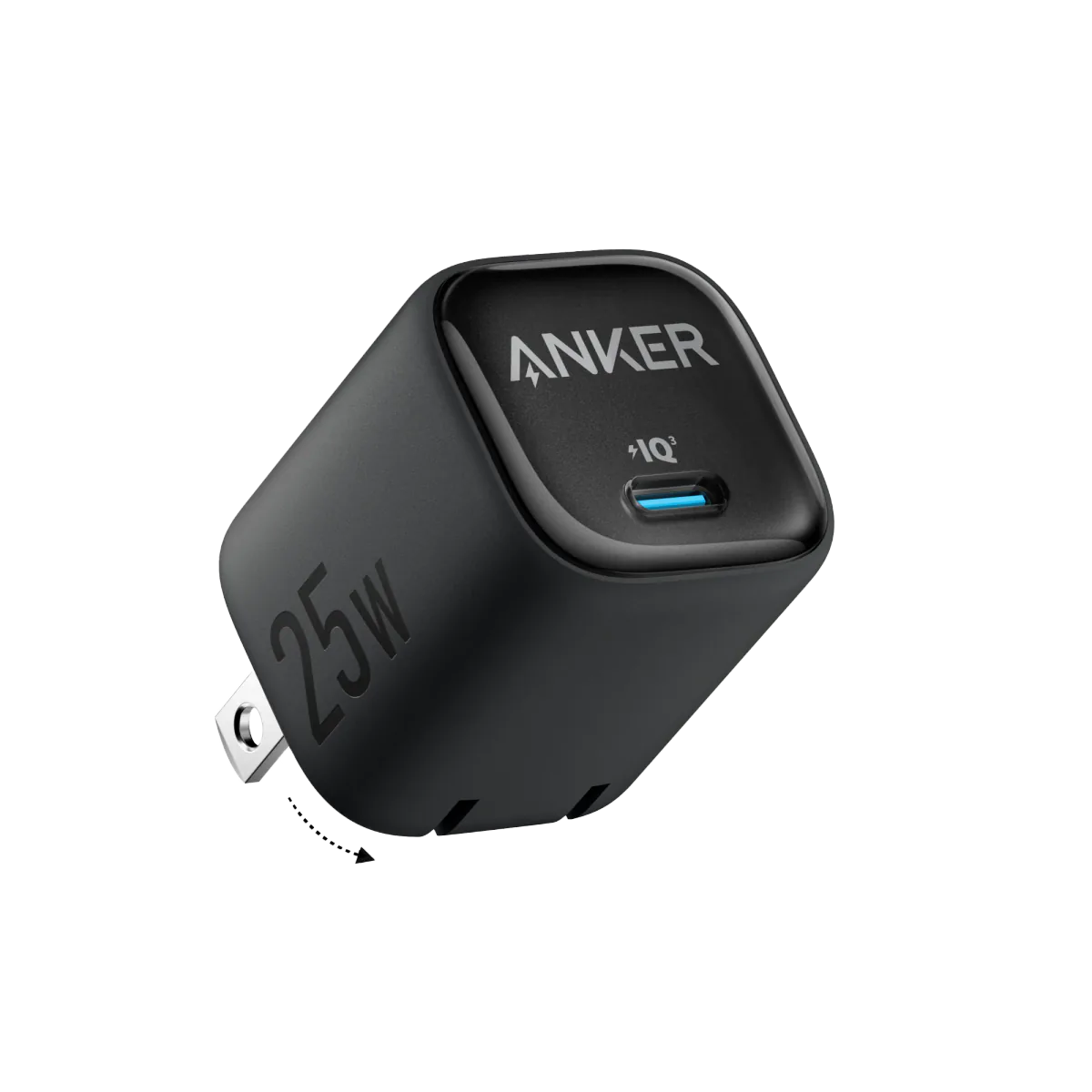
Anker 25W PPS Charger (A2656111) | Samsung-Compatible USB-C PD
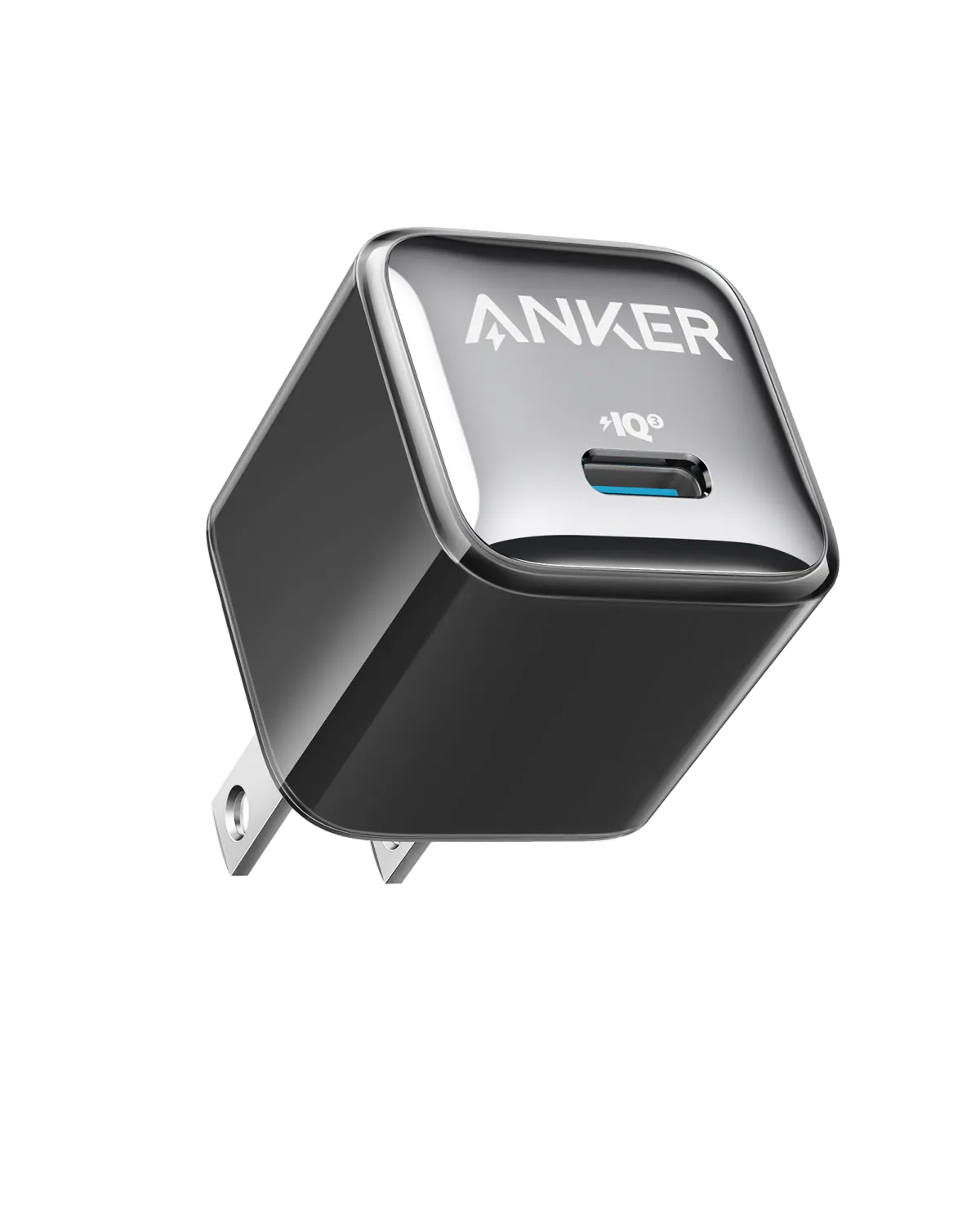
Anker A2347K11 20W USB-C PD Charger | Check Device Profile and Plug
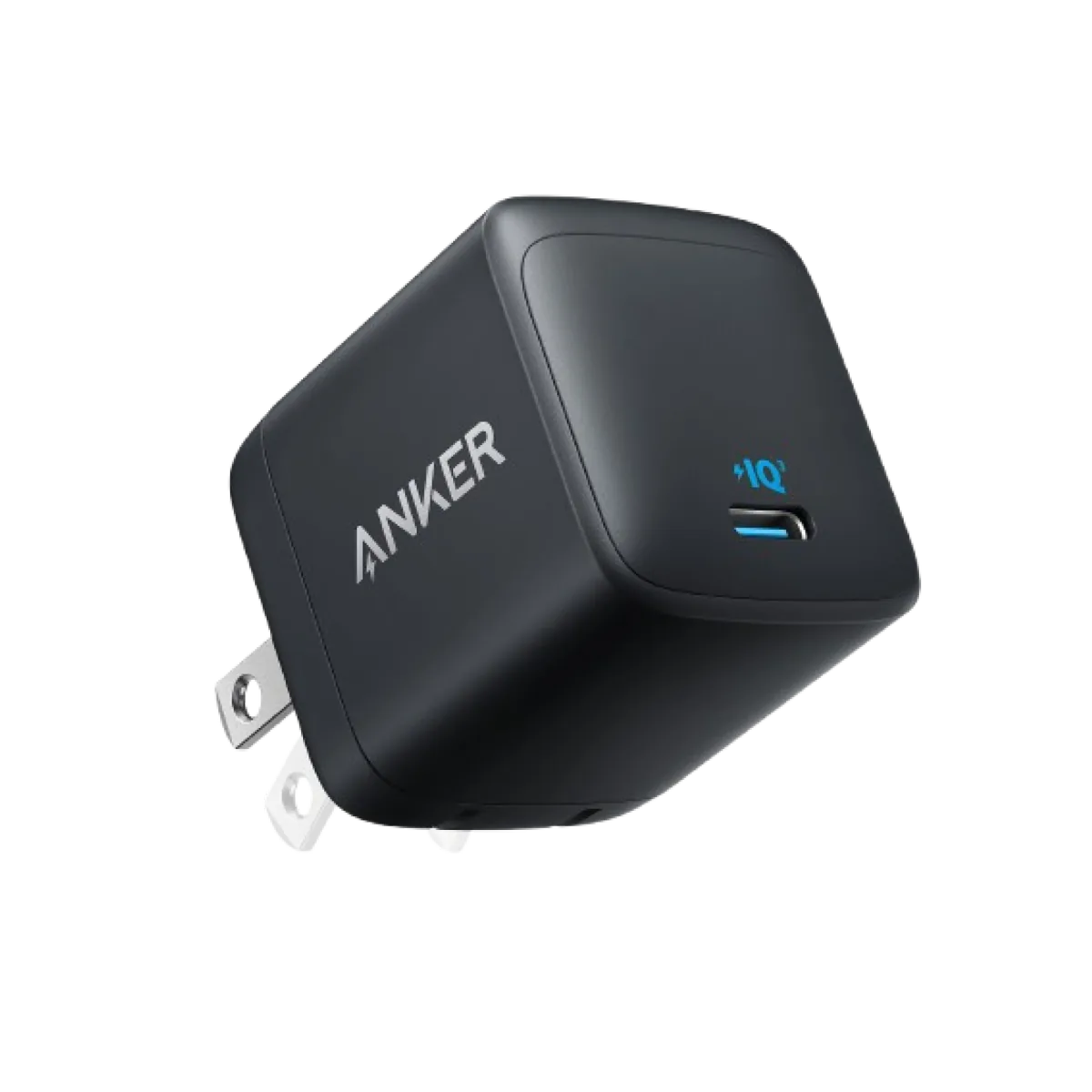
Anker Nano 45W GaN USB-C Charger | MacBook Air + iPhone 17
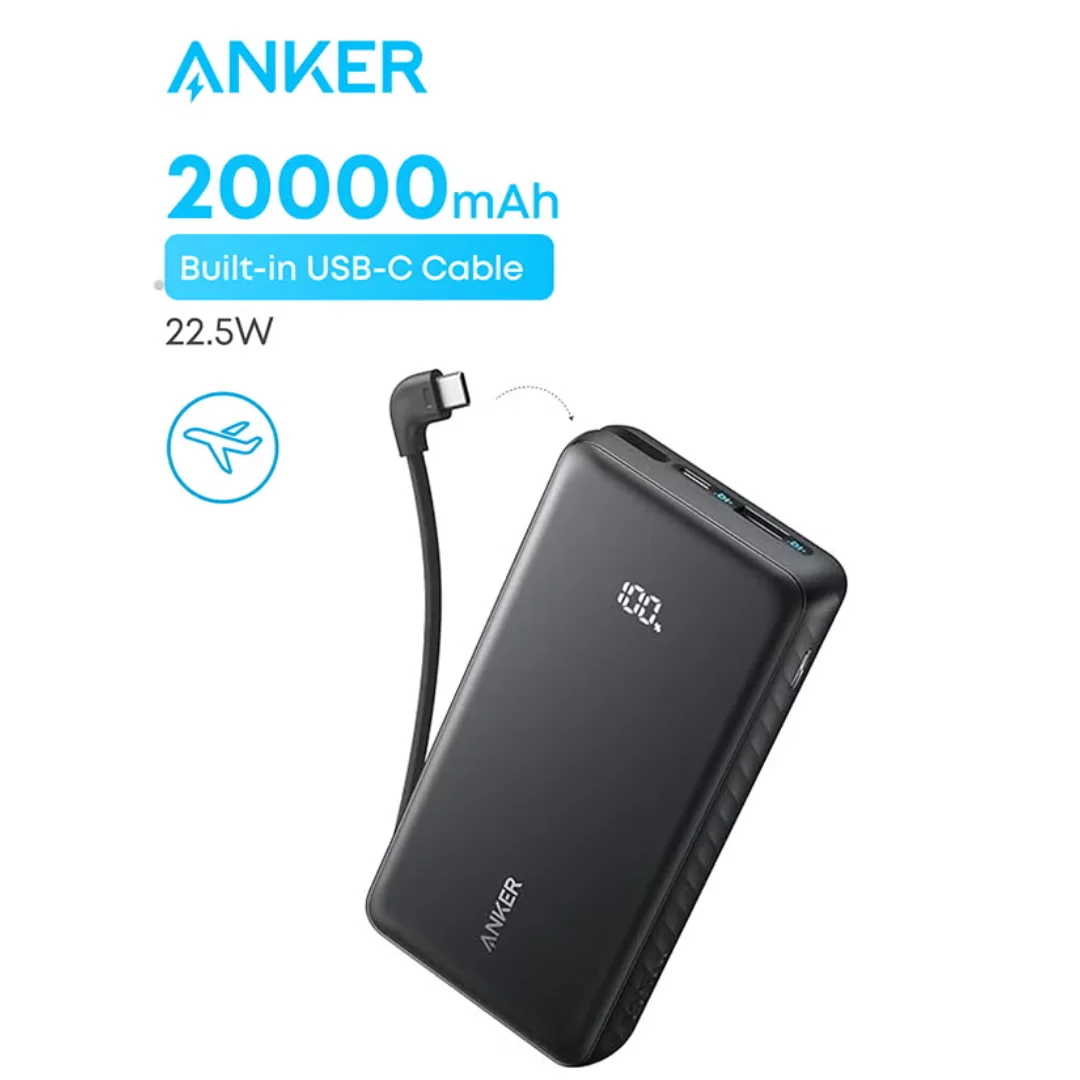
Anker ZOLO Power Bank 20,000mAh (22.5W) | Built-in Cable