 CairoVolt Team
Earbuds Not Connecting to Android? Factory Reset Guide and Bluetooth Fix for Soundcore Liberty
Soundcore Liberty earbuds not connecting to your Android phone, or the Soundcore app keeps saying "Device Not Found"? This step-by-step guide covers factory reset procedures for Liberty Air 2 Pro, Liberty 4 NC, and Liberty 4 Pro — plus the most common Bluetooth fixes that actually work.
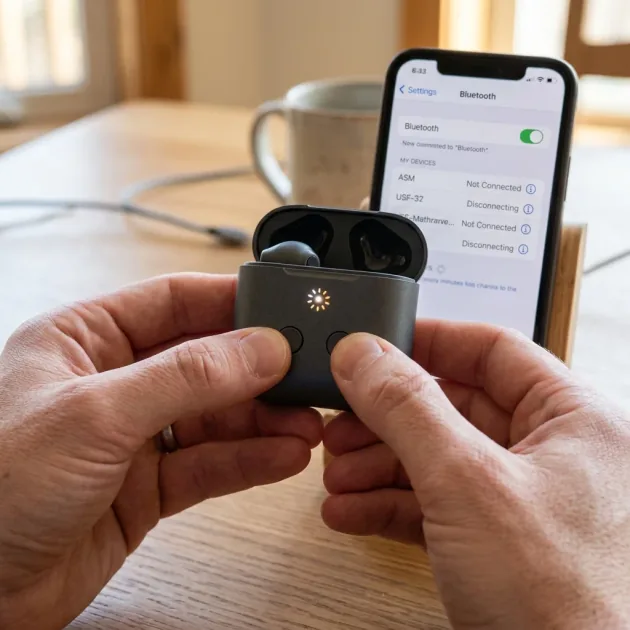
Quick Take: To factory reset Liberty earbuds: remove from case, press and hold both touch panels for 8 seconds until LED flashes red and white. Then Forget the device in your phone's Bluetooth settings and re-pair fresh. If issues persist, clear the Bluetooth app cache in Android settings (Apps > System Apps > Bluetooth > Storage > Clear Cache).
One of the most common support questions we receive at CairoVolt: "My Liberty earbuds connected once and now they won't pair again" or "The Soundcore app says Device Not Found but I can see the earbuds in Bluetooth." These issues are widespread on Android and in the vast majority of cases, the fix requires no hardware repair — just a few targeted software steps in the right order.
Follow this sequence: (1) Factory reset the earbuds first. (2) Forget the device in phone Bluetooth settings and re-pair. (3) If still failing: clear Android Bluetooth cache. (4) If app can't find earbuds: put earbuds in pairing mode before opening the app. (5) If all else fails: contact CairoVolt support.
Step 1 — Factory Reset Your Liberty Earbuds (Air 2 Pro / 4 NC / 4 Pro)
The reset procedure is similar across Liberty models with minor variations. Both methods below work — Method 1 is generally more reliable.
Method 1 — Reset via Earbud Touch Panels (Recommended)
- Remove both earbuds from the charging case and place them in your ears or on a flat surface.
- Press and hold the touch panel on both earbuds simultaneously — both at the same time, not one after the other.
- Hold for exactly 8 seconds without releasing.
- The LED will flash red and white — this confirms the reset completed successfully.
- The earbuds will automatically enter pairing mode (discoverable) after the reset.
Important Warning: If your earbuds have a suspected hardware issue (no sound in one ear from the start, charging not working at all, physical damage), do not attempt a factory reset as your first move. Contact CairoVolt first to confirm the issue is software-related and that a reset won't affect your warranty claim.
Method 2 — Reset via Charging Case Button
- Place both earbuds inside the charging case with the lid open.
- Press the case button 3 times quickly in rapid succession (all 3 presses within about one second).
- The case LED will flash, signaling the reset.
- Open the lid — the earbuds will now be in fresh pairing mode.
Method 2 works well with Liberty Air 2 Pro. For Liberty 4 NC and Liberty 4 Pro, Method 1 (direct touch panel hold) is more consistently reliable.
Step 2 — Forget and Re-Pair on Your Phone
After the reset, there's a critical step that many users skip — and it's the most common reason problems return after a reset:
- Open your phone's Settings → Bluetooth.
- Find your Liberty earbuds in the list of previously paired devices.
- Tap the gear icon (⚙️) or the ⓘ info button next to the device name.
- Select "Forget Device" — not just "Disconnect." A full forget, not a temporary disconnect.
- Search for the earbuds again in Bluetooth and pair them fresh as a new device.
Why "Forget" and not just "Disconnect"? Your phone stores a pairing profile for every connected device. After a factory reset, the earbuds are essentially new devices with a fresh identity. If the phone tries to reconnect using the old profile, the handshake fails or becomes unstable. Forgetting forces a clean profile creation from scratch.
Step 3 — Fix Android Bluetooth Cache (Most Common Root Cause)
The single most common cause of persistent Bluetooth disconnections on Android isn't the earbuds — it's corrupted Bluetooth cache data on the phone itself. Android accumulates pairing and connection data in a temporary cache, and when that cache becomes corrupted or bloated, Bluetooth behaves erratically across all devices, not just Soundcore earbuds.
How to Clear Bluetooth Cache on Android
- Open Settings on your Android phone.
- Go to Apps (or Apps & Notifications, depending on your Android version).
- Tap the three-dot menu or a "See All" option and enable "Show System Apps".
- Find Bluetooth in the app list (it may also appear as "com.android.bluetooth").
- Tap it, then go to Storage.
- Tap Clear Cache — NOT Clear Data (Clear Data removes all paired device information).
- Restart your phone, then re-pair the earbuds.
| Phone Brand | Navigation Path |
|---|---|
| Samsung Galaxy | Settings → Apps → Three dots → System apps → Bluetooth → Storage → Clear Cache |
| Xiaomi / Redmi | Settings → Installed Apps → Three dots → Show system apps → Bluetooth → Clear Cache |
| Google Pixel | Settings → Apps → See all apps → Three dots → Show system → Bluetooth → Storage & Cache |
| Oppo / Realme | Settings → App Management → System apps → Bluetooth → Storage info → Clear Cache |
Cleaning Charging Contacts to Fix Single Earbud Disconnections
Very often, users complain that one earbud completely refuses to connect or fails to trigger pairing mode. In many of these cases, the root cause is the accumulation of sweat, dust, or skin oil on the gold-plated charging pins at the bottom of the earbud stems or inside the charging case. When charging is blocked, the earbud cannot sense it is in the case, so it never restarts its system controller. To fix this:
- Take a clean cotton swab and dampen it with a tiny drop of Isopropyl Alcohol.
- Gently clean the gold contacts on the earbud stem.
- Carefully wipe the spring pins inside the charging case without applying heavy pressure.
- Let it dry completely for 60 seconds before testing the factory reset again.
Bluetooth Signal Interference and Version Compatibility in Egypt
Egyptian streets and public transport terminals are saturated with radio signals from cell towers, Wi-Fi networks, and active Bluetooth devices. If your phone supports Bluetooth 5.0 and your earbuds use Bluetooth 5.3, this version difference can sometimes lead to micro-stutters in crowded areas. To maximize stability, we recommend temporarily turning off Wi-Fi on your phone when walking outdoors, and keeping your phone's operating system updated to ensure optimal performance with the Soundcore wireless chipset.
Step 4 — Fix Codec Mismatch (Audio Keeps Cutting Out After Connection)
If your earbuds connect successfully but audio cuts out repeatedly after a few seconds or minutes, the issue is likely a codec negotiation conflict. Your phone is attempting to use one codec while the earbuds are struggling to maintain a stable stream at that codec's demands — this is especially common with AAC on some Android builds.
Quick Fix: Force your phone to use SBC codec instead of AAC. SBC is not the highest quality codec, but it is the most universally stable. If the audio cutouts stop after switching to SBC, the codec mismatch was the cause.
How to Force SBC Codec on Android
- Enable Developer Options: Settings → About Phone → tap Build Number 7 times until you see "You are now a developer."
- Go back to main Settings → Developer Options (usually near the bottom of the list).
- Find Bluetooth Audio Codec.
- Select SBC.
- Disconnect and reconnect your earbuds, then test for audio cutouts.
If SBC solves the problem, the codec was the issue. You can try switching back to AAC later (especially after a phone OS update or earbuds firmware update) to see if the conflict has been resolved in a newer version.
Step 5 — Fix Soundcore App "Device Not Found" Error
This error appears when the Soundcore app can't establish a management connection to the earbuds, even if the earbuds show as connected in the phone's Bluetooth settings. The Soundcore app needs a specific type of connection beyond basic audio pairing.
- Make sure the earbuds are in active pairing mode — not just connected. The Soundcore app sometimes needs to discover the earbuds while they're advertising for a new connection, not while they're already in a stable paired state.
- Open the Soundcore app and go to your device list. If the earbuds appear there, tap them and select "Forget Device" from within the app (separate from the phone's Bluetooth forget).
- Also forget the device in the phone's Bluetooth settings (Settings → Bluetooth → Forget).
- Factory reset the earbuds using the steps in Step 1.
- Open the Soundcore app while the earbuds are in pairing mode — they should appear under "Available Devices."
- Connect through the app directly rather than through the phone's Bluetooth settings. This establishes the full app-to-device management link correctly.
Troubleshooting Decision Table
| Symptom | Start Here | If Still Failing |
|---|---|---|
| Earbuds not appearing in Bluetooth scan | Reset + Forget + re-pair | Clear Bluetooth cache on phone |
| Audio cuts out repeatedly after connecting | Switch codec to SBC in Developer Options | Reset + re-pair + clear BT cache |
| Soundcore app shows "Device Not Found" | Put earbuds in pairing mode, connect via app | Full reset + Forget in both app and phone BT |
| Only one earbud producing sound | Reset + disconnect both and re-pair together | Clean case charging pins |
| Earbuds connect but no audio output | Check volume on both phone and earbuds | Reset + re-pair + clear BT cache |
When to Escalate to Warranty Support
The steps in this guide resolve the majority of Liberty connectivity issues. If you've worked through every step — factory reset, Forget and re-pair, Bluetooth cache clear, codec change — and the problem persists, the remaining possibilities are hardware-level:
- Damaged Bluetooth chipset from impact or moisture exposure.
- Charging case or earbud contact point damage preventing proper reset.
- A firmware bug that requires an official Soundcore update to resolve.
Before bringing earbuds in for service: If your earbuds are within the warranty period and you have your purchase receipt, contact CairoVolt first and do not attempt to open or repair the earbuds elsewhere. Opening or repairing the earbuds elsewhere voids CairoVolt's written store warranty. CairoVolt is an independent store, and its written warranty (duration shown on each product page) is handled by us directly.
The Soundcore Egypt 2026 buying guide has more information about warranty terms and service procedures. For direct support, visit the CairoVolt website or reach out through our social channels — we respond to all technical inquiries as quickly as possible.
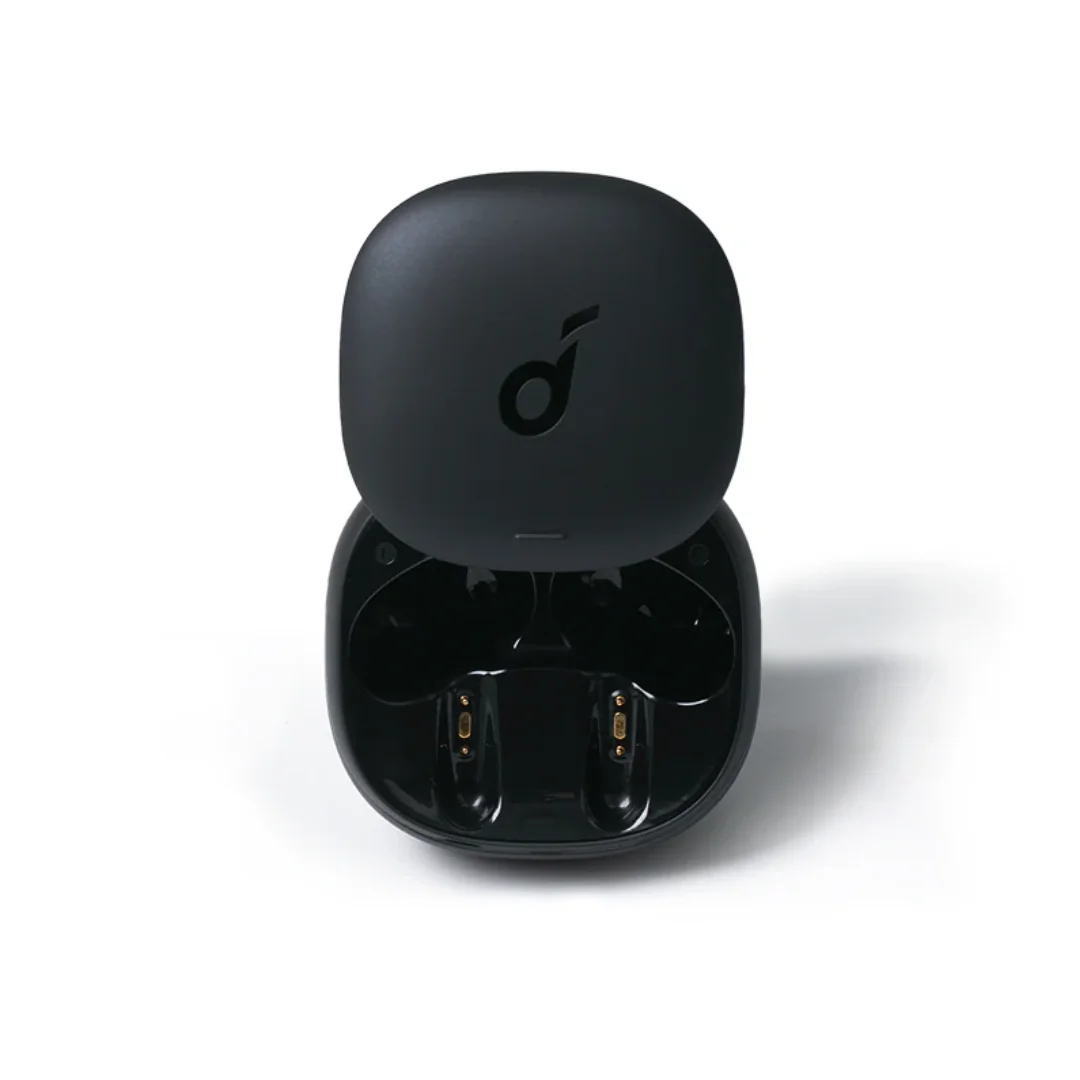
Additionally, the earbud charging cases vary significantly in size. The Liberty Buds case is the most pocketable and compact, fitting easily into coin pockets. The Liberty 4 NC features a unique button-release mechanism that pops the lid open smoothly, while the Liberty 4 Pro case features a glossy premium finish and a slide-to-open gesture sensor that gives it a futuristic feel. This variety allows buyers to prioritize pocketability, ease of access, or premium aesthetics.
CairoVolt Team
Tech Editor
Frequently Asked Questions
How do I factory reset the Soundcore Liberty Air 2 Pro?▼
Why do my Soundcore Liberty earbuds keep disconnecting from Android?▼
The Soundcore app says "Device Not Found" but the earbuds show in Bluetooth — how do I fix this?▼
When should I contact warranty support instead of troubleshooting myself?▼
Ready to Buy?
Browse available products and review specifications and CairoVolt warranty terms before ordering
Related products
Soundcore Liberty Air 2 Pro | LDAC Hi-Res | ANC | 11mm PureNote | Qi | HearID | 26h
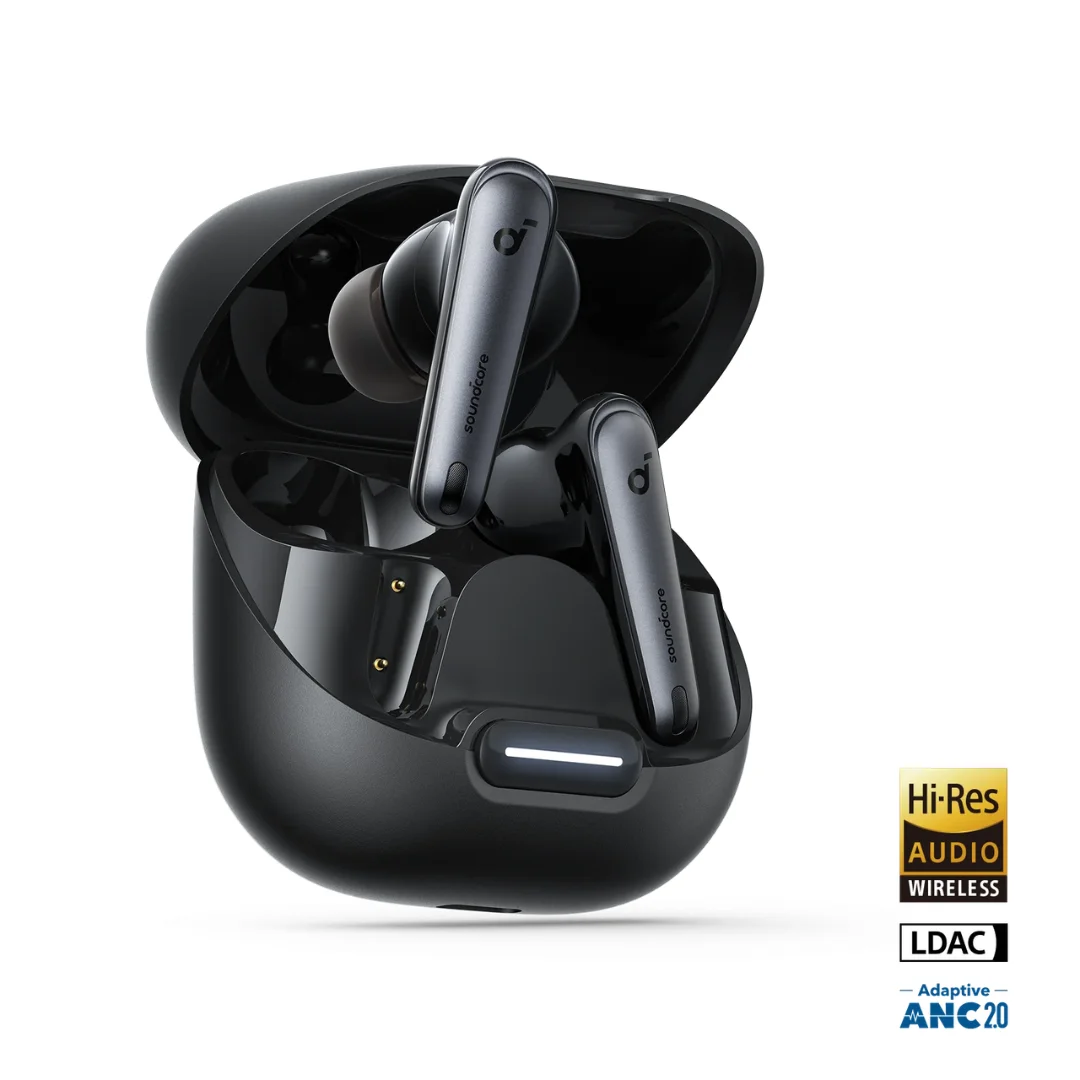
Soundcore Liberty 4 NC | Manufacturer-Listed Adaptive ANC | 11mm | LDAC | Up to 50h
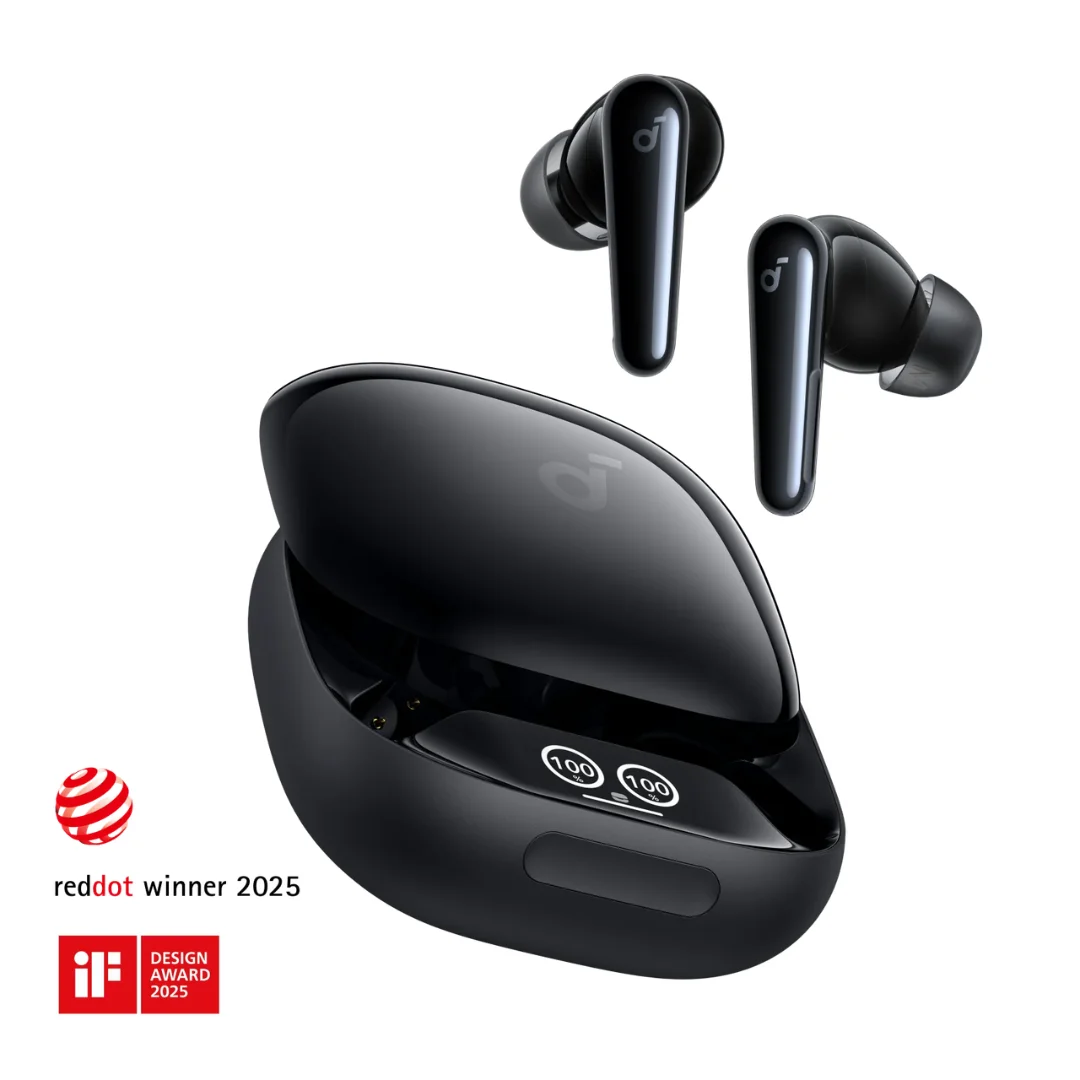
Soundcore Liberty 4 Pro | ACAA Dual Driver | Adaptive ANC 3.0 | Smart Case | LDAC | 40h
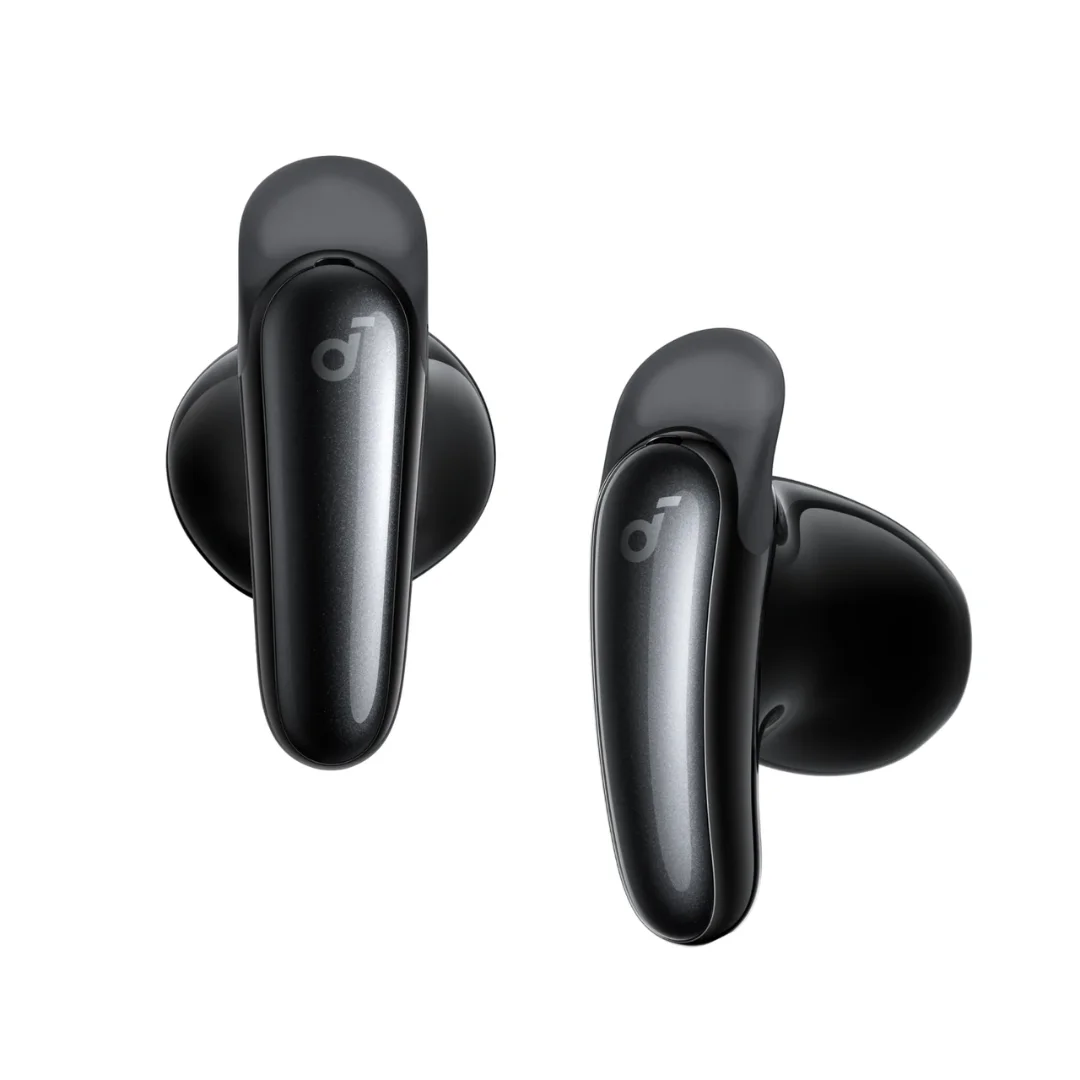
Soundcore Liberty Buds | Semi-In-Ear | ANC 3.0 | 11mm LDAC | BT 6.1 | 30h
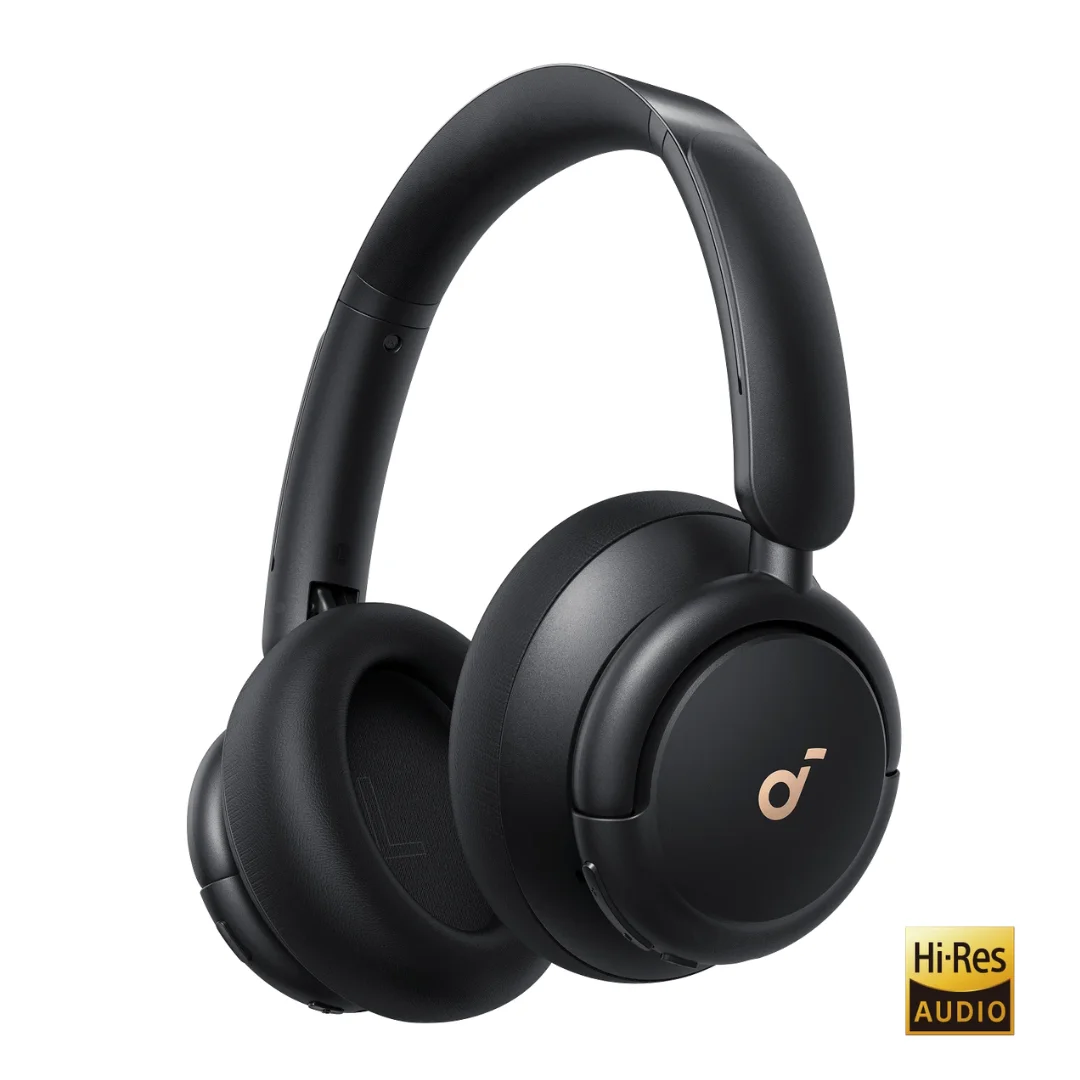
Soundcore Life Q30 | Hybrid ANC 3 Modes | 40mm Silk Driver | 40h ANC / 60h Off | Foldable